Note
Access to this page requires authorization. You can try signing in or changing directories.
Access to this page requires authorization. You can try changing directories.
Object explorer in the PostgreSQL extension for Visual Studio Code provides a tree view of your PostgreSQL servers, databases, schemas, and individual database objects. You can browse tables, views, functions, and other objects, search across schemas, and generate SQL scripts, all without leaving the editor.
Tip
Use the object explorer for object navigation, search, and script generation. If you want a visual diagram of table relationships, open Schema visualizer.
Open Object explorer
Select the PostgreSQL icon in the Activity Bar to open the PostgreSQL view. You can also press Ctrl+Alt+D (Windows/Linux) or Cmd+Alt+D (macOS).
The view contains the Connections section, which displays your servers in a collapsible tree. Connected servers show a green icon; disconnected servers show a red icon. If no connections exist, an Add Connection node appears to help you get started.
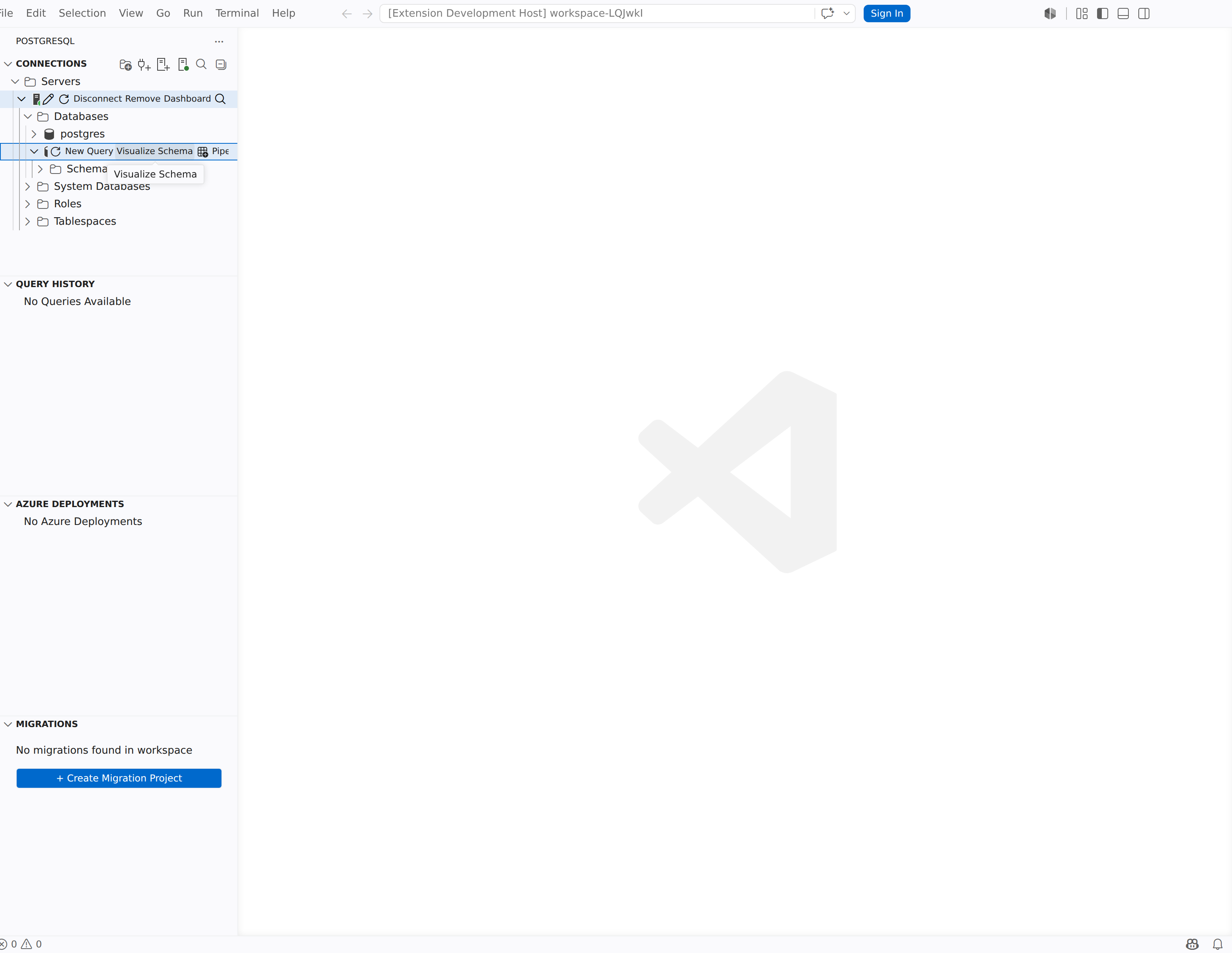
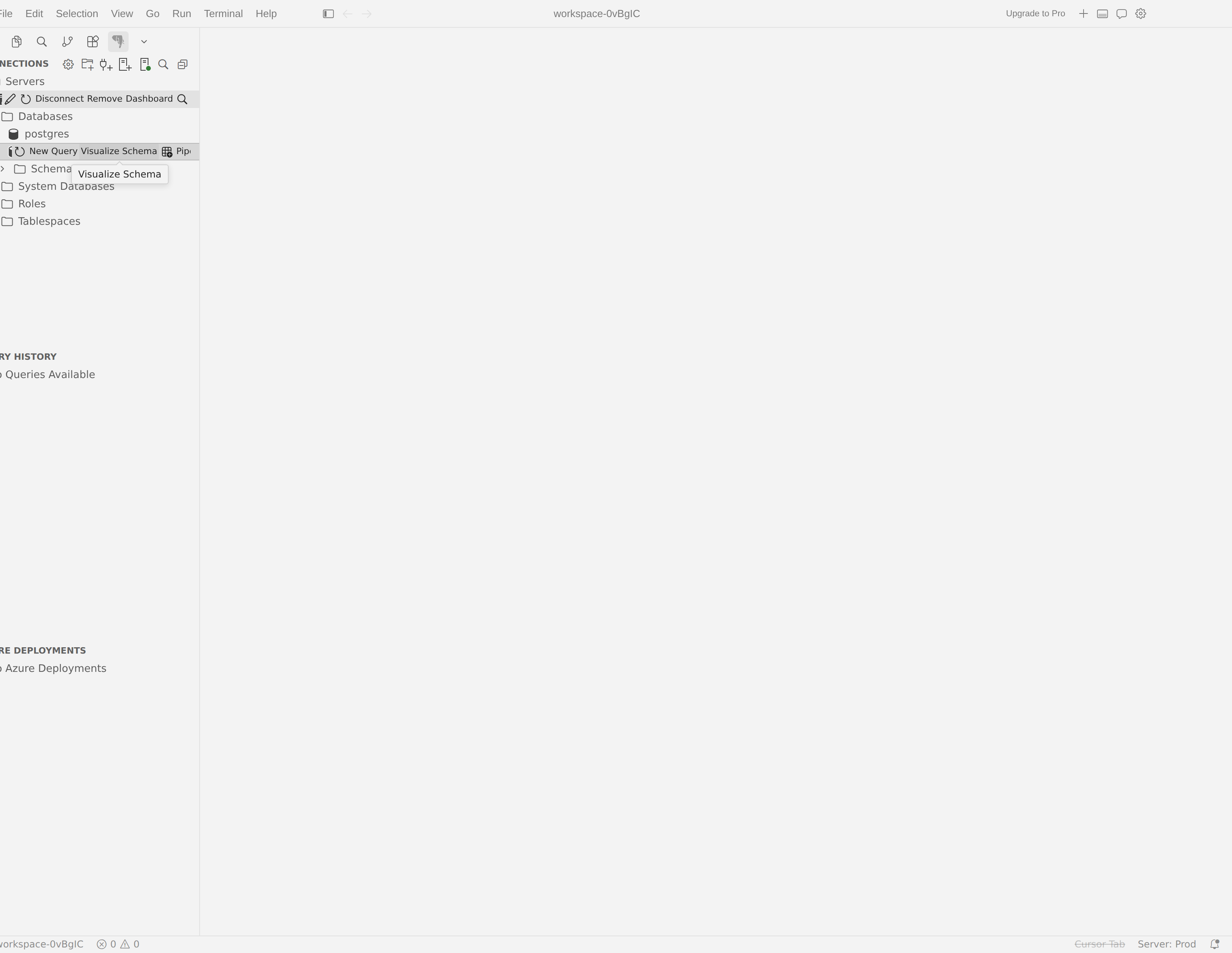
Tree hierarchy
Object explorer organizes database objects in a consistent hierarchy:
Server → Database → Schema → Object collections
By default, objects are grouped by schema. Under each schema you find collection folders such as:
- Tables: expand a table to see its Columns, Keys, Indexes, Constraints, and Triggers
- Views
- Stored Procedures
- Functions: includes scalar-valued, table-valued, and aggregate functions in separate folders
- Sequences
- Types: user-defined types and user-defined table types
The exact set of collection folders depends on the objects present in the database and is populated by the backend tools service.
Expand any collection folder to see individual objects. For tables, you can drill further into columns, keys (primary, foreign, unique), indexes, constraints, and triggers.
Note
The pgsql.objectExplorer.expandTimeout setting controls how long the extension waits when expanding a node. The default is 45 seconds. Increase this value if you work with large schemas that take longer to load.
Group by schema
When the pgsql.objectExplorer.groupBySchema setting is enabled (the default), database objects appear under their schema node. To toggle this behavior:
- Open the Command Palette (Ctrl+Shift+P / Cmd+Shift+P).
- Run Enable Group By Schema or Disable Group By Schema.
When you disable group-by-schema, object collection folders appear directly under the database node instead of under individual schemas.
Connect and manage servers
You manage server connections directly from the Connections tree. The toolbar at the top of the Connections section and the right-click context menus provide the following actions.
Toolbar actions
| Button | Command | Description |
|---|---|---|
| + | Add New Connection | Opens the connection dialog to add an existing PostgreSQL server. |
| Server icon | Create New Server | Opens a creation hub where you can deploy a new Azure Database for PostgreSQL flexible server or create a Docker-based server. |
| Folder icon | Create Server Group | Creates a new server group to organize your connections. |
| Filter icon | Only show connected servers / Show connected & disconnected servers | Toggles visibility of disconnected servers in the tree. |
| Search icon | Search Objects | Opens the search panel. |
Server context menu
Right-click a server node to access these commands:
- Search Objects: opens the search panel scoped to this server.
- Edit Connection: reopens the connection dialog with the saved settings for this server.
- Disconnect: closes the active connection. The server stays in the tree with a red icon so you can reconnect later.
- Remove: deletes the server entry from the Connections tree entirely.
- Refresh: reloads the server's child nodes. Use this after schema changes made outside VS Code.
Note
Disconnect appears only on connected servers. Remove is available on both connected and disconnected servers.
Database context menu
Right-click a database node to access:
- New Query: opens a query editor already connected to this database.
- Connect with PSQL: opens an integrated terminal session connected to this database with
psql. See Use psql in the terminal for details. - Visualize Schema: opens the Schema visualizer for this database.
- Search Objects: opens the search panel scoped to this database.
Right-click a schema node to access Visualize Schema (scoped to that schema) and Search Objects.
Server groups
Server groups let you organize connections into named folders. This is useful when you work with many servers across different environments or teams.
- Select the folder icon (Create Server Group) in the Connections toolbar, or open the Command Palette and run PGSQL: Create Server Group.
- Enter a name, optional description, and color for the group.
- Select OK.
The group appears as a folder in the Connections tree. You can drag server nodes into the group to reorganize them. To modify a group, right-click it and select Edit Server Group. To delete a group, right-click and select Remove.
Right-click a server group to add connections directly to that group with Add New Connection or Create New Server.
Search objects
When you need to locate a specific object in a large database, use the built-in search instead of manually expanding tree nodes.
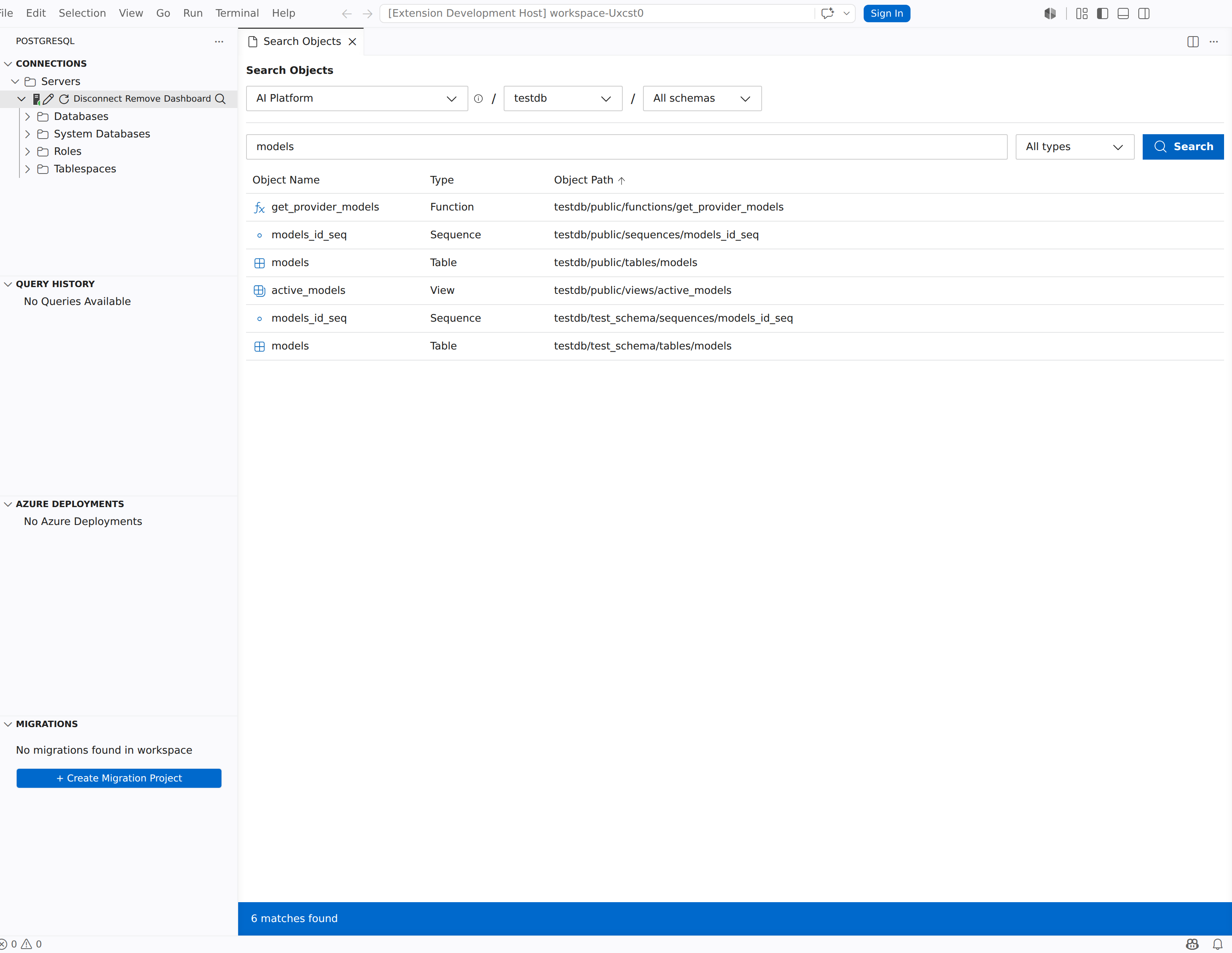
Open the search panel by selecting the search icon in the Connections toolbar. You can also right-click a server, database, or schema node and select Search Objects to pre-populate the scope.
The search panel provides the following controls:
| Control | Description |
|---|---|
| Select connection | Choose which server connection to search against. The dropdown list shows connection status (Connected / Disconnected) and details such as host, port, and user. |
| Select database | Choose which database to search within. |
| All schemas | Narrow results to a specific schema, or leave set to All schemas to search everywhere. |
| All types | Filter by object type. Choose any combination of types such as Table, View, Function, Stored Procedure, and Sequence. |
| Search objects... | Enter a substring to match against object names. The search is case-insensitive. |
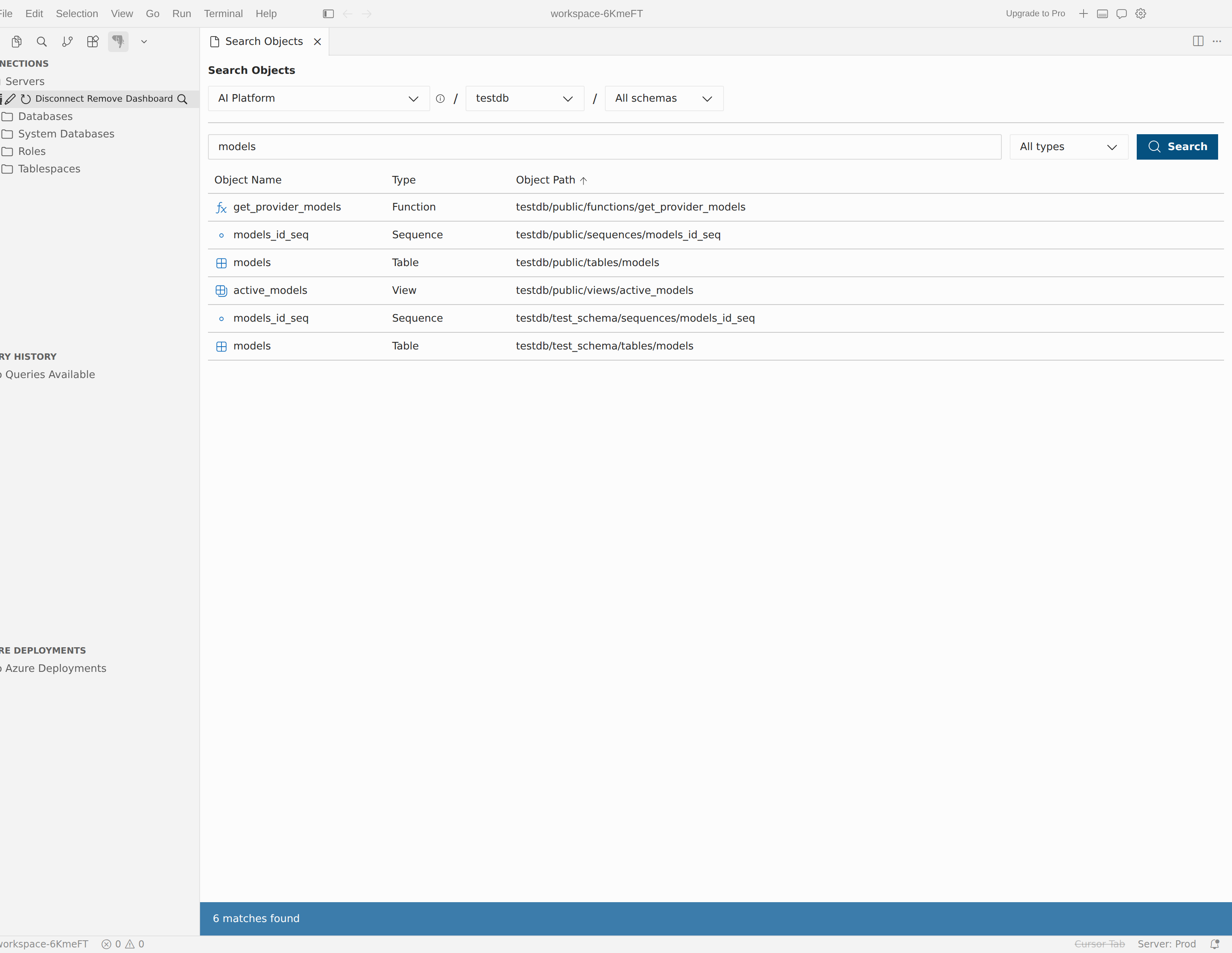
Select Search to run the query. Results display in a grid with Object Name, Type, and Object Path columns. Select a result row to navigate directly to that object in the tree. The Connections tree expands the necessary nodes automatically.
Script database objects
You can generate SQL scripts for database objects directly from the Connections tree. Right-click a scriptable object to access the scripting commands.
| Command | Available on | Generated SQL |
|---|---|---|
| Select Top 1000 | Table, View | SELECT query that returns the first 1,000 rows. |
| Script as Create | Table, View, Schema, Stored Procedure, functions, triggers, indexes, keys, roles, types | Full CREATE DDL statement. |
| Script as Drop | Same as Script as Create | DROP statement for the object. |
| Script as Alter | View, functions, Stored Procedure | ALTER statement for the object. |
| Script as Execute | Stored Procedure | CALL or SELECT statement to execute the routine. |
Each generated script opens in a new query editor tab connected to the same database as the source object. You can review, edit, and run the script immediately.
Tip
Select Top 1000 is the fastest way to preview table data. Right-click the table and select Select Top 1000 to open and run the query in one step.
Copy name
Right-click any non-folder object in the Connections tree and select Copy Name to copy its qualified name to the clipboard. You can also select the node and press Ctrl+C (Windows/Linux) or Cmd+C (macOS).
The copied name uses the [database].schema.[object] bracket notation format, ready to paste into your SQL queries.
New query from Object explorer
Right-click a database node and select New Query to open a query editor that is already connected to that database. The editor inherits the server connection and targets the database you selected, so you can start writing queries immediately.
Filter tree nodes
Some collection folders support filtering to narrow the objects they display. When a node is filterable, right-click it and select Filter to open the filter panel. You can set conditions such as Contains, Starts With, or Equals on object properties, then select OK to apply.
Filtered nodes show (filtered) after their label. To remove a filter, right-click the node and select Clear in the filter panel.
Drag and drop
You can drag server nodes between server groups to reorganize your connections. You can also drag database objects (tables, views, functions, stored procedures) from the Connections tree into a query editor to insert their schema-qualified name as text.