Note
Access to this page requires authorization. You can try signing in or changing directories.
Access to this page requires authorization. You can try changing directories.
The schema visualizer in the PostgreSQL extension opens a webview that maps tables and foreign key relationships for the database you already use in the extension. Use it to understand an unfamiliar schema, confirm how tables relate before you change them, or focus on one schema before you write SQL. The visualizer runs the same way in Visual Studio Code and Cursor.
When to use the schema visualizer
Use the schema visualizer when you need to:
- get a relationship map for a database with many tables,
- focus on one schema without permanently hiding the rest of the database, or
- move from the Connections tree, the server dashboard, or an Agent mode tool workflow into a visual schema view.
Tip
Use the schema visualizer for structure and relationships. When you need object definitions, direct search, or script generation, use Object explorer.
Prerequisites
Before you open the schema visualizer, make sure you have:
- an active connection to the target PostgreSQL database, and
- an AI assistant available in your editor only if you want to open the visualizer from Agent mode.
Open the schema visualizer
Open the full database map
- In the Connections tree, right-click a database node.
- Select Visualize Schema.
- Wait for the Visualize Schema tab to open in the editor.
The visualizer opens a new editor tab and loads the tables, columns, and foreign key relationships for that database.
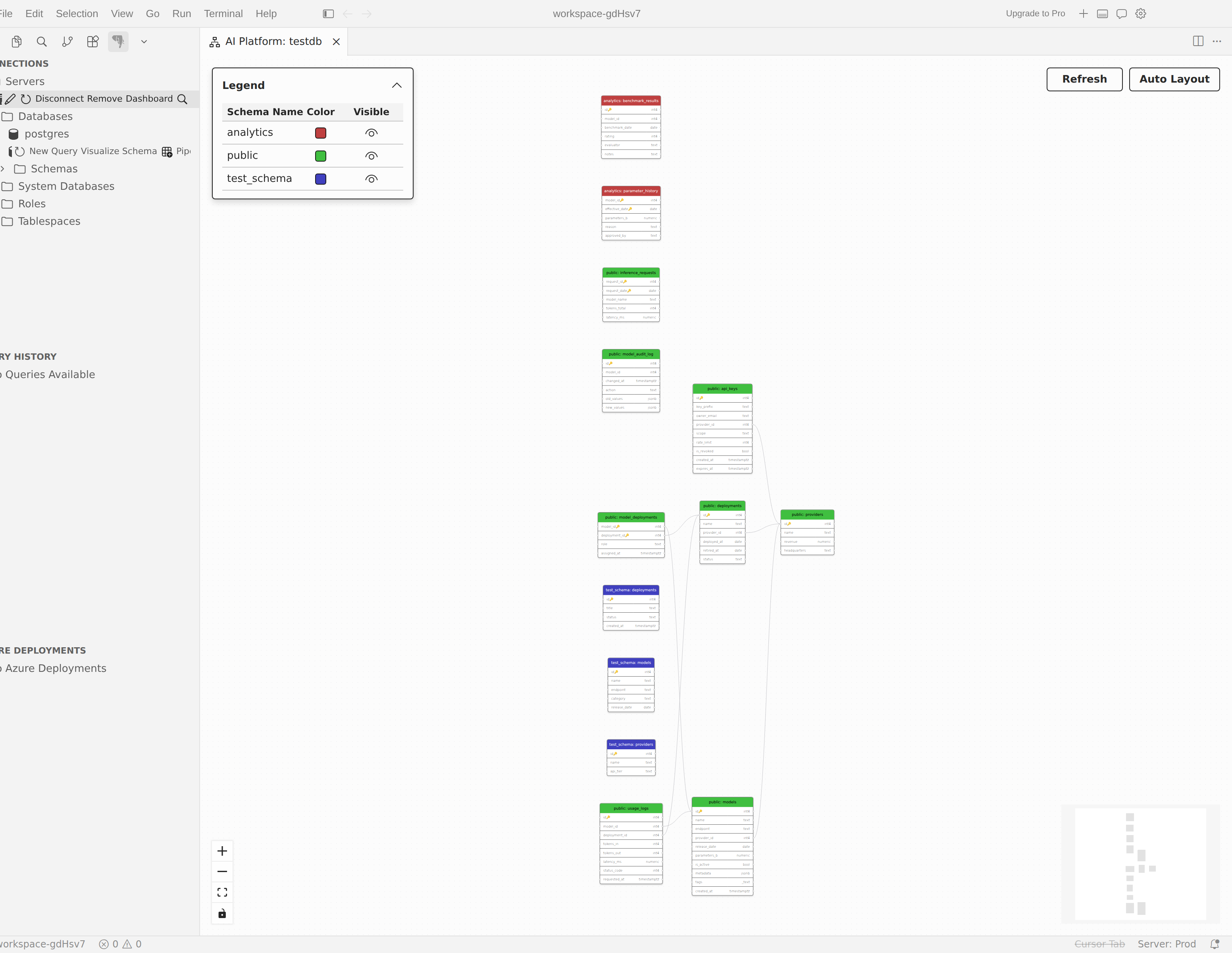
If you already work from Server dashboard, select Visualize schema in the toolbar and then choose the database you want to open.
Focus on one schema
- In the Connections tree, expand the database that contains the schema you want to inspect.
- Right-click the schema node.
- Select Visualize Schema.
The visualizer opens with that schema visible first and the other schemas hidden. Use this path when the full database diagram would be too dense to read on first load.
Open from Agent mode
If you already work in Agent mode, ask the AI assistant to visualize the connected database schema. The extension exposes the pgsql_visualize_schema tool for that workflow, so the AI can open the same schema visualizer without sending you back to the Connections tree first.
Read the diagram
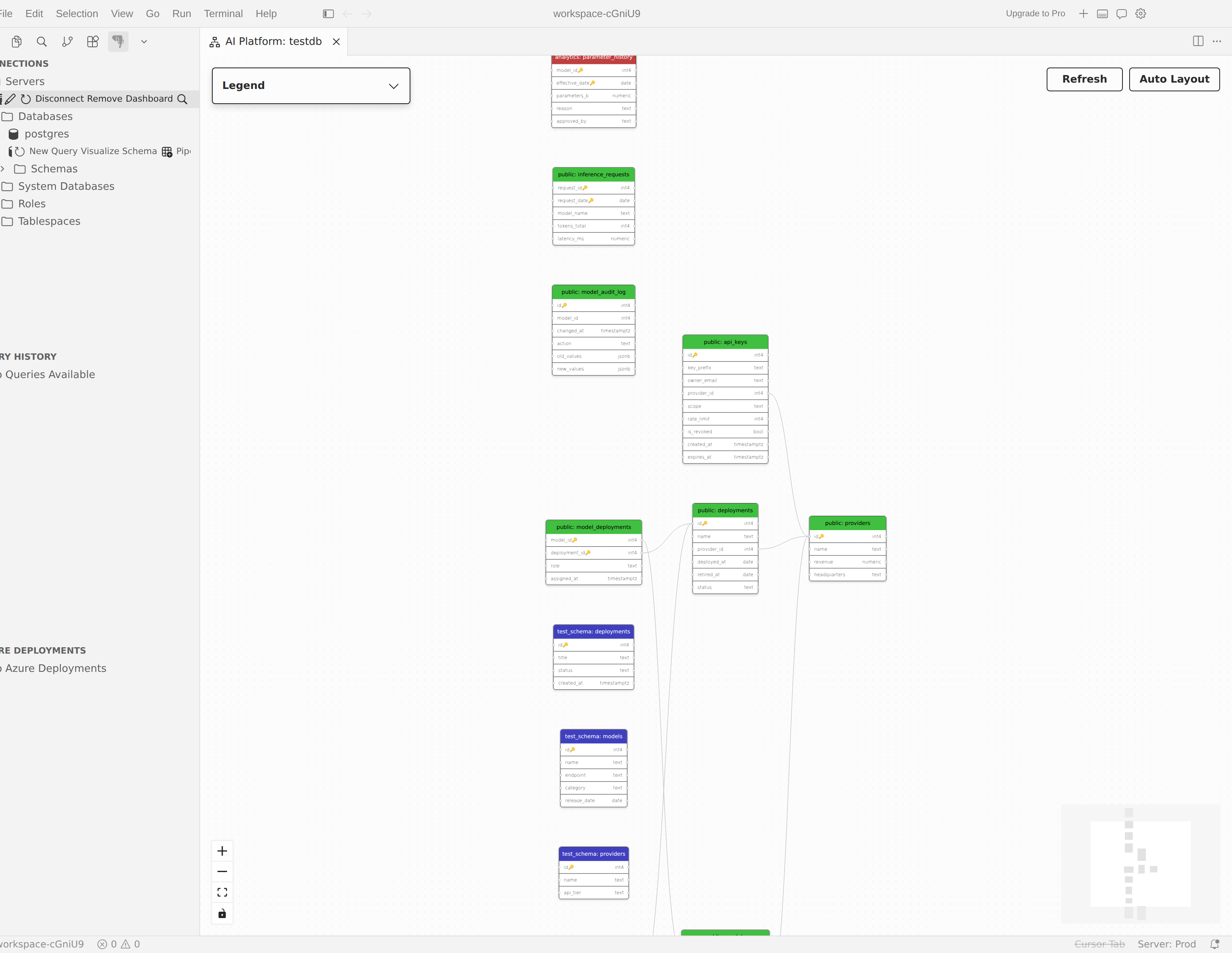
Each table appears as a node on the canvas. The node header shows the schema and table name, and the body lists the table's columns with their data types. Primary key columns include a key indicator so you can identify them quickly.
Relationship lines connect foreign key columns to the referenced columns on related tables. Follow those lines when you need to understand join paths, parent-child relationships, or cross-schema dependencies.
Note
The schema visualizer focuses on table relationships. It shows tables and foreign key constraints only. For views, functions, sequences, and object definitions, use Object explorer.
Filter and compare schemas
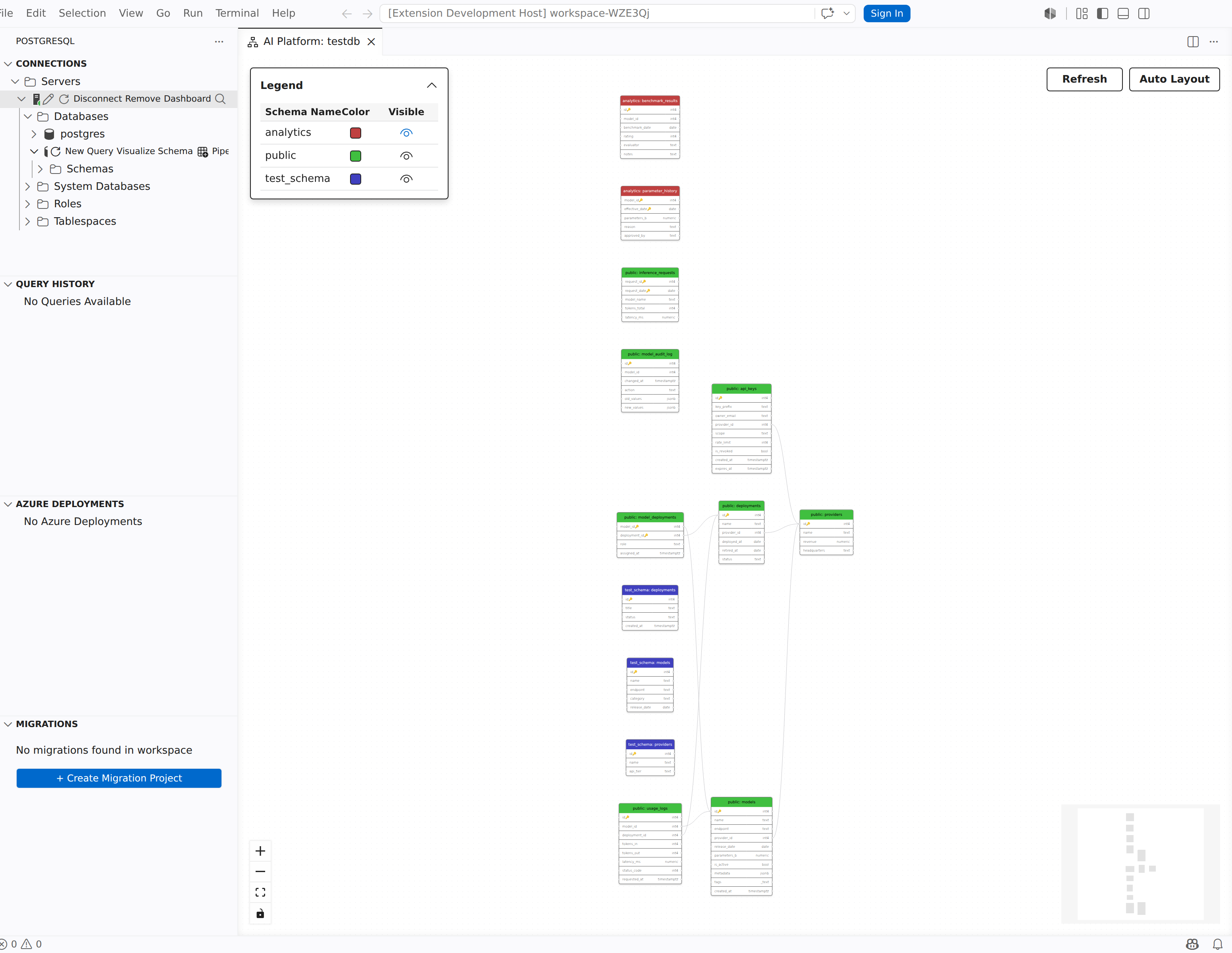
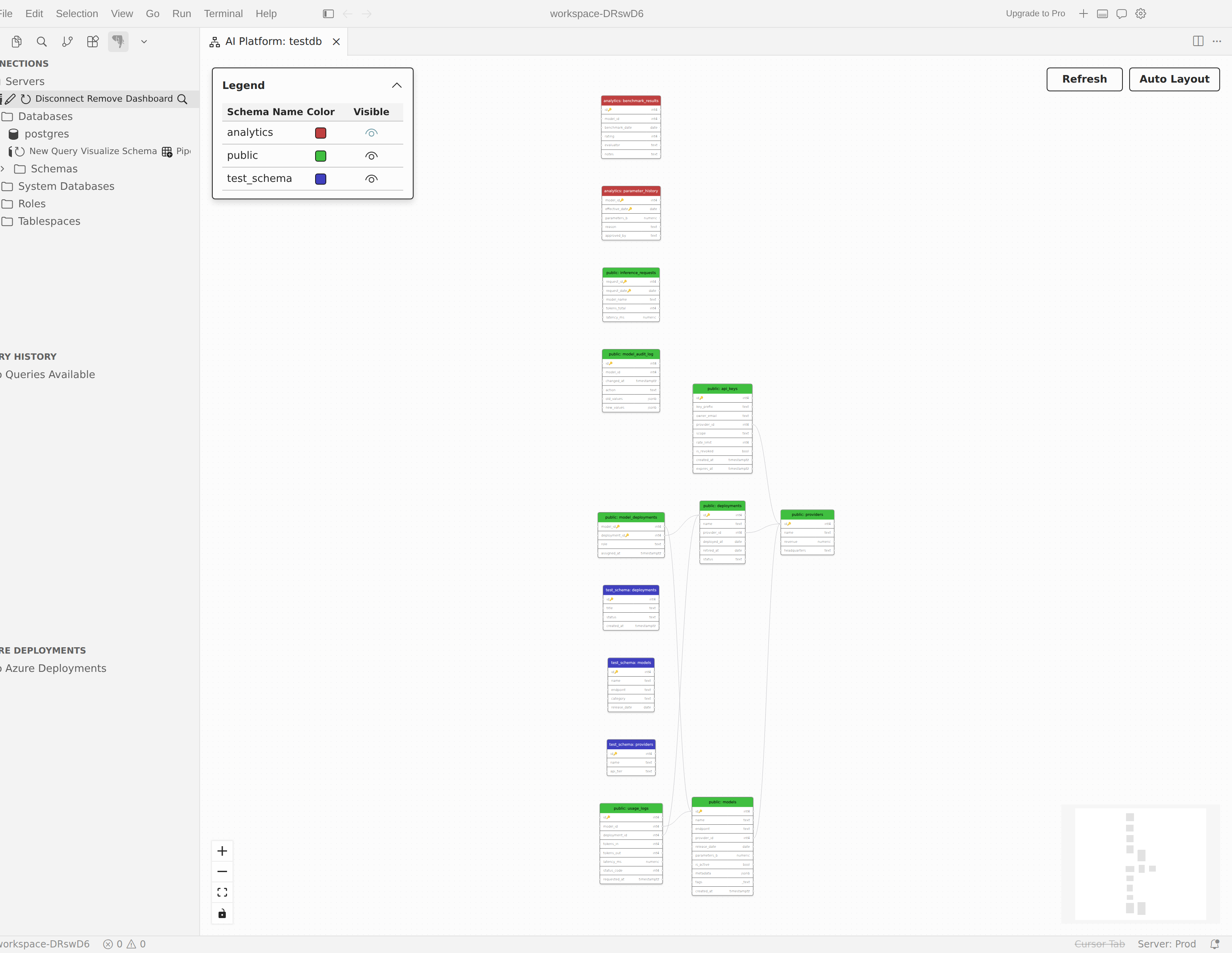
When a database includes multiple schemas, the legend lists each schema with its own color and visibility control. Use the legend to reduce clutter and compare only the parts of the database that matter to the current task.
- In the legend, find the schema you want to hide or restore.
- Use the visibility button for that schema.
- Review the updated diagram.
When you hide a schema, the remaining tables can still show colored indicators for hidden cross-schema relationships. That helps you keep important dependencies in view even when the related schema is temporarily hidden.
Work with large schemas
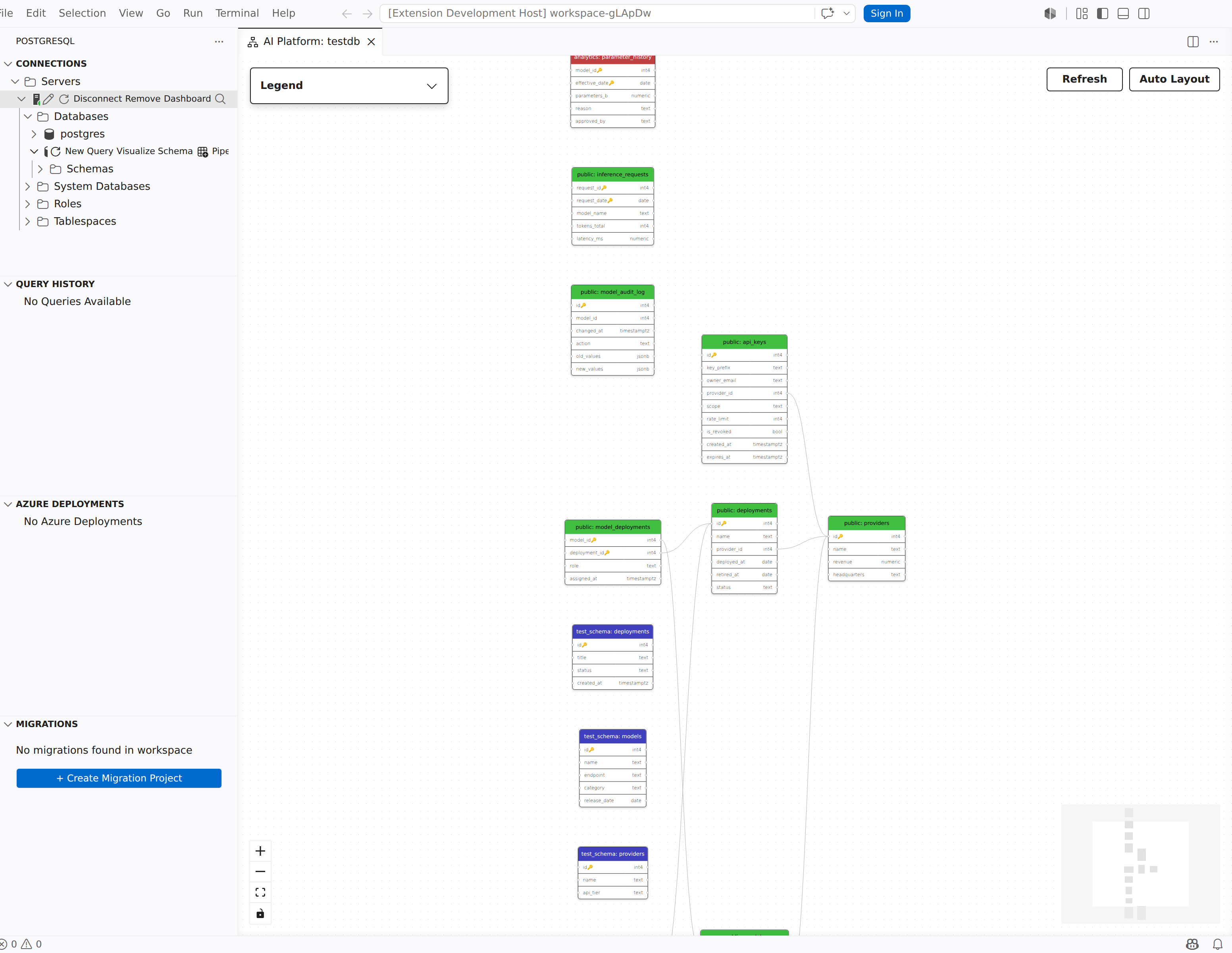
The schema visualizer includes navigation and layout controls so you can reframe the diagram as the visible tables change.
- Pan: Select and drag on an empty area of the canvas to move around the diagram.
- Zoom: Use the scroll wheel, trackpad pinch, or the + and - buttons in the controls overlay to zoom in and out.
- Fit to view: Select the fit-to-view button in the controls overlay to automatically zoom and center the diagram so all visible tables fit within the viewport.
- Minimap: For large schemas, use the minimap in the corner of the canvas to see your current viewport position relative to the full diagram.
- Auto Layout: Select Auto Layout to recalculate the layout for the visible tables.
Refresh after schema changes
The schema visualizer doesn't update automatically after you change the database. If you add or drop tables, columns, or foreign keys, select Refresh to reload the current schema model and redraw the relationship map.