Note
Access to this page requires authorization. You can try signing in or changing directories.
Access to this page requires authorization. You can try changing directories.
Note
The Retail Interest Group by Dynamics 365 Commerce has moved from Yammer to Viva Engage. If you don't have access to the new Viva Engage community, fill out this form (https://aka.ms/JoinD365commerceVivaEngageCommunity) to be added and stay engaged in the latest discussions.
This article describes how to set up organization hierarchies in Microsoft Dynamics 365 Commerce.
Before creating channels, set up your organization hierarchies.
Use organization hierarchies to view and report on your business from various perspectives. For example, set up one hierarchy for tax, legal, or statutory reporting. Then, set up another hierarchy to report financial information that isn't legally required but is used for internal reporting.
Before you create an organization hierarchy, you must create organizations. For more information, see Create legal entities or Create operating units.
For more information, see the following articles.
- Organizations and organizational hierarchies overview
- Plan your organization hierarchy
- Create an organization hierarchy
Create an organizational hierarchy
To create an organizational hierarchy, follow these steps:
- In the navigation pane, go to Modules > Retail and commerce > Channel Setup > Organization hierarchies.
- On the action pane, select New.
- In the Name field, enter a value.
- In the Purpose section, select Assign purpose.
- In the list, find and select the desired record. Select a purpose to assign to your organization hierarchy.
- In the Assigned hierarchies section, select Add.
- In the list, mark the selected row. Find the hierarchy you created.
- Select OK.
The following image shows an example organizational hierarchy created for a fictitious "Adventure Works" set of stores.

Add organizations to a hierarchy
To add organizations to a hierarchy, follow these steps:
- In the list, find and select the desired record. Select your hierarchy.
- On the action pane, select View.
- Add organizations, as necessary.
- To add an organization, select Edit and then select Insert. When you're done making changes, you can save a draft and publish the changes.
Note
You can only publish a hierarchy once per calendar day in a given time zone. Each time you publish, the system records the effective date based on the time zone you select. If you later publish using a different time zone, the resulting dates can overlap or collide, which blocks the publish. To avoid this problem, always use the same time zone when publishing a hierarchy.
The following image shows an example organization hierarchy. In this example, the legal entity "Contoso Retail" has three cost centers: "Mall," "Online," and "Call Center." The "Mall" cost center has four retail channels: "Atlanta," "Houston," "San Francisco," and "San Jose."

If you link this hierarchy to an account structure that includes both a Cost center dimension and a Retail channel dimension, the hierarchy controls which combinations are valid. For example, entering a cost center of "Mall" with a retail channel of "Fabrikam" produces a validation error, because "Fabrikam" isn't listed under "Mall" in the hierarchy.
Verify hierarchy relationships in account structures
You can link organization hierarchies to account structures to control which dimension value combinations are allowed during transaction entry. To check which hierarchies are linked to an account structure, follow these steps:
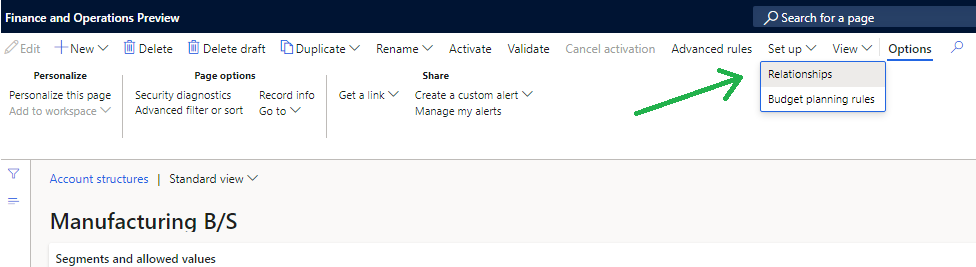
Go to the account structure and select View > Relationships.
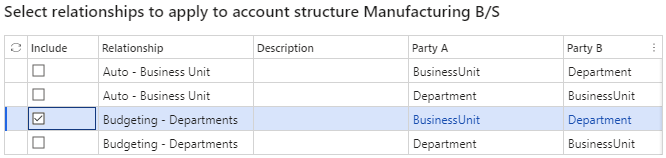
Review which organization hierarchy relationships are included in validation. Any hierarchy that is checked is used to validate dimension value combinations when transactions are entered.
To view or edit the hierarchies, go to Organization administration > Organizations > Organization hierarchies.
Publishing delay for newly published hierarchies
After you publish a new or updated organization hierarchy, it can take up to 24 hours (though typically less) for the changes to take effect in transaction validation. During this period, you might receive validation errors when entering dimension combinations that should be valid under the newly published hierarchy.
If you encounter this issue, you can either:
- Wait for the published hierarchy to take effect.
- Set the transaction date to the next day to work around the delay.
Importing hierarchy data
You can import organization hierarchy structures by using data entities. If you're importing a multilevel hierarchy, import from the top down - start with the highest parent node, and then add each level of child nodes in separate import operations. Attempting to import all levels at once can result in the error "The Organization doesn't exist" because the system might process child nodes before their parent nodes are available.
Deleting a legal entity after hierarchy publishing
After you add a legal entity to an organization hierarchy and publish that hierarchy, you can't delete the legal entity - even if you later remove it from the hierarchy and republish. The Delete button stays unavailable.
This restriction is by design. When you publish a hierarchy, you create a permanent historical record of that structure. This record supports backdated reporting and auditing. Because those records reference the legal entity, the system protects it from deletion to preserve that history.
If you remove a legal entity from an unpublished hierarchy before you publish the hierarchy, the delete option stays available. But once you publish a version of the hierarchy that includes the legal entity, the restriction is permanent.
Leaving an unused legal entity in the system doesn't negatively affect day-to-day operations.
Additional resources
Organizations and organizational hierarchies overview