Note
Access to this page requires authorization. You can try signing in or changing directories.
Access to this page requires authorization. You can try changing directories.
Note
The Retail Interest Group by Dynamics 365 Commerce has moved from Yammer to Viva Engage. If you don't have access to the new Viva Engage community, fill out this form (https://aka.ms/JoinD365commerceVivaEngageCommunity) to be added and stay engaged in the latest discussions.
This article describes how to create legal entities in Microsoft Dynamics 365 Commerce. You must create and configure legal entities before creating channels.
A legal entity is an organization that has a registered or legislated legal structure. Legal entities can enter into legal contracts and are required to prepare statements that report on their performance.
A company is a type of legal entity. Currently, you can create only companies as legal entities, and every legal entity is associated with a company ID. This association exists because some functional areas in the program use a company ID, or DataAreaId, in their data models. In these functional areas, companies are used as a boundary for data security. Users can access data only for the company that they're currently logged on to.
When creating a channel, you must specify which legal entity that channel belongs to.
Create a new legal entity
To create a new legal entity in Dynamics 365 Commerce, follow these steps:
In the navigation pane, go to Modules > Headquarters setup > Legal entities.
On the action pane, select New. The New legal entity pane appears on the right.
In the Name field, enter a value.
In the Company field, enter a value.
In the Country/region field, enter or select a value.
Select OK.
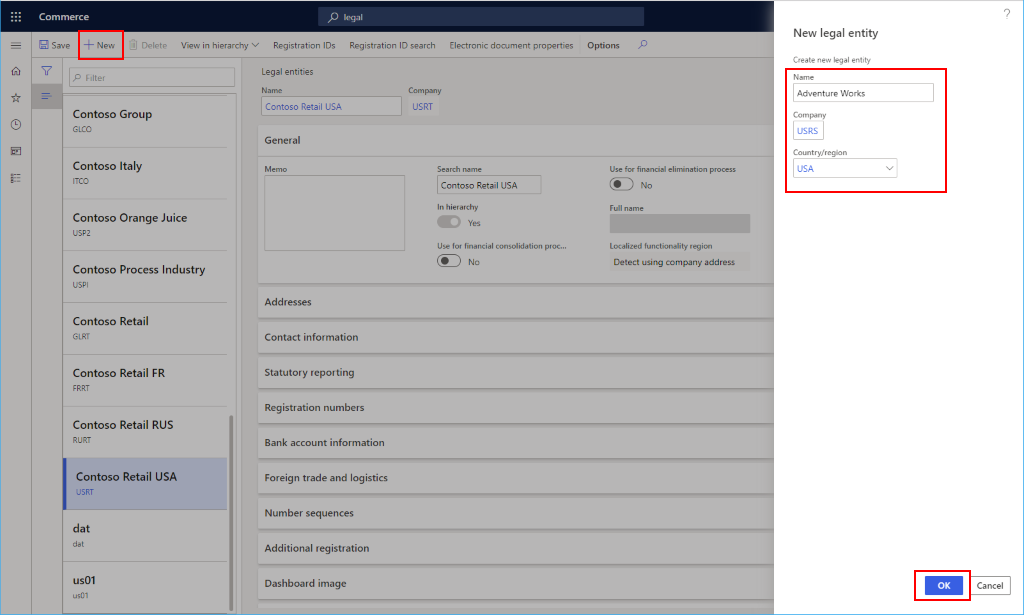
In the General section, provide the following general information about the legal entity:
- Enter a search name, if a search name is required. A search name is an alternate name that you can use to search for this legal entity.
- Select whether this legal entity is a consolidation company.
- Select whether this legal entity is an elimination company.
- Select the default language for the entity.
- Select the time zone for the entity.
In the Addresses section, select Edit to enter address information, such as the street name and number, postal code, and city.
In the Contact information section, enter information about methods of communication, such as email addresses, URLs, and telephone numbers.
In the Statutory reporting section, enter the registration numbers that are used for statutory reporting.
In the Registration numbers section, enter any information required by the legal entity.
In the Bank account information section, enter bank accounts and routing numbers for the legal entity.
In the Foreign trade and logistics section, enter shipping information for the legal entity.
In the Number sequences section, you can view the number sequences that are associated with the legal entity. This section is empty to start with.
In the Dashboard image section, view or change the logo and dashboard image associated with the legal entity.
In the Tax registration section, enter the registration numbers that are used to report to tax authorities.
In the Tax 1099 section, enter 1099 information for the legal entity.
In the Tax information section, enter tax information for the legal entity.
Select Save.
The following image shows details of an example legal entity.

Changing a legal entity's country or region
The country or region you set on a legal entity's primary address controls which localization features are available to that entity, such as tax rules and statutory reporting. After you post financial transactions for a legal entity, you can't change this country or region through the application. This restriction protects the integrity of posted financial data.
Important
If the legal entity is currently registered in Denmark, legal regulations don't permit changing its country or region. The only option in this case is to create a new legal entity in the intended country or region. For further Denmark-specific legislation, see the Danish Bookkeeping Act.
If you need to correct the country or region for a legal entity with posted transactions, contact Microsoft Support. This operation isn't self-service and requires product team approval.
Additional resources
Organizations and organizational hierarchies overview