Merk
Tilgang til denne siden krever autorisasjon. Du kan prøve å logge på eller endre kataloger.
Tilgang til denne siden krever autorisasjon. Du kan prøve å endre kataloger.
Azure DevOps Services | Azure DevOps Server | Azure DevOps Server 2022
Users install or run your app on a wide variety of configurations, such as different operating systems, web browsers, and other variations. Run at least some of your tests in stages that have those different configurations.
Use test plans to decide which tests to run on which configurations. Make sure that when you run your tests, you set up your stages for the configurations that you need.
The following schematic matrix shows example combinations that you might want to test:

Prerequisites
| Category | Requirement |
|---|---|
| Project access | Project member. |
| Access levels | To add test configurations: Project-level Manage test configurations permission set to Allow. By default, members of the Contributors and Project Administrator groups have this permission. |
For more information, refer to Manual test access and permissions.
Prerequisites for TCM command-line tool
| Category | Requirements |
|---|---|
| Tools | Visual Studio 2017 (Professional or Enterprise) or earlier. The TCM executable (tcm.exe) is in the following directories:- %programfiles(x86)%\Microsoft Visual Studio\2017\Professional\Common7\IDE- %programfiles(x86)%\Microsoft Visual Studio\2017\Enterprise\Common7\IDE- %programfiles(x86)%\Microsoft Visual Studio 14.0\Common7\IDE |
| Access levels | At least Basic access and membership in the project you want to access. To clone or import test plans and test suites, you need Basic + Test Plans access. For more information, see Manual test access and permissions. |
To run a TCM command, specify the /collection and /teamproject parameters, and /login as needed.
| Parameter | Description |
|---|---|
/collection:CollectionURL |
Required. Specifies the URI of the team project collection. The format for the URI is as follows: - For Azure DevOps Services: https://dev.azure.com/OrganizationName or https://OrganizationName.visualstudio.com- For Azure DevOps Server: http://ServerName:Port/VirtualDirectoryName/CollectionName. If no virtual directory is used, the format is: http://ServerName:Port/CollectionName. |
/teamproject:project |
Required. The name of the project that contains the test objects you want to clone or import automated tests into. |
/login:username,[password] |
Optional. Specifies the name and password of a valid Azure DevOps user who has permissions to run the command. Use this option if your Windows credentials don't have the appropriate permissions, you're using basic authentication, or you're not connected to a domain. |
View configurations and variables
View the configurations that are already available to run your tests.
View a list of test configurations and configuration variables from the Configurations page.
In your project, select Test Plans > Configurations from the left navigation area.
All test configurations and variables currently available for your test plans appear.

Select a configuration or variable to view more information in the pane on the right.
Create configurations and variables
A test configuration is a combination of configuration variable values. Your configuration variables could be, for example, operating system, browser, CPU type, database. A configuration might be "Windows 8 + 32-bit CPU" or "Windows 10 + 64-bit CPU."
Create the configuration variables first, then combine multiple variable values to create a configuration.
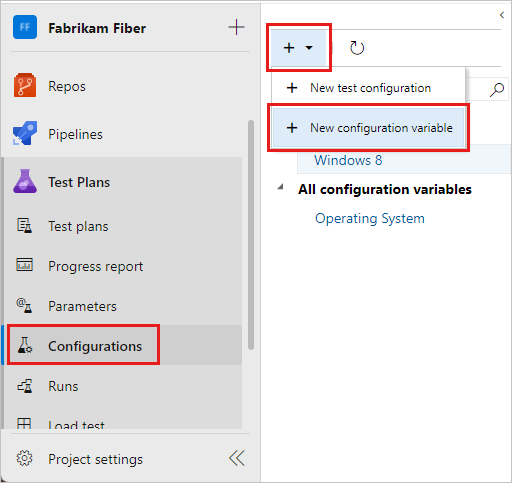
Open the Configurations page in the Test Plans web portal, select the + icon, and select New configuration variable.
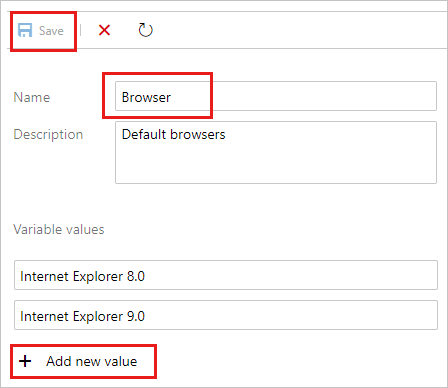
Enter a name for the variable, such as Browser, and a description. Select Add new value, and then add a value. Add as many values as you need to the configuration variable, and then save it.
Repeat the steps to create any other configuration variables you need. For example, create a configuration variable named Operating system with the names of each operating system on which you want to test.

Select the + icon and select New test configuration.

Enter a name for the test configuration and add the configuration variables you created. Choose a value for each variable for this configuration.
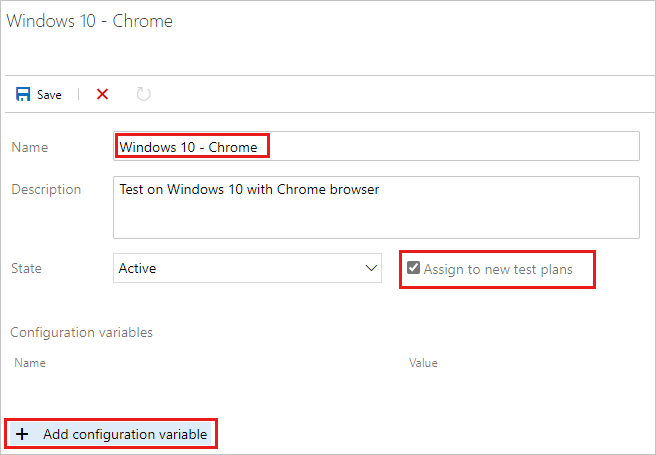
Make sure Assign to new test plans is selected to make this configuration the default for all new test plans you create.
Save your new test configuration.
Assign configurations to test plans and suites
You can assign configurations to a test suite or an individual test case. Configurations assigned to a test suite apply to all tests or suites within it.
To assign a configuration to a test suite, in the Test plans page, select a plan. In the Test Suites area, select a test suite and select More options or right-click to open the context menu and then select Assign configuration.

If you add multiple configurations to a test suite, the test cases are repeated with each of the configurations you assigned.
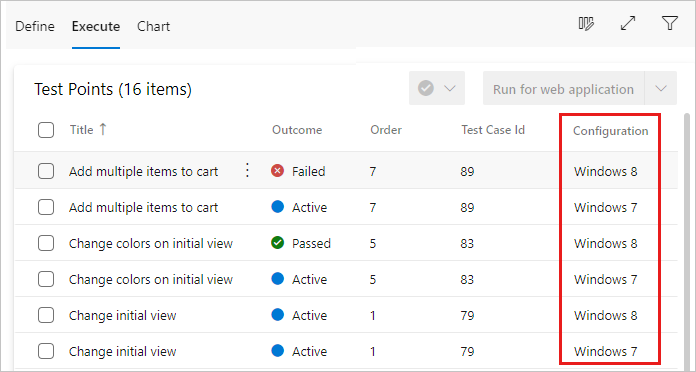
If necessary, override the default configuration assigned to a test case and assign the configuration you need. Select one or more test cases, open the context menu, and select Assign configuration.

Search for and select the configurations to assign to the test cases.

Caution
- Configuration inheritance: Changing configurations at a child suite breaks inheritance from its parent suites. The change still propagates down to lower child suites, unless a child suite already overrides it.
- Hidden test points: Unassigning a configuration hides its related test points. To restore them, reassign the configuration.
Run tests with each configuration
Set up a testing platform for a particular configuration, such as testing the app using Google Chrome on Windows 10.
Select and run a test that has this configuration assigned.

As you run the test, a reminder of the configuration appears in the status bar.

Track test results for each configuration
Open the Charts page for your test suite, select New, and select New test result chart.

Choose a chart type, like a pie chart or bar chart, and then select Group by > Configuration and choose OK.
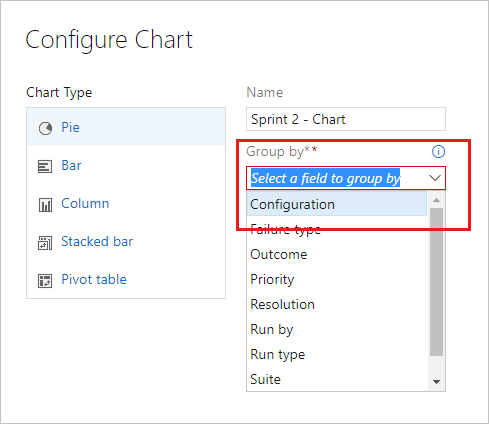
A chart is created that helps you track your tests based on configurations. You can pin this chart to your dashboard.

If a test case appears in several test suites, you can set different configurations for each suite. The same test case can have different configuration settings in different test suites and test plans.