Note
Access to this page requires authorization. You can try signing in or changing directories.
Access to this page requires authorization. You can try changing directories.
Applies to:  SQL Server 2025 (17.x)
This article provides step-by-step instructions for setting up and configuring Microsoft Entra ID managed identity for SQL Server enabled by Azure Arc.
For an overview of managed identity with SQL Server, see Managed identity for SQL Server enabled by Azure Arc.
Prerequisites
Before you can use a managed identity with SQL Server enabled by Azure Arc, make sure that you meet the following prerequisites:
- Supported for SQL Server 2025 and later, running on Windows.
- Connect your SQL Server to Azure Arc.
- The latest version of the Azure Extension for SQL Server.
Enable the primary managed identity
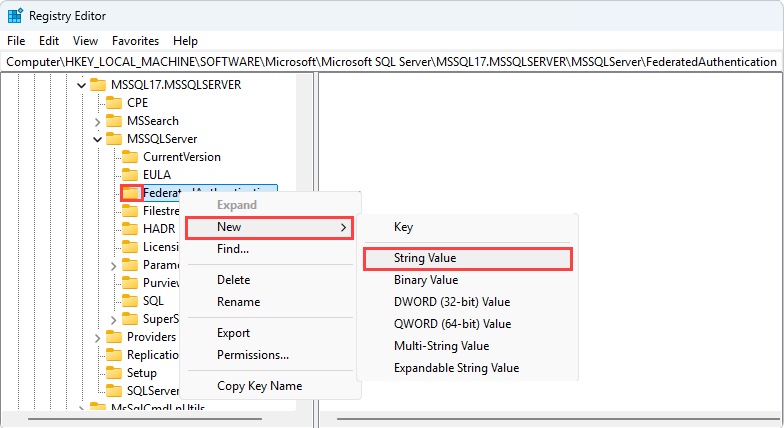
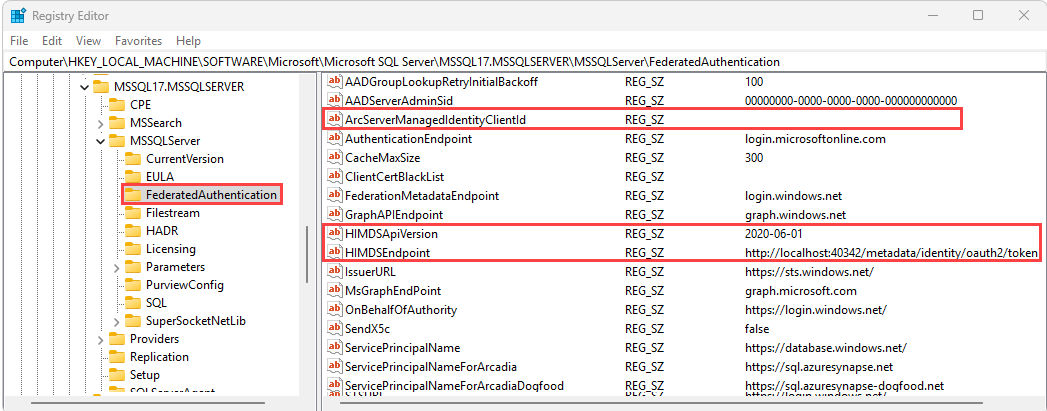
If you've installed the Azure Extension for SQL Server to your server, you can enable the primary managed identity for your SQL Server instance directly from the Azure portal. It's also possible to enable the primary managed identity manually by updating the registry, but should be done with extreme caution.
To enable the primary managed identity in the Azure portal, follow these steps:
Go to your SQL Server enabled by Azure Arc resource in the Azure portal.
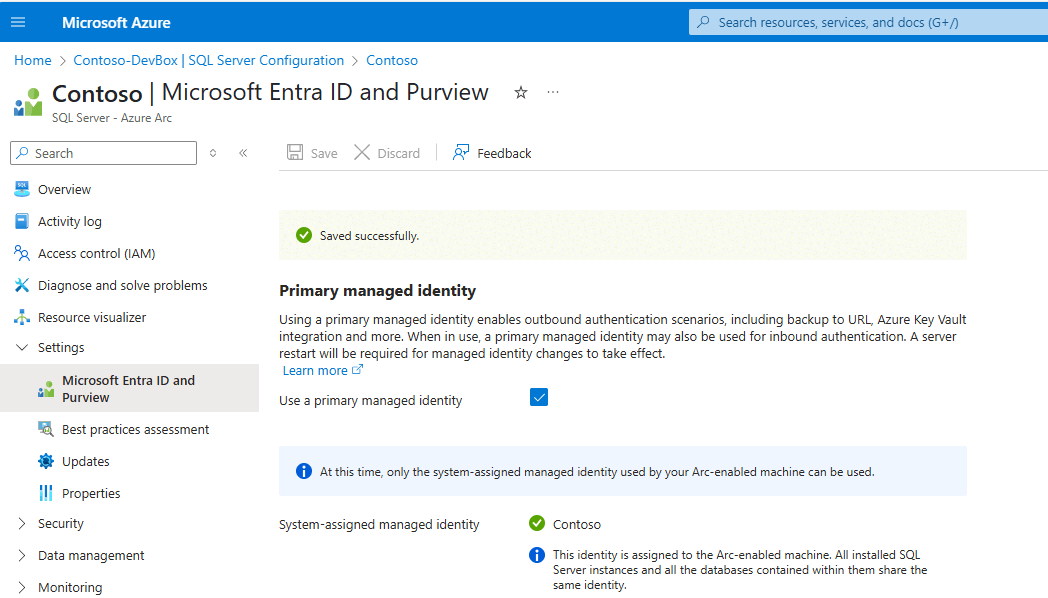
Under Settings, select Microsoft Entra ID and Purview to open the Microsoft Entra ID and Purview page.
Note
If you don't see the Enable Microsoft Entra ID authentication option, ensure that your SQL Server instance is connected to Azure Arc and that you have the latest SQL extension installed.
On the Microsoft Entra ID and Purview page, check the box next to Use a primary managed identity and then use Save to apply your configuration:


Grant application permissions to the identity
Important
Only a Privileged Role Administrator or higher role can grant these permissions.
To enable Microsoft Entra authentication for SQL Server instances, each system-assigned managed identity requires User.Read.All, GroupMember.Read.All, and Application.Read.All permissions to query Microsoft Graph. For more information about these permissions, see:
- User.Read.All: Allows access to Microsoft Entra user information.
- GroupMember.Read.All: Allows access to Microsoft Entra group information.
- Application.Read.All: Allows access to Microsoft Entra service principal (application) information.
These permissions are application-level permissions (app roles) and must be assigned directly to each managed identity. They can't be manually assigned to a Microsoft Entra security group and granted to members through group membership. For environments with many machines, an alternative is to assign the Directory Readers role to a role-assignable Microsoft Entra security group and add the managed identities as members. Unlike app role permissions, this Microsoft Entra role can be granted at the group level, simplifying management at scale. However, Directory Readers grants broad read access across all directory objects, significantly exceeding the three targeted Graph API permissions. The Directory Readers role isn't recommended for production environments where least-privilege access is required.
The following PowerShell script grants the required permissions to the managed identity. Make sure this script is run on PowerShell 7.5 or a later version, and has the Microsoft.Graph module 2.28 or later installed.
# Set your Azure tenant and managed identity name
$tenantID = '<Enter-Your-Azure-Tenant-Id>'
$managedIdentityName = '<Enter-Your-Arc-HostMachine-Name>'

# Connect to Microsoft Graph
try {
    Connect-MgGraph -TenantId $tenantID -ErrorAction Stop
    Write-Output "Connected to Microsoft Graph successfully."
}
catch {
    Write-Error "Failed to connect to Microsoft Graph: $_"
    return
}

# Get Microsoft Graph service principal
$graphAppId = '00000003-0000-0000-c000-000000000000'
$graphSP = Get-MgServicePrincipal -Filter "appId eq '$graphAppId'"
if (-not $graphSP) {
    Write-Error "Microsoft Graph service principal not found."
    return
}

# Get the managed identity service principal
$managedIdentity = Get-MgServicePrincipal -Filter "displayName eq '$managedIdentityName'"
if (-not $managedIdentity) {
    Write-Error "Managed identity '$managedIdentityName' not found."
    return
}

# Define roles to assign
$requiredRoles = @(
    "User.Read.All",
    "GroupMember.Read.All",
    "Application.Read.All"
)

# Assign roles using scoped syntax
foreach ($roleValue in $requiredRoles) {
    $appRole = $graphSP.AppRoles | Where-Object {
        $_.Value -eq $roleValue -and $_.AllowedMemberTypes -contains "Application"
    }

    if ($appRole) {
        try {
            New-MgServicePrincipalAppRoleAssignment   -ServicePrincipalId $managedIdentity.Id `
                -PrincipalId $managedIdentity.Id `
                -ResourceId $graphSP.Id `
                -AppRoleId $appRole.Id `
                -ErrorAction Stop

            Write-Output "Successfully assigned role '$roleValue' to '$managedIdentityName'."
        }
        catch {
            Write-Warning "Failed to assign role '$roleValue': $_"
        }
    }
    else {
        Write-Warning "Role '$roleValue' not found in Microsoft Graph AppRoles."
    }
}
Create logins and users
Follow the steps in the Microsoft Entra tutorial to create logins and users for the managed identity.