Note
Access to this page requires authorization. You can try signing in or changing directories.
Access to this page requires authorization. You can try changing directories.
You are able to convert any App into an MCP server by using the McpPlugin. This plugin adds the necessary endpoints to your application to serve as an MCP server. The plugin allows you to define tools, resources, and prompts that can be exposed to other MCP applications.
WIP
You are able to convert any App into an MCP server by using the McpPlugin from the microsoft-teams-mcp package. This plugin adds the necessary endpoints to your application to serve as an MCP server. The plugin allows you to define tools, resources, and prompts that can be exposed to other MCP applications.
Install it to your application:
npm install @microsoft/teams.mcp
Install it to your application:
pip install microsoft-teams-mcpplugin
Your plugin can be configured as follows:
import { z } from 'zod';
import { App } from '@microsoft/teams.apps';
import { McpPlugin } from '@microsoft/teams.mcp';
// ...

const mcpServerPlugin = new McpPlugin({
  // Describe the MCP server with a helpful name and description
  // for MCP clients to discover and use it.
  name: 'test-mcp',
  description: 'Allows you to test the mcp server',
  // Optionally, you can provide a URL to the mcp dev-tools
  // during development
  inspector: 'http://localhost:5173?proxyPort=9000',
}).tool(
  // Describe the tools with helpful names and descriptions
  'echo',
  'echos back whatever you said',
  {
    input: z.string().describe('the text to echo back'),
  },
  {
    readOnlyHint: true,
    idempotentHint: true,
  },
  async ({ input }) => {
    return {
      content: [
        {
          type: 'text',
          text: `you said "${input}"`,
        },
      ],
    };
  }
);
Your plugin can be configured as follows:
from microsoft_teams.ai import Function
from microsoft_teams.mcpplugin import McpServerPlugin
from pydantic import BaseModel
# ...

# Configure MCP server with custom name
mcp_server_plugin = McpServerPlugin(
    name="test-mcp",
)

class EchoParams(BaseModel):
    input: str

async def echo_handler(params: EchoParams) -> str:
    return f"You said {params.input}"

# Register the echo tool
mcp_server_plugin.use_tool(
    Function(
        name="echo",
        description="echo back whatever you said",
        parameter_schema=EchoParams,
        handler=echo_handler,
    )
)
Note
By default, the MCP server will be available at /mcp on your application. You can change this by setting the transport.path property in the plugin configuration.
Note
By default, the MCP server will be available at /mcp on your application. You can change this by setting the path property in the plugin configuration.
And included in the app like any other plugin:
import { App } from '@microsoft/teams.apps';
import { DevtoolsPlugin } from '@microsoft/teams.dev';
import { McpPlugin } from '@microsoft/teams.mcp';
// ...

const app = new App({
  plugins: [
    new DevtoolsPlugin(),
    // Add this plugin
    mcpServerPlugin,
  ],
});
And included in the app like any other plugin:
from microsoft_teams.apps import App
from microsoft_teams.devtools import DevToolsPlugin
# ...

app = App(plugins=[mcp_server_plugin, DevToolsPlugin()])
Tip
Enabling mcp request inspection and the DevtoolsPlugin allows you to see all the requests and responses to and from your MCP server (similar to how the Activities tab works).
Tip
You may use the MCP-Inspector to test functionality with your server.
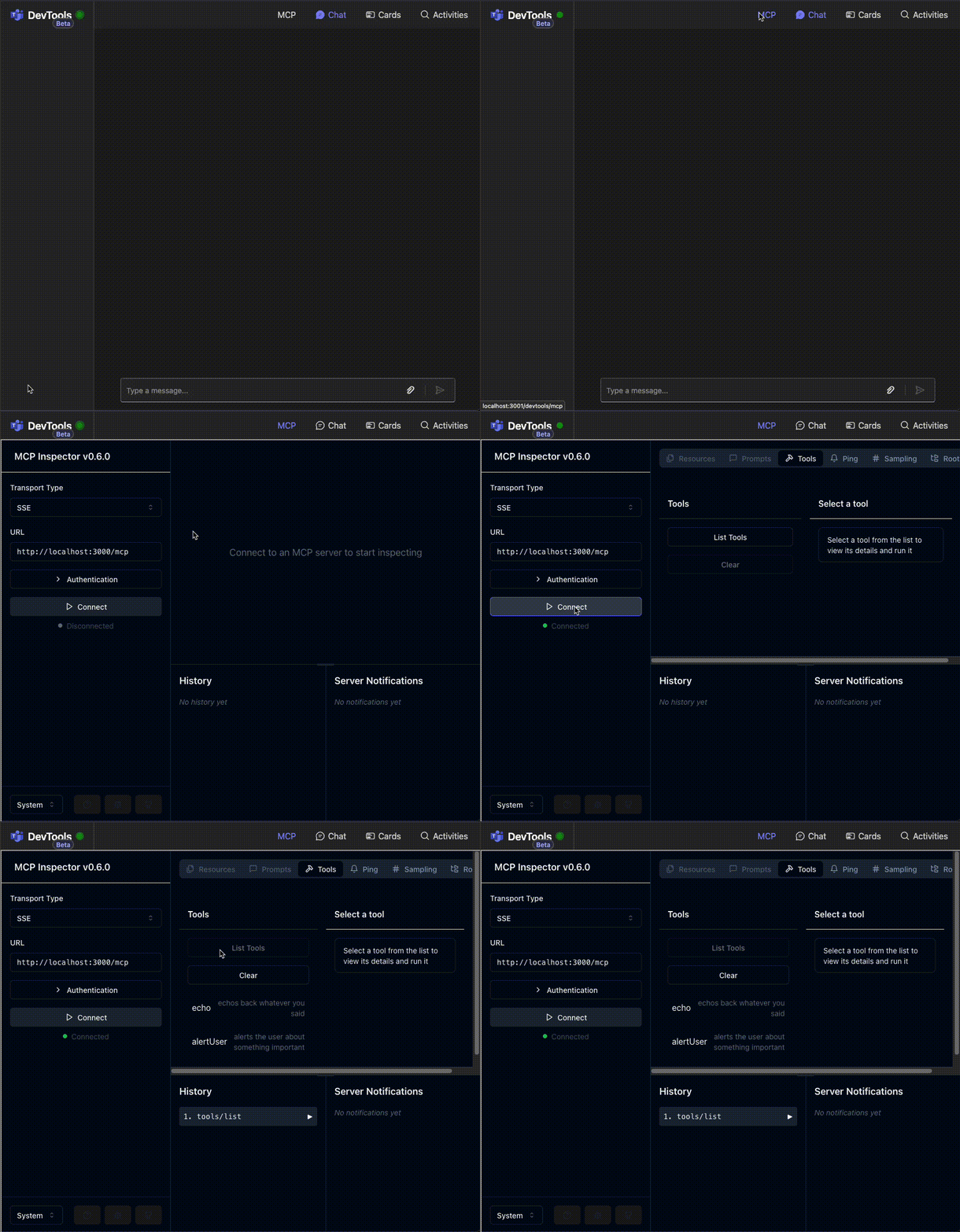

Piping messages to the user
Since your agent is provisioned to work on Teams, one very helpful feature is to use this server as a way to send messages to the user. This can be helpful in various scenarios:
- Human in the loop - if the server or an MCP client needs to confirm something with the user, it is able to do so.
- Notifications - the server can be used as a way to send notifications to the user.
Here is an example of how to do this. Configure your plugin so that:
- It can validate if the incoming request is allowed to send messages to the user
- It fetches the correct conversation ID for the given user.
- It sends a proactive message to the user. See Proactive Messaging for more details.
import { z } from 'zod';
import { App } from '@microsoft/teams.apps';
import { McpPlugin } from '@microsoft/teams.mcp';
// ...

// Keep a store of the user to the conversation id
// In a production app, you probably would want to use a
// persistent store like a database
const userToConversationId = new Map<string, string>();

// Add a an MCP server tool
mcpServerPlugin.tool(
  'alertUser',
  'alerts the user about something important',
  {
    input: z.string().describe('the text to echo back'),
    userAadObjectId: z.string().describe('the user to alert'),
  },
  {
    readOnlyHint: true,
    idempotentHint: true,
  },
  async ({ input, userAadObjectId }, { authInfo }) => {
    if (!isAuthValid(authInfo)) {
      throw new Error('Not allowed to call this tool');
    }

    const conversationId = userToConversationId.get(userAadObjectId);
    if (!conversationId) {
      console.log('Current conversation map', userToConversationId);
      return {
        content: [
          {
            type: 'text',
            text: `user ${userAadObjectId} is not in a conversation`,
          },
        ],
      };
    }

    // Leverage the app's proactive messaging capabilities to send a mesage to
    // correct conversation id.
    await app.send(conversationId, `Notification: ${input}`);
    return {
      content: [
        {
          type: 'text',
          text: 'User was notified',
        },
      ],
    };
  }
);
Alert Tool for Proactive Messaging:
from typing import Dict
from microsoft_teams.ai import Function
from microsoft_teams.mcpplugin import McpServerPlugin
from pydantic import BaseModel
# ...

# Storage for conversation IDs (for proactive messaging)
conversation_storage: Dict[str, str] = {}

class AlertParams(BaseModel):
    user_id: str
    message: str

async def alert_handler(params: AlertParams) -> str:
    """
    Send proactive message to user via Teams.
    This demonstrates the "piping messages to user" feature.
    """
    # 1. Validate if the incoming request is allowed to send messages
    if not params.user_id or not params.message:
        return "Invalid parameters: user_id and message are required"

    # 2. Fetch the correct conversation ID for the given user
    conversation_id = conversation_storage.get(params.user_id)
    if not conversation_id:
        return f"No conversation found for user {params.user_id}. User needs to message the bot first."

    # 3. Send proactive message to the user
    await app.send(conversation_id=conversation_id, activity=params.message)
    return f"Alert sent to user {params.user_id}: {params.message}"

# Register the alert tool
mcp_server_plugin.use_tool(
    Function(
        name="alert",
        description="Send proactive message to a Teams user",
        parameter_schema=AlertParams,
        handler=alert_handler,
    )
)
import { App } from '@microsoft/teams.apps';
// ...

app.on('message', async ({ send, activity }) => {
  await send({ type: 'typing' });
  await send(`you said "${activity.text}"`);
  if (activity.from.aadObjectId && !userToConversationId.has(activity.from.aadObjectId)) {
    userToConversationId.set(activity.from.aadObjectId, activity.conversation.id);
    app.log.info(
      `Just added user ${activity.from.aadObjectId} to conversation ${activity.conversation.id}`
    );
  }
});
Store Conversation IDs in Message Handler:
from microsoft_teams.api import MessageActivity
from microsoft_teams.apps import ActivityContext
# ...

@app.on_message
async def handle_message(ctx: ActivityContext[MessageActivity]):
    """
    Handle incoming messages and store conversation IDs for proactive messaging.
    """
    # Store conversation ID for this user (for proactive messaging)
    user_id = ctx.activity.from_.id
    conversation_id = ctx.activity.conversation.id
    conversation_storage[user_id] = conversation_id

    # Echo back the message with info about stored conversation
    await ctx.reply(
        f"You said: {ctx.activity.text}\n\n"
        f"📝 Stored conversation ID `{conversation_id}` for user `{user_id}` "
        f"(for proactive messaging via MCP alert tool)"
    )