Note
Access to this page requires authorization. You can try signing in or changing directories.
Access to this page requires authorization. You can try changing directories.
This tutorial guides you through the full workflow of reacting to your own business events in Microsoft Fabric. The steps you follow are:
- Create a business event and defining its schema
- Configure a notebook to publish an event using Python.
- Validate the published events in Real-Time hub.
- Create an Activator rule that triggers a user data function when the business event occurs.
Important
This feature is in preview.
Create a new business event
Go to Business events in Real-Time hub.
Select + New business event and then select Create new schema.

Define the business event schema.
For Name, enter
VibrationCriticalDetected.In the right pane, for Event schema set, select Create.
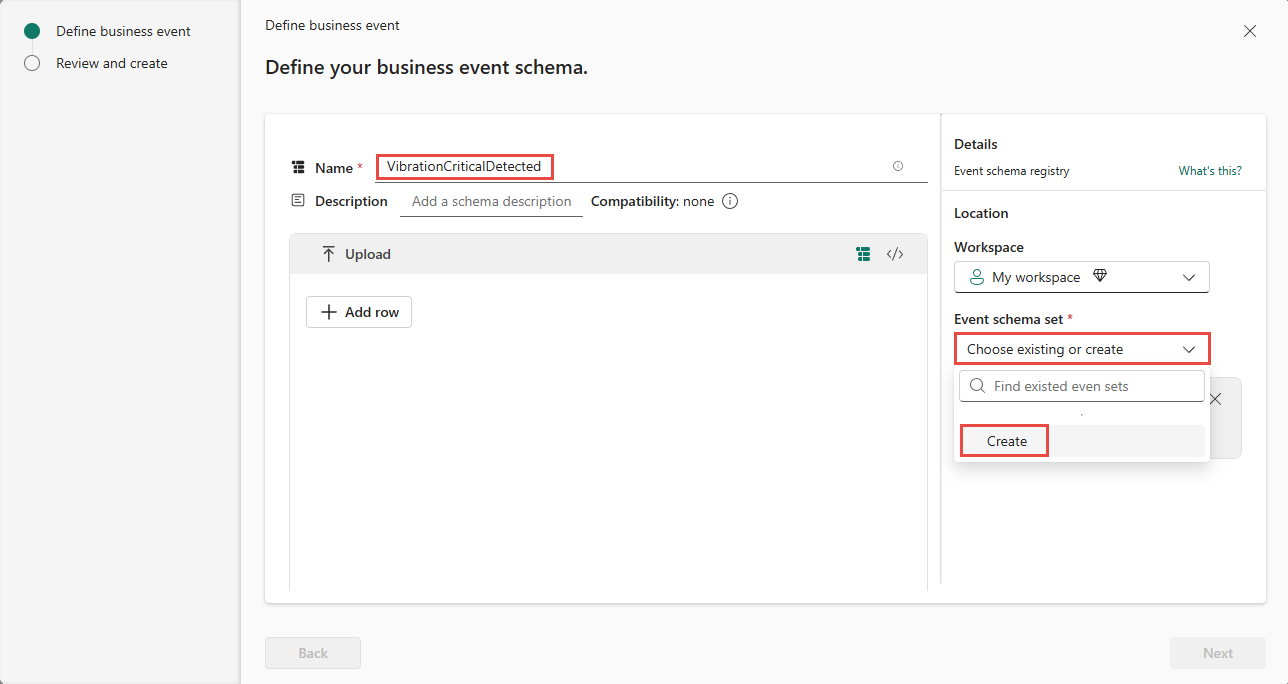
Enter
ManufacturingEquipmentHealthfor the schema set name.
Select Add row in the middle plane.
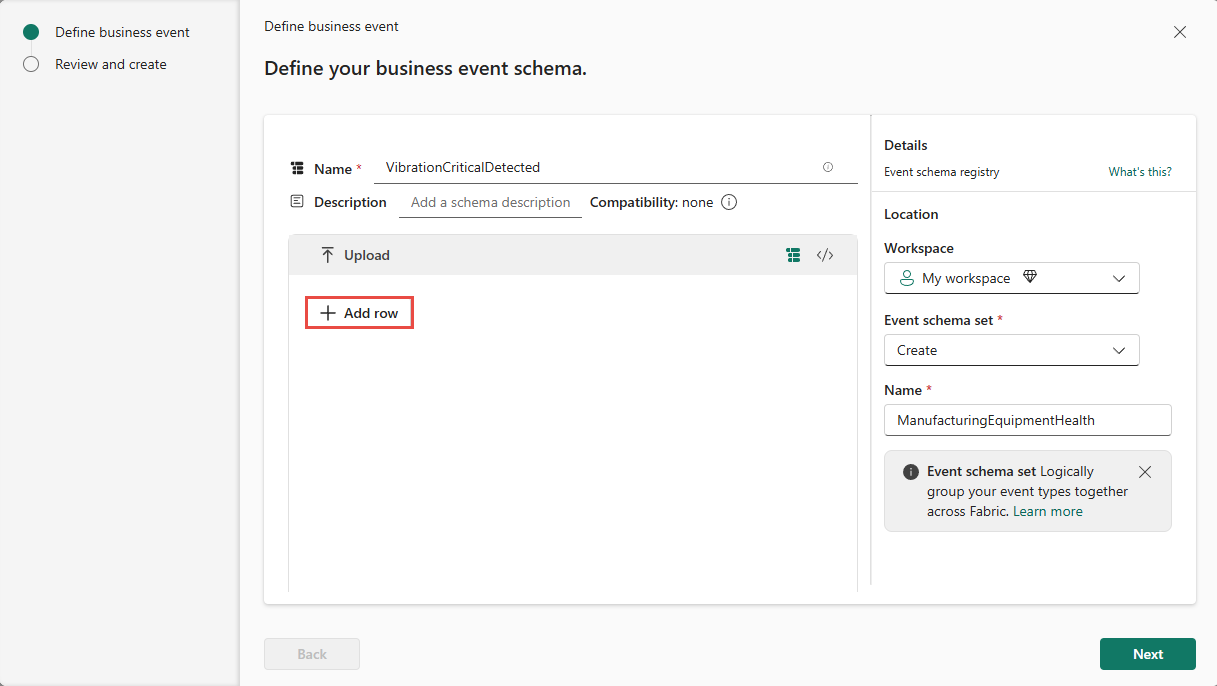
Select string for event type, and enter
MachineIDfor the name.
Repeat the above step to add the following properties:
ProductionLineID(string),MeasuredVibration(string),ImpactAssessment(string),RecommendationAction(string).
Select Next to continue.
Review and confirm the configuration, and then select Create to create your business event.


Configure notebook for publishing
After creating the business event, go to your workspace.
Select + New item and then select Notebook in the Analyze and train data section.
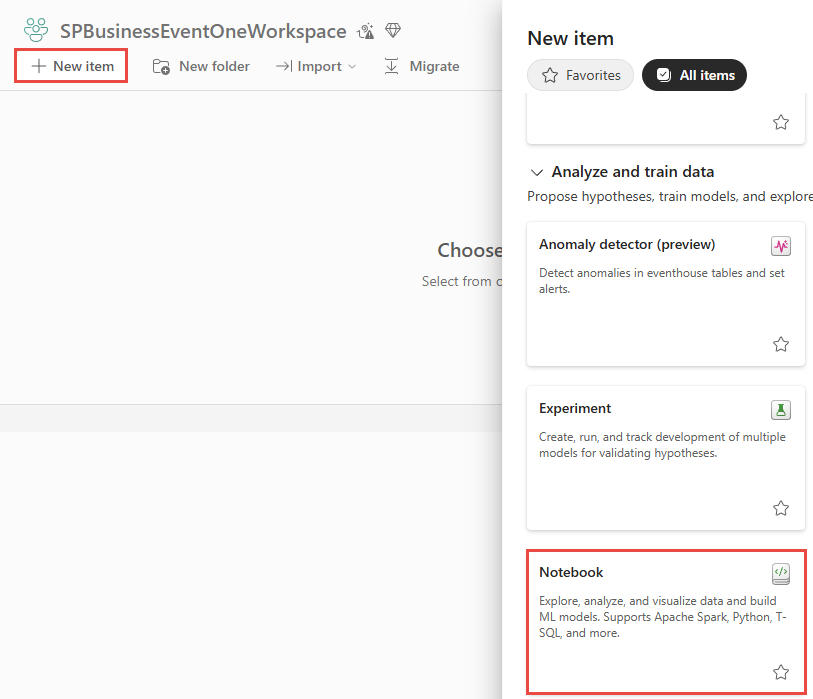
Enter a name for your notebook (for example: BusinessEventTutorialOneNotebook), confirm the location (workspace), and then select Create to create the notebook.
Make sure you select either A) Python 3.11 or B) PySpark (Python).


Find the sample code to publish a business event using the following command:
notebookutils.businessEvents.help(). You should see output similar to the following one:Help on module notebookutils.businessEvents in notebookutils: NAME notebookutils.businessEvents - [Preview] Utility for Business Events operations in Fabric FUNCTIONS help(methodName: str = '') -> None [Preview] Provides help for the notebookutils.businessEvents module or the specified method. Examples: notebookutils.businessEvents.help() notebookutils.businessEvents.help("publish") :param methodName: The name of the method to get help with. publish(eventSchemaSetWorkspace: str, eventSchemaSet: str, eventTypeName: str, eventData: Union[Dict[str, Any], List[Dict[str, Any]]], dataVersion: str = 'v1') -> bool [Preview] Publish business events data to the specified event type. Examples: notebookutils.businessEvents.publish( eventSchemaSetWorkspace="my-workspace-id", eventSchemaSet="OrderEvents", eventTypeName="OrderDelayed", eventData={"orderId": "12345", "status": "delayed", "reason": "weather"}, dataVersion="v1" ) # Batch publish multiple events notebookutils.businessEvents.publish( eventSchemaSetWorkspace="my-workspace-id", eventSchemaSet="OrderEvents", eventTypeName="OrderDelayed", eventData=[ {"orderId": "12345", "status": "delayed", "reason": "weather"}, {"orderId": "12346", "status": "delayed", "reason": "traffic"} ], dataVersion="v1" ) :param eventSchemaSetWorkspace: The workspace ID or name where the event schema set is located :param eventSchemaSet: The ID or name of the event schema set :param eventTypeName: The name of the business events type to publish to :param eventData: The event data payload as a dictionary or list of dictionaries for batch publishing :param dataVersion: The version of the event type schema (default: "v1") :return: True if the event was published successfully :raises: Exception if the event could not be published DATA __all__ = ['help', 'publish'] FILE /home/trusted-service-user/jupyter-env/python3.11/lib/python3.11/site-packages/notebookutils/businessEvents.pyAdd a new cell, enter the following code, and run it to publish a business event.
Note
Make sure to replace the
eventSchemaSetWorkspace,eventSchemaSet, andeventTypeNamevalues with the ones you used when creating your business event. TheeventDataproperties should also match the schema you defined for your business event.notebookutils.businessEvents.publish( eventSchemaSetWorkspace="My workspace", eventSchemaSet="ManufacturingEquipmentHealth", eventTypeName="VibrationCriticalDetected", eventData={ "MachineID": "12345", "ProductionLineID": "WestLine01", "MeasuredVibration": "1.52", "ImpactAssessment": "Production slowdown risk", "RecommendationAction": "Schedule maintenance" }, dataVersion="v1" )Note
The properties
eventSchemaSetWorkspaceandeventSchemaSetNamesupport both Fabric item names and Fabric item identifiers (IDs).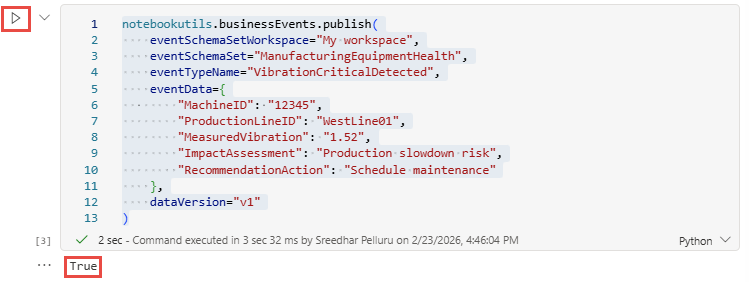
Save your notebook if it's not set to AutoSave.
Verify published business events
Go to Business events in Real-Time hub.
Select the created business event (for example,
VibrationCriticalDetected).
In the Publisher tab, confirm that you see an event and the notebook is listed in the publisher list.

Select the Data preview tab.
In the publisher filter, select the name of the Notebook previously created publisher.
Visualize the event in the preview table.


Configure custom business logic with a user data function
Go to your workspace and create a new user data function named
ProcessVibrationCritical.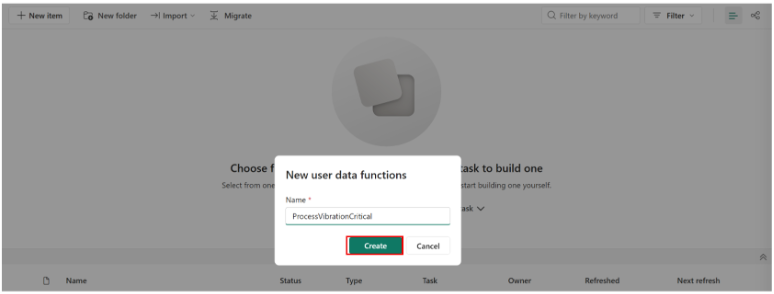
Create a new Function.

Modify the logic of your new function and add the input parameters required to receive your business event.
import datetime
import fabric.functions as fn
import logging
import json

udf = fn.UserDataFunctions()

@udf.function()

def processVibrationCritical(
    machineID: str,
    productionLine: str,
    measuredVibration: str,
    impactAssessment: str,
    recommendedAction: str
) -> str:

    logging.info("processVibrationCritical invoked.")

    event_data = {
        "machineID": machineID,
        "productionLine": productionLine,
        "measuredVibration": measuredVibration,
        "impactAssessment": impactAssessment,
        "recommendedAction": recommendedAction
    }

    # Log as structured JSON for easy searching/filtering in logs
    logging.info("processVibrationCritical payload=%s", json.dumps(event_data))

    return (
        f"Processed processVibrationCritical for machineID={machineID} "
        f"on line={productionLine} at {datetime.datetime.now()}."
    )
Test your function.
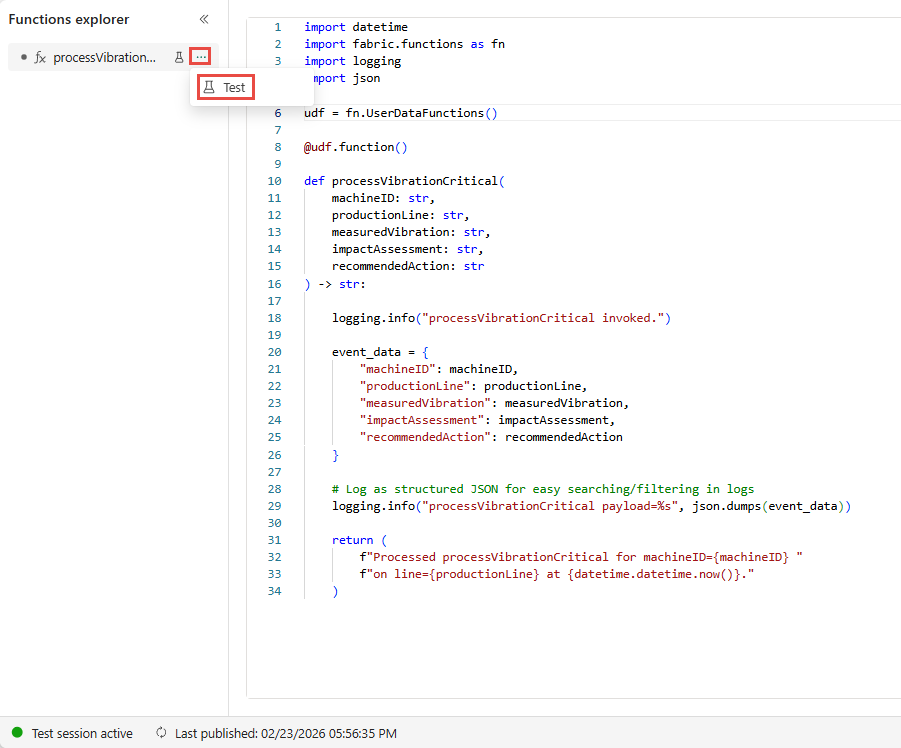
In the Functions explorer, hover over the function you created, select the ⋯ (three dots) menu, and then select Test.
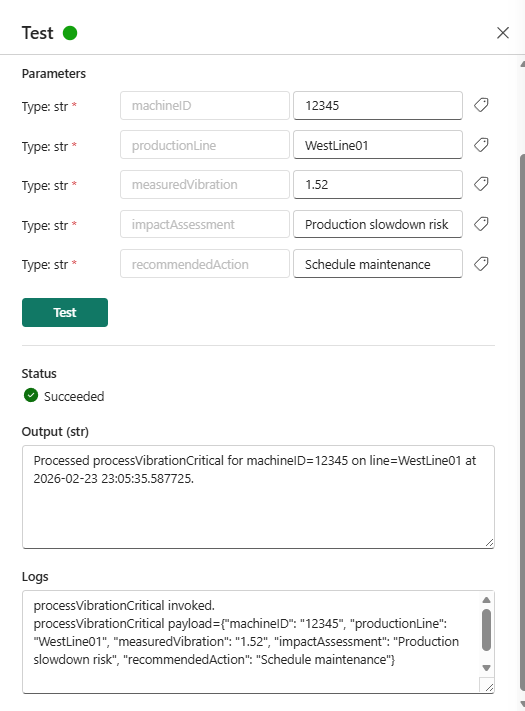
In the Test window, enter these sample values, and select Test.
- machineID: 12345
- productionLine: WestLine01
- measuredVibration: 1.52
- impactAssessment: Production slowdown risk
- recommendedAction: Schedule maintenance
Verify the output and the logs to confirm that the function is working as expected.
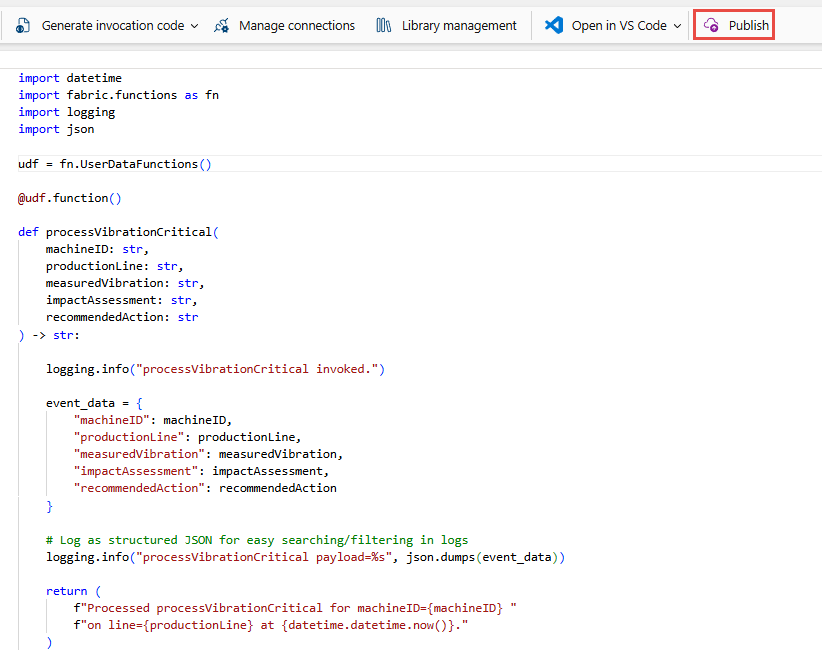
Select Publish on the toolbar to publish the function and make it available for use in the Activator rule.

Create an Activator trigger to consume events
Select the Real-Time hub icon in the left navigation pane of the Fabric portal.
In the Real-Time hub, select Business events under the Subscribe to category.
In the Business events list, locate
VibrationCriticalDetectedevent. Select either the ⚡ lightning icon or the ⋯ (three dots) menu next to the event, and then select Set alert.
On the Add rule page, in the Details section, for Rule name, enter a name for the rule. For example, VibrationCriticalDetected_Rule.
In the Condition section, for Check, select On each event.
In the Action section, select one of the following actions. To configure the alert to trigger a function when the condition is met, follow these steps:
For Select action, select Run Function.

Select the Fabric item you want to run, and then select Add to continue (for example, the
ProcessVibrationCriticaluser data function).
Select the function you want to use to process the action (for example, the
processVibrationCriticalfunction).
Map each input parameter defined in the function with the business event property you previously defined. Type
@and select the business event property from the dropdown list to map it to the function parameter.
Repeat this process for each input parameter defined in the function.

In the Save location section, for Workspace, select the workspace where you want to create the Fabric activator item.
For Item, select the drop-down list, and then select Create a new item.

In the dialog box, enter a name for the new Fabric activator item (for example, VibrationCriticalDetected_Activator), and then select Create.

You see the Alert created page with a link to open the rule in the Fabric activator user interface in a separate tab.

Select Open to open the rule in the Fabric Activator user interface.


Test the solution
Publish another event
In the Spark notebook, run the cell to publish a new VibrationCriticalDetected business event again.
View business event in the Real-Time hub
Publishers tab
In the Real-Time hub, select Business events in the left menu.
Select VibrationCriticalDetected from the list of business events.
In the Publisher tab, confirm that you see the newly published event and the old event you published at the beginning of the tutorial. If you don't see the new event, select the refresh button to refresh the list of events. It might take a few seconds for the new event to appear in the list.
In the list of publishers, confirm that the notebook you used to publish the event is listed as a publisher.


Consumers tab
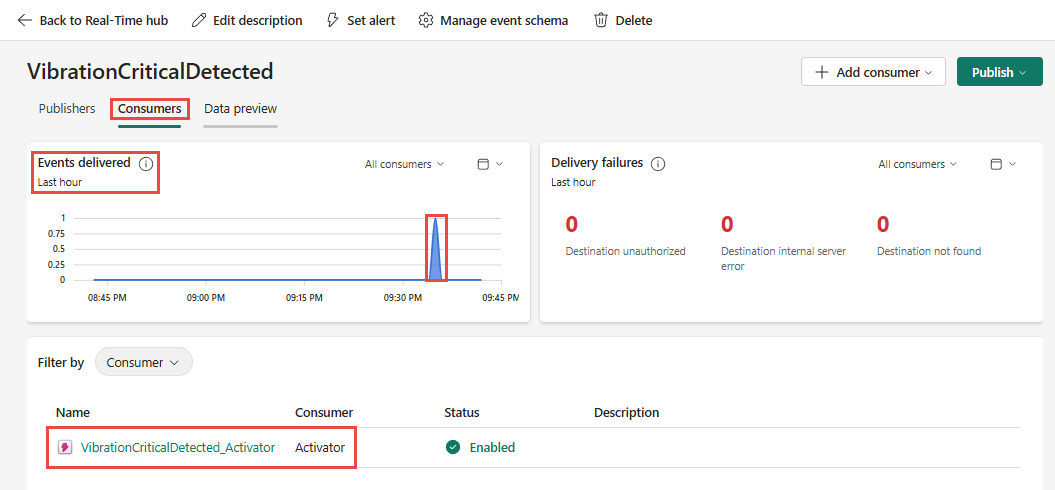
Switch to the Consumers tab.
Confirm that you see an event was delivered within the last hour.
Confirm that the activator you created is listed as a consumer.
Data preview tab
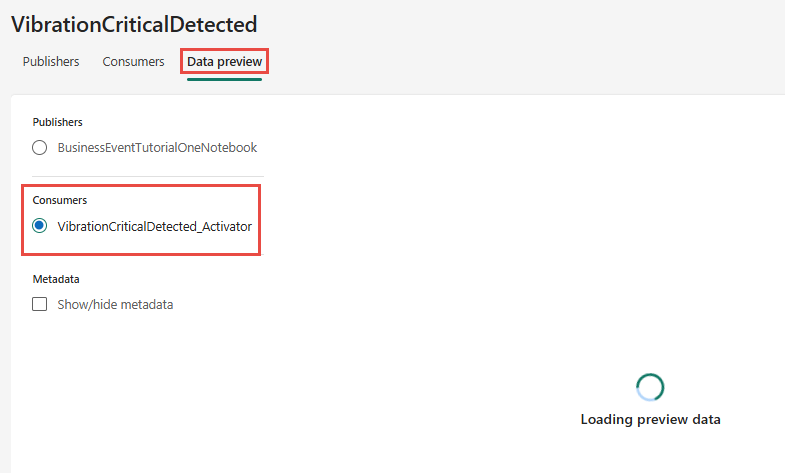
Switch to the Data preview tab.
Confirm that you see the consumer filter with the activator you created.
View business event in the activator run history
Go to the workspace where you created the activator item, and open the activator item (for example, VibrationCriticalDetected_Activator) if it's not already open.
In the activator item, select the History tab.
Confirm that you see one activation.


View logs for the user data function
In the workspace, open the
ProcessVibrationCriticaluser data function you created.Switch to Run only mode using the mode switcher.
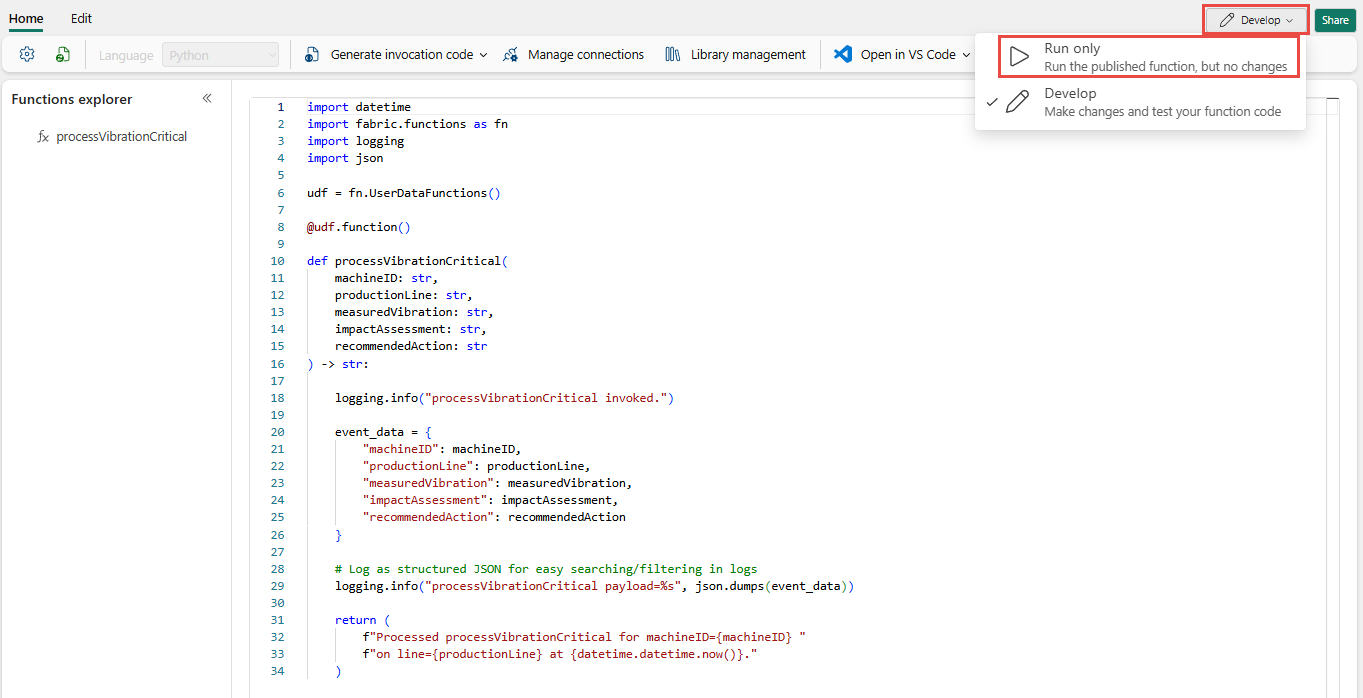
Hover over the function name in the functions list, select the ellipses icon (...), and then select View historical log.

You see table with the historical runs of the function. Select the most recent run to view the logs for that run.
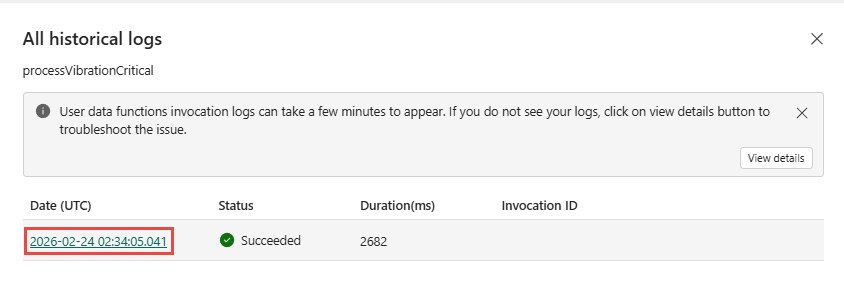
Confirm that the logs show the event payload in the JSON format as you defined in the function logic, which indicates that the function was triggered by the business event and processed the event data correctly.


