Note
Access to this page requires authorization. You can try signing in or changing directories.
Access to this page requires authorization. You can try changing directories.
This article describes how to apply tags to items and workspaces in Microsoft Fabric.
For more information about tags, see Tags in Microsoft Fabric.
Prerequisites
- You must be a workspace admin to apply tags to a workspace or remove tags from it. Non-admin workspace members (Viewer, Member, Contributor) can view workspace tags but can't modify them.
- You must have Write or Contributor permissions on an item to apply or remove tags from it.
Apply tags to a workspace
Open the workspace settings and go to the Tags section.
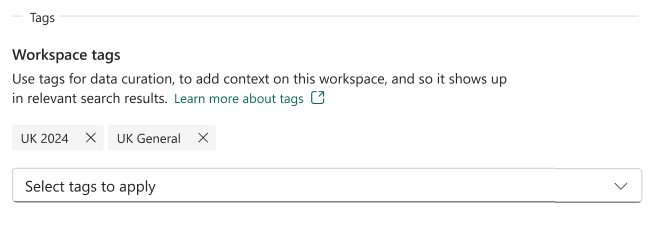
Use the Select tags to apply dropdown list to select one or more tags for your workspace. A workspace can have up to 10 tags.
Note
If the drop-down is disabled, you might not have workspace admin permissions.
When done, close the settings pane.
Remove tags from a workspace
Open the workspace settings and go to the Tags section.
You'll see all tags currently applied to the workspace.
Select the X next to the names of the tags you want to remove from the workspace.
When done, close the settings pane.
Apply tags to an item
Open the item's settings and go to the Tags tab.
Use the Select tags to apply dropdown list to select one or more tags for your item. An item can have up to 10 tags.

Note
If the Select tags to apply drop-down is disabled, you might not have Write or Contributor permissions on the item.
When done, close the settings pane. For Power BI items, select Save or Apply.
Remove tags from an item
Open the item's settings and go to the Tags tab.
All the tags applied to the item appear under Applied tags.
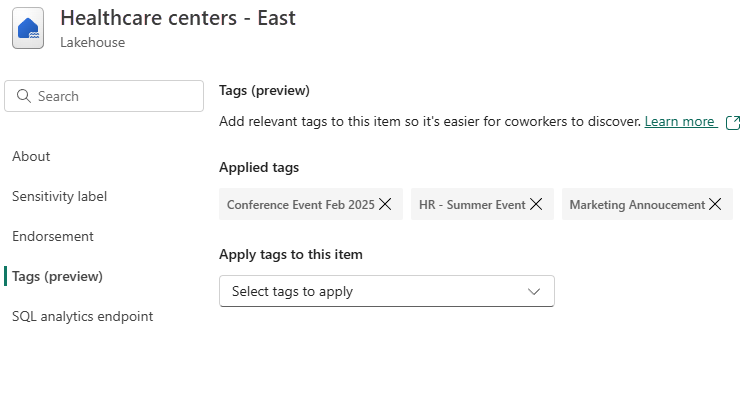
Select the X next to the names of the tags you want to remove from the item.
When done, close the settings pane.
Apply or remove tags using APIs
You can apply or remove tags programmatically using REST APIs:
- For workspaces, use the Apply Workspace Tags and Unapply Workspace Tags APIs to add or remove tags from a workspace.
- For items, use the Apply Tags and Unapply Tags APIs to add or remove tags from an item.