Note
Access to this page requires authorization. You can try signing in or changing directories.
Access to this page requires authorization. You can try changing directories.
Azure Blob Storage is Microsoft's object storage solution for the cloud. Blob storage is optimized for storing massive amounts of unstructured data. This article outlines the steps to create an Azure Blob Storage connection for pipelines and Dataflow Gen2.
Supported authentication types
The Azure Blob Storage connector supports the following authentication types for copy and Dataflow Gen2 respectively.
| Authentication type | Copy | Dataflow Gen2 |
|---|---|---|
| Anonymous | √ | √ |
| Account key | √ | √ |
| Shared Access Signature (SAS) | √ | √ |
| Organizational account | √ | √ |
| Service principal | √ | √ |
Set up your connection for Dataflow Gen2
You can connect Dataflow Gen2 to Azure Blobs using Power Query connectors. Follow these steps to create your connection:
- Check capabilities, limitations, and considerations to make sure your scenario is supported.
- Complete prerequisites for Azure Blob Storage.
- Get data in Fabric.
- Copy your account key for Azure Blob Storage.
- Connect to Azure Blob Storage.
Capabilities
- Import
Prerequisites
An Azure subscription. Go to Get Azure free trial.
An Azure Blob Storage account. Follow the instructions at Create a storage account. This article assumes that you already created an Azure Blob Storage account, and uploaded data files to it.
Get data
To get data in Data Factory:
On the left side of Data Factory, select Workspaces.
From your Data Factory workspace, select New > Dataflow Gen2 to create a new dataflow.
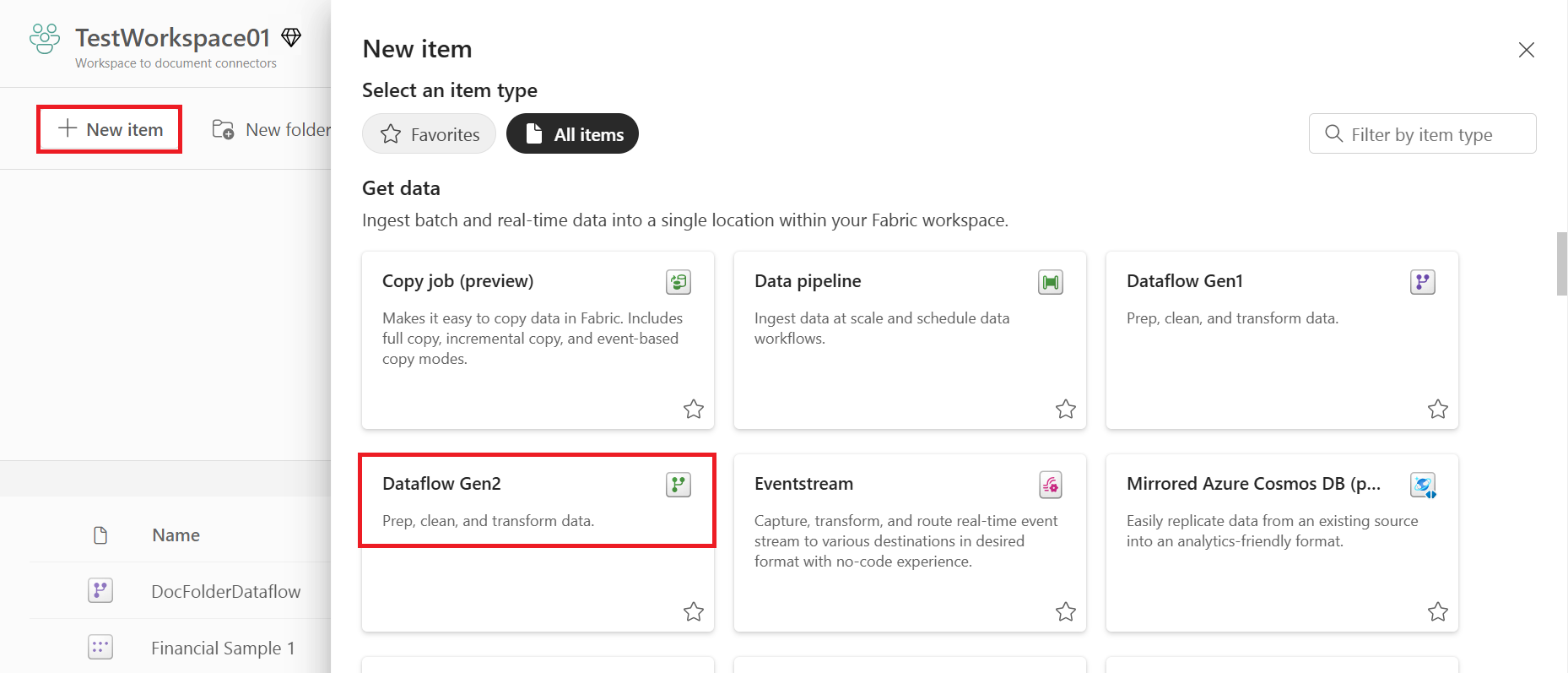
In Power Query, either select Get data in the ribbon or select Get data from another source in the current view.

In the Choose data source page, use Search to search for the name of the connector, or select View more on the right hand side the connector to see a list of all the connectors available in Power BI service.
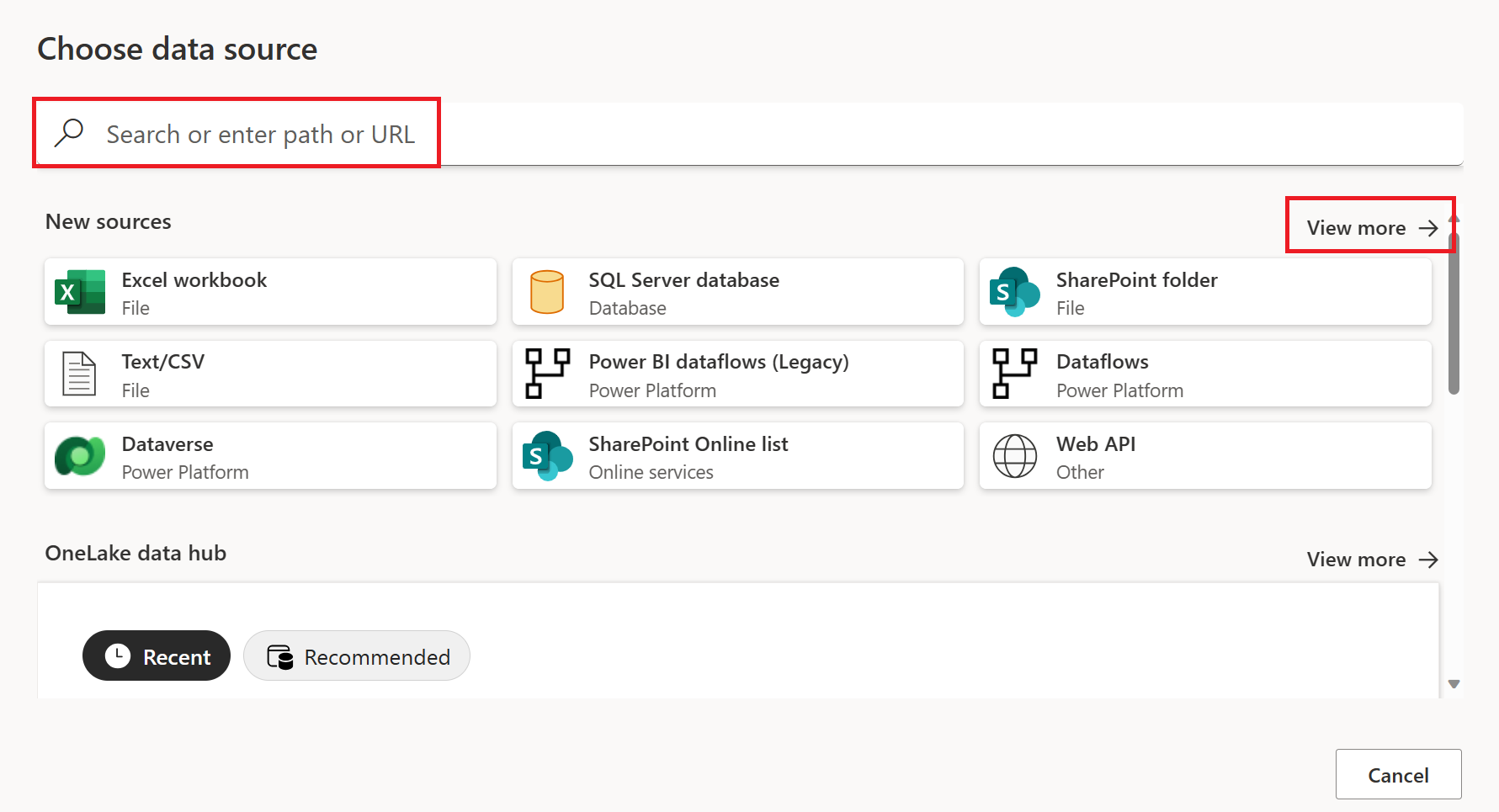
If you choose to view more connectors, you can still use Search to search for the name of the connector, or choose a category to see a list of connectors associated with that category.


Copy your account key for Azure Blob Storage
To retrieve your Azure Blob Storage account key to use while authenticating your account in Power Query:
Sign in to the Azure portal.
Locate your Azure Blob Storage account.
In the storage account menu pane, under Security + networking, select Access keys.

In the key1 section, locate the Key value. Select Show next to the key value.
Select the Copy to clipboard icon to copy the Key value.


Connect to Azure Blob Storage
To connect to Azure Blob Storage:
Select the Azure Blobs option in the get data experience. Different apps have different ways of getting to the Power Query Online get data experience. For more information about how to get to the Power Query Online get data experience from your app, go to Where to get data.
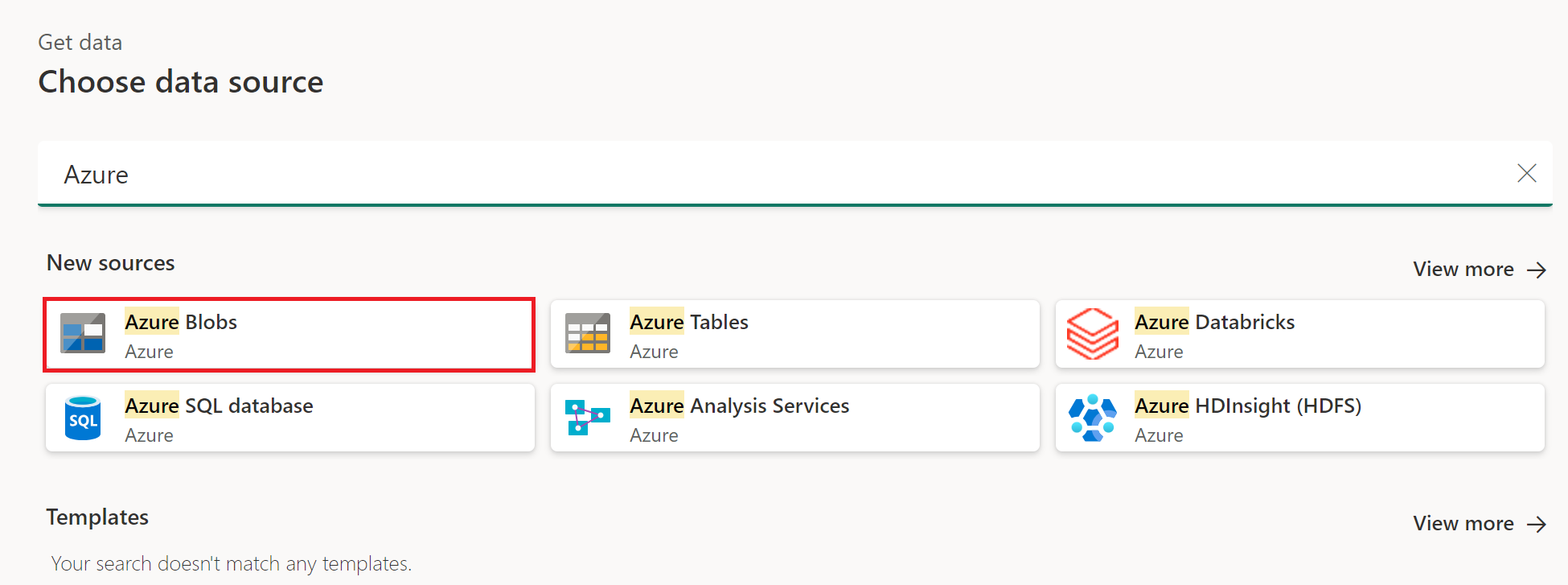
In Connection settings, enter the account name or URL of your Azure Blob Storage account.
Optionally, enter the name of the on-premises data gateway you require.
Select the Authentication kind used to access your blob storage.

- Anonymous: Your blob storage is set up for anonymous access. Select Next to continue.
- Account key: Your blob storage is set up to require an account key. Enter the account key in the provided text box and select Next to continue. More information: Copy your account key from Azure Blob Storage
- Organizational account: Select Sign in to sign into your storage account. You're redirected to your organization's sign-in page. Follow the prompts to sign into the account. Once you're signed in, select Next to continue.
- Shared Access Signature (SAS): To retrieve your SAS token, go to portal.azure.com, navigate to your resource, and, under Security + networking, select Shared access signature and scroll down to view the SAS token. Paste the value into the SAS token box and select Next.
- Service principal: Enter the tenant ID, service principal client ID, and service principal key, and then select Next.
For more information about using and managing authentication, go to Connections and authentication in Power Query Online.
Select Next.
The Navigator screen shows the files that you uploaded to your Azure Blob Storage account. Select the containers you want to use, and then select Transform data.


Limitations and considerations
The following limitations apply to the Power Query Azure Blob Storage connector.
Power Query Online and Azure Storage are in the same region
Direct access to an Azure Storage account with the firewall enabled and in the same region as Power Query Online isn't supported. This limitation arises because Power Query services, when deployed in the same region as the Azure storage account, use private Azure IP addresses for communication. For further details, refer to the Azure documentation on storage network security.
To work around this limitation and enable access to Azure Storage from Power Query Online in the same region, use one of the following methods:
- Utilize an On-premises data gateway, which serves as a bridge between Power Query Online and Azure Storage.
- Use a Virtual Network (VNet) data gateway.
Set up your connection for a pipeline
The following table contains a summary of the properties needed for a pipeline connection:
| Name | Description | Required | Property | Copy |
|---|---|---|---|---|
| Account name or URL | Azure Blob Storage account name or endpoint. | Yes | ✓ | |
| Connection | Select Create new connection. | Yes | ✓ | |
| Connection name | A name for your connection. | Yes | ✓ | |
| Authentication kind | Go to Authentication. | Yes | Go to Authentication. |
For specific instructions to set up your connection in a pipeline, follow these steps:
Browse to the New connection page for the data factory pipeline to configure the connection details and create the connection.

You have two ways to browse to this page:
- In copy assistant, browse to this page after selecting the connector.
- In pipeline, browse to this page after selecting + New in Connection section and selecting the connector.
In the New connection pane, specify the following fields:
- Account name or URL: Specify your Azure Blob Storage account name or URL. Browse to the Endpoints section in your storage account and the blob service endpoint is the account URL.
- Connection: Select Create new connection.
- Connection name: Specify a name for your connection.

Under Authentication kind, select your authentication kind from the drop-down list and complete the related configuration. The Azure Blob Storage connector supports the following authentication types:

Select Create to create your connection. Your creation is successfully tested and saved if all the credentials are correct. If not correct, the creation fails with errors.

Authentication instructions
This section lists the instructions for each authentication type supported by the Azure Blob Storage connector:
Anonymous authentication
Select Anonymous under Authentication kind.

Account key authentication
Specify the account key of your Azure Blob Storage. Go to your Azure Blob Storage account interface, browse to the Access key section, and get your account key.

Shared Access Signature (SAS) authentication
Specify the shared access signature token (SAS token) to the storage resources, such as a blob or container.

If you don’t have a SAS token, switch to Shared access signature in your Azure Blob Storage account interface. Under Allowed resource types, select Service. Then select Generate SAS and connection string. You can get your SAS token from the SAS token that's displayed.
The shared access signature is a URI that encompasses in its query parameters all the information necessary for authenticated access to a storage resource. To access storage resources with the shared access signature, the client only needs to pass in the shared access signature to the appropriate constructor or method.
For more information about shared access signatures, go to Shared access signatures: Understand the shared access signature model.
Organizational account authentication
Select Sign in, which displays the sign in interface. Enter your account and password to sign in your organizational account. After signing in, go back to the New connection page.

Grant the organizational account proper permission in Azure Blob Storage. For more information on the roles, go to Assign an Azure role for access to blob data.
- As source, in Access control (IAM), grant at least the Storage Blob Data Reader role.
- As destination, in Access control (IAM), grant at least the Storage Blob Data Contributor role.
Service principal authentication
You need to specify the tenant ID, service principal client ID, and service principal key when using this authentication.

- Tenant ID: Specify the tenant information (domain name or tenant ID) under which your application resides. Retrieve it by hovering over the upper-right corner of the Azure portal.
- Service principal client ID: Specify the application's client ID.
- Service principal Key: Specify your application's key.
To use service principal authentication, follow these steps:
Register an application entity in Microsoft Entra ID by following Authorize access to blobs using Microsoft Entra ID. Make note of these values, which you use to define the connection:
- Tenant ID
- Application ID
- Application key
Grant the service principal proper permission in Azure Blob Storage. For more information on the roles, go to Assign an Azure role for access to blob data.
- As source, in Access control (IAM), grant at least the Storage Blob Data Reader role.
- As destination, in Access control (IAM), grant at least the Storage Blob Data Contributor role.