Note
Access to this page requires authorization. You can try signing in or changing directories.
Access to this page requires authorization. You can try changing directories.
Normally, when you add a Python library to an environment in the Fabric portal, the underlying Spark compute resolves and downloads the package and its dependencies from PyPI. However, when an admin enables outbound access protection for a workspace, the Spark compute is blocked from making outbound internet connections. Any attempt to install a package through the portal fails because the compute can't reach PyPI or conda.
To install Python libraries when outbound access protection is enabled, you need to get the packages into Fabric through a path that doesn't require outbound internet access from the Spark compute. This article covers two approaches:
- Upload custom libraries (recommended) — Download the specific wheel files you need on a separate machine and upload them directly to your Fabric environment. Best when you need a small number of packages and want minimal infrastructure overhead.
- Host a PyPI mirror — Set up a full or partial replica of PyPI on an Azure Storage account behind your organization's vNet. Best for organizations that rely on many PyPI packages and want
pip installto work seamlessly without managing individual wheel files. This approach requires more setup and ongoing maintenance.
Upload custom library files (recommended)
When outbound access protection is enabled, Fabric can't reach PyPI to install packages directly. This approach lets you download the specific packages you need — along with their dependencies — on a separate machine that has internet access, and then upload those wheel files to your Fabric environment as custom libraries.
You build a local Python environment that matches the Fabric runtime so that pip resolves the correct dependency versions. Then you use pip download to fetch only the additional packages your workload requires (not the packages already included in the runtime).
Prerequisites
Before you begin, make sure you have the following:
A Linux machine with internet access — You need a Linux environment to build a local Python environment and download wheel files. Fabric's Spark compute runs on Linux (Azure Linux/Mariner), so you must use Linux to ensure conda resolves the correct platform-specific packages and
pip downloadfetches compatible wheels. You can use any of the following:- Windows Subsystem for Linux (WSL) on your Windows PC
- A Linux PC or laptop
- An Azure Linux VM
The Fabric runtime YML file — Download the Python YML file for your runtime version from the Fabric runtime GitHub repo:
- Runtime 1.2 (Spark 3.4):
Fabric-Python310-CPU.yml(Python 3.10) - Runtime 1.3 (Spark 3.5):
Fabric-Python311-CPU.yml(Python 3.11) - Runtime 2.0 (Spark 4.0):
Fabric-Python313-CPU.yml(Python 3.12)
- Runtime 1.2 (Spark 3.4):

Step 1: Create a requirements file
Create a requirements.txt file listing the additional packages your workload needs that aren't already included in the Fabric runtime. For example:
catboost==1.2.8
shap==0.44.0
You can check which packages are already included in the runtime by reviewing the YML files in the Fabric runtime GitHub repo. Only list packages that are missing or need a different version.
Step 2: Remove private libraries from the YML file
The runtime YML file contains Microsoft-hosted private libraries that pip can't resolve from public repositories. Remove these libraries from the file before creating your environment. The specific libraries vary by runtime version:
| Library | Runtime 1.2 | Runtime 1.3 | Runtime 2.0 |
|---|---|---|---|
azure-synapse-ml-predict |
Yes | -- | -- |
azureml-synapse |
Yes | Yes | Yes |
chat-magics |
Yes | Yes | -- |
chat-magics-fabric |
Yes | Yes | -- |
control-script |
-- | Yes | -- |
ds-copilot |
Yes | Yes | -- |
dscopilot-installer |
Yes | Yes | -- |
fabric-analytics-notebook-plugin |
-- | -- | Yes |
fabric-analytics-sdk |
-- | -- | Yes |
fabric-connection |
Yes | Yes | -- |
flaml |
Yes | Yes | Yes |
flt-python |
-- | Yes | Yes |
fsspec_wrapper |
Yes | Yes | Yes |
geoanalytics-fabric |
-- | Yes | Yes |
impulse-python-handler |
Yes | Yes | Yes |
kqlmagiccustom |
-- | Yes | Yes |
library-metadata-cooker |
Yes | Yes | Yes |
notebookutils |
Yes | Yes | Yes |
prose-pandas2pyspark |
-- | Yes | Yes |
prose-suggestions |
-- | Yes | Yes |
semantic-link-sempy |
Yes | Yes | Yes |
spark-mssql-connector-fabric35 |
-- | Yes | -- |
spark-mssql-connector-fabric40 |
-- | -- | Yes |
sqlanalyticsconnectorpy |
Yes | -- | -- |
sqlanalyticsfabricconnectorpy |
Yes | Yes | Yes |
synapseml |
-- | -- | Yes |
synapseml-* |
Yes | Yes | Yes |
Step 3: Create a local Python environment that matches the Fabric runtime
On your Linux machine, set up a conda environment that mirrors the Fabric runtime. This ensures pip resolves the correct dependency versions for your packages.
Download and install Miniconda:
wget https://repo.anaconda.com/miniconda/Miniconda3-latest-Linux-x86_64.sh
bash Miniconda3-latest-Linux-x86_64.sh -b -p $HOME/miniconda3
export PATH="$HOME/miniconda3/bin:$PATH"
Install the C/C++ compilers that some Python packages require during installation. On Ubuntu/Debian:
sudo apt-get update
sudo apt-get -yq install gcc g++
For other distros, use the equivalent package manager (for example,
tdnfon Azure Linux).Use the edited YML file from a previous step to create a conda environment. The following example uses the Runtime 1.3 setup file. Replace the YML filename with the one for your runtime version.
conda env create -n fabric-env -f Fabric-Python311-CPU.yml
conda activate fabric-env
Step 4: Download wheel files for your packages
Use pip download to download the wheel files for your required packages and all their dependencies into a local directory. This command resolves versions against the conda environment you created in the previous step.
mkdir wheels
pip download -r requirements.txt -d wheels
After the command completes, the wheels directory contains .whl files for each package and its dependencies.
Step 5: Upload the wheel files to your Fabric environment
Upload the downloaded wheel files to your Fabric environment as custom libraries:
- In the Fabric portal, go to your workspace and open your environment.
- Select Custom libraries on the left panel.
- Select Upload and choose the
.whlfiles from thewheelsdirectory. - Select Publish to apply the changes.
Host a PyPI mirror on Azure Storage
This approach sets up a full or partial replica of PyPI on an Azure Storage account that's accessible from your Fabric workspace through a private endpoint. Once configured, Fabric's Spark compute can resolve and install packages directly — just like a normal pip install — without needing outbound internet access.
Note
A PyPI mirror is best suited for organizations that rely on many PyPI packages and prefer pip install to work without managing individual wheel files. This approach requires more upfront effort and ongoing maintenance to keep the mirror in sync with PyPI.
Prerequisites
Before you begin, make sure you have the following:
- A Linux machine with internet access — Used to run the mirroring tool and upload packages. You can use WSL, a Linux PC, or an Azure Linux VM.
- An Azure Storage account — Hosts the mirrored packages. Must be accessible from your Fabric workspace through a private endpoint.
- Bandersnatch — A PyPI mirroring tool that downloads packages and generates the index files that
pipneeds. - A file upload utility — Azure CLI, AzCopy, or Blobfuse2 for uploading the mirror to your storage account.
Important
The full PyPI repository is large and constantly growing (see PyPI statistics). The initial sync can take 8 to 48 hours depending on your network speed, hardware, and disk I/O. Subsequent syncs only download new or changed packages and are much faster.
Bandersnatch supports filtering plugins that let you mirror only the packages you need. For example, if the mirror is only for Fabric, you can exclude Windows binaries to reduce storage and sync time. Evaluate these options based on your use case.
Step 1: Install Python and Bandersnatch
On your Linux machine, install Python (if not already available) and Bandersnatch:
# Download and install Miniconda
wget https://repo.anaconda.com/miniconda/Miniconda3-latest-Linux-x86_64.sh
bash Miniconda3-latest-Linux-x86_64.sh -b -p $HOME/miniconda3
export PATH="$HOME/miniconda3/bin:$PATH"

# Install Bandersnatch
pip install bandersnatch
Step 2: Configure and run the mirror sync
Create a Bandersnatch configuration file. See the example configuration for reference.
Then run the mirror command. This performs a one-time sync that downloads packages from PyPI to your local file system:
bandersnatch --config <path-to-bandersnatch.conf> mirror
After the sync completes, the mirror directory contains the package files and index structure that pip requires:
/home/trusted-service-user/bandersnatch1/web/
├── simple/
├── pypi/
├── packages/
├── local-stats/
└── json/
Step 3: Verify the local mirror (optional)
You can verify the mirror works by starting a local HTTP server and installing a package from it:
cd <path-to-mirror-directory>
python -m http.server 8000

# In a separate terminal, test installing a package from the local mirror
pip install <package-name> --index-url http://localhost:8000/simple
Step 4: Upload the mirror to Azure Storage
Enable Static website hosting on your Azure Storage account. This lets you host the PyPI index pages that pip needs to resolve packages. Enabling this feature automatically creates a $web container.

Using Azure CLI, AzCopy, or Blobfuse2, upload all five folders (simple, pypi, packages, local-stats, and json) to the $web container. All folders must be in the same container because the index pages in simple/ use relative links to reference files in packages/.
Step 5: Connect Fabric to the mirror
To let Fabric's Spark compute reach your storage account, add two managed private endpoints in the Fabric workspace settings — one for the blob endpoint and one for the web (static website) endpoint of your storage account.
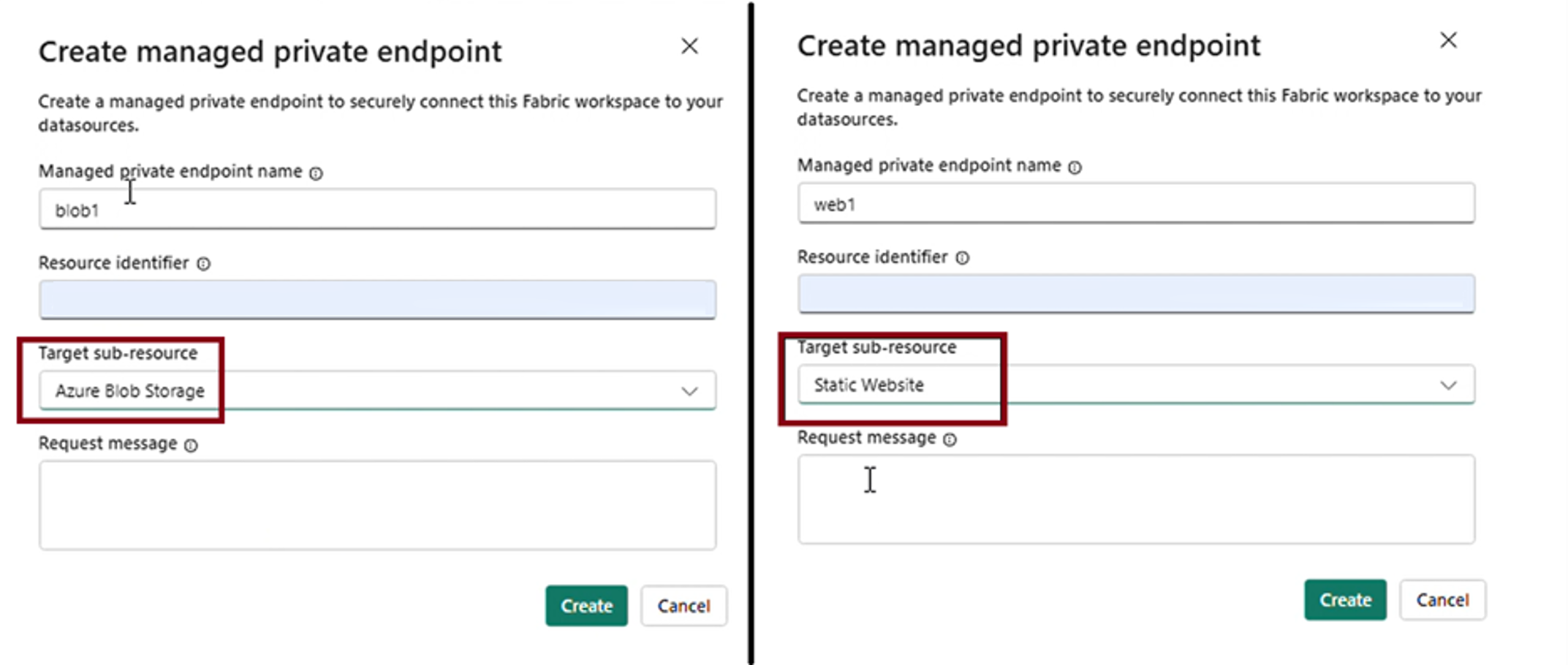
Then install packages from the mirror using your storage account's static website URL. To find this URL, go to your storage account in the Azure portal and select Static website under Data management. The URL looks like https://<storage-account-name>.z<number>.web.core.windows.net, where the zone number varies by region.
You can point pip to this mirror through an environment YAML file or an inline %pip command in a notebook:
YAML file in an environment:
dependencies:
  - pip
  - pip:
    - --index-url https://<static-website-url>/simple
    - pytest==8.2.2
Inline command in a notebook:
%pip install pytest --index-url https://<static-website-url>/simple