Note
Access to this page requires authorization. You can try signing in or changing directories.
Access to this page requires authorization. You can try changing directories.
Overview
Single sign-on (SSO) lets your users access an application without authenticating multiple times. The authentication occurs in the cloud, against Microsoft Entra ID, and the service or connector impersonates the user to complete additional authentication challenges from the application.
How to configure single sign-on
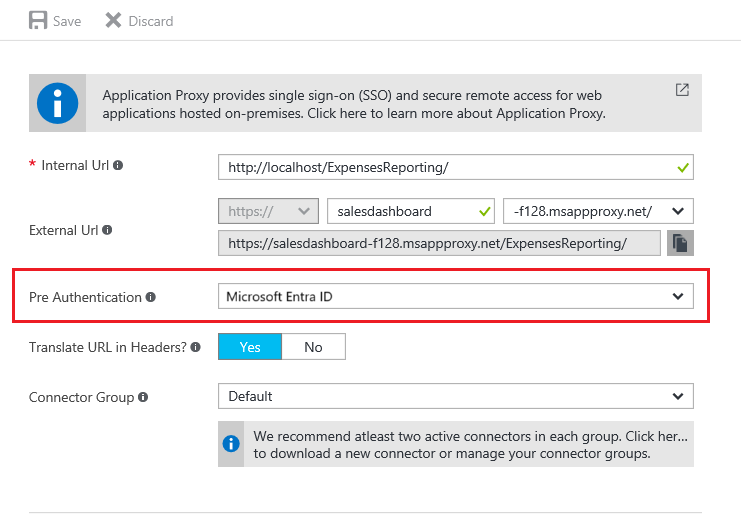
To configure SSO, first make sure that your application is configured for preauthentication through Microsoft Entra ID.
- Sign in to the Microsoft Entra admin center as at least an Application Administrator.
- Select your username in the upper-right corner. Verify you're signed in to a directory that uses application proxy. If you need to change directories, select Switch directory and choose a directory that uses application proxy.
- Browse to Entra ID > Enterprise apps > Application proxy.
Look for the Pre Authentication field, and make sure that it's set.
For more information about preauthentication methods, see step 4 of Add an on-premises application for remote access through application proxy in Microsoft Entra ID.
Configure single sign-on modes for application proxy applications
Configure the specific type of single sign-on. The sign-on methods are classified based on what type of authentication the backend application uses. Application proxy applications support four types of sign-on:
Password-based sign-on: Password-based sign-on can be used for any application that uses username and password fields to sign in. Configuration steps are in Configure password single sign-on for a Microsoft Entra gallery application.
Integrated Windows authentication: For applications using integrated Windows authentication (IWA), single sign-on is enabled through Kerberos Constrained Delegation (KCD). This method gives private network connectors permission in Active Directory to impersonate users, and to send and receive tokens on their behalf. For details about configuring KCD, see Single sign-on with KCD.
Header-based sign-on: Header-based sign-on provides single sign-on capabilities using HTTP headers. To learn more, see Header-based single sign-on.
SAML single sign-on: With Security Assertion Markup Language (SAML) single sign-on, Microsoft Entra ID authenticates to the application by using the user's Microsoft Entra account. Microsoft Entra ID communicates the sign-in information to the application through a connection protocol. With SAML-based single sign-on, you can map users to specific application roles based on rules you define in your SAML claims. For information about setting up SAML single sign-on, see SAML for single sign-on with application proxy.
To find these options, go to your application in Enterprise apps, and open the Single sign-on page on the left menu. If your application was created in the old portal, you might not see all these options.
On this page, you also see one more sign-on option: Linked Sign-On. Application proxy supports this option. However, this option doesn't add single sign-on to the application. That said, the application might already have single sign-on implemented using another service such as Active Directory Federation Services.
This option lets an admin create a link to an application that users first land on when accessing the application. For example, an application that is configured to authenticate users using Active Directory Federation Services 2.0 can use the Linked Sign-On option to create a link to it on the My Apps page.