Note
Access to this page requires authorization. You can try signing in or changing directories.
Access to this page requires authorization. You can try changing directories.
Note
Community interest groups have now moved from Yammer to Microsoft Viva Engage. To join a Viva Engage community and take part in the latest discussions, fill out the Request access to Finance and Operations Viva Engage Community form and choose the community you want to join.
The Person search report refines the existing Data management framework of finance and operations apps. The Data management framework offers a prepackaged set of entities that Microsoft authored to identify personal data that defines a person and the roles that a person might be assigned to in finance and operations applications.
Note
You can use the report with Dynamics 365 Finance, Supply Chain Management, Commerce, and Human Resources. The report isn't currently available for Microsoft Dynamics AX 2012. The Person search report is available in version 8.0. The report is also available in version 7.3 (delivered via monthly update 7.3.2), in version 7.2 (via KB 4132615), and in version 7.1 (via KB 4132441). The Person search report might be updated periodically. Before using this report, make sure you have obtained and applied all relevant hotfixes.
You can use the Global address book to create an instance of a person that is described in the data model as a party.
When you add a contact, customer, user, worker, or other person in finance and operations data, you typically start by creating an address book entry for that person. Each person in the address book is referred to as a party and is assigned a PartyID. The person also takes on a role in the system, such as customer, user, or worker, and has a role ID: CustID, UserID, WorkerID, and possibly others.
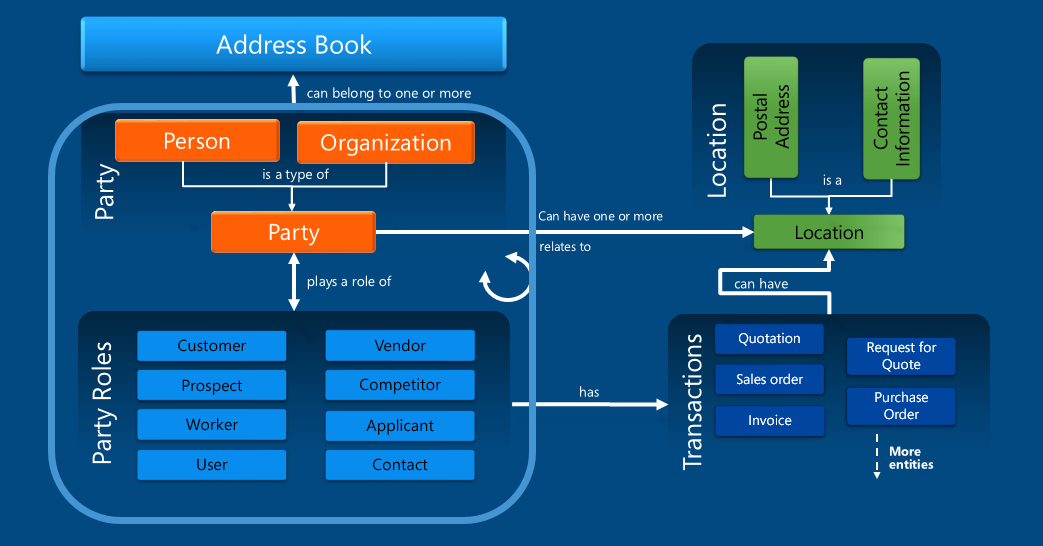
At times, you might want to verify that the information you entered and use to describe or otherwise identify a person is correct. Situations might also arise where it's useful to share that information with the data subject who requested the data. The Person search report can help with both these tasks.
The Person search report is extensible. If you find that the existing entities don't contain all of the personal data you're looking for, you can extend them or write new entities. In addition, you can change the data mappings for each entity and remove fields that you don't want to export.
The Person search report lets you specify different identifiers for a person, such as a CustomerID or VendorID. It then collects, filters, and populates the entity collection set with personal data that relates only to the person you specified.
On rare occasions, you might enter a single person in your system more than once. The Person search report lets you specify each person instance to include on a single report. For example, someone named Fred Smith might be both "Fred Smith" and "F. D. Smith" in your address book.
An individual might exist as multiple parties in data. You can provide multiple identifiers for each party type, and each party type's personal data is included on a single report.
Download the default template
The Person template contains a list of the entities that the system uses to download information. You must load the template before you can use the Person search report. You can load the template from the Templates form in Data management for versions 7.2 and later. To download templates from Data management, complete the following steps:
- Open the Data management workspace.
- If this is the first time that you opened the workspace, it loads all of the data entities. You must wait for all data entities to load before you can load the template.
- Select the Templates tile.
- Select Load default templates.
- Select Person search.
- Select Load selected.
You can also download a template from LCS and import it for versions 7.1 or later. To do so, complete the following steps:
- Sign in to LCS.
- Select the Shared asset library tile.
- Select the Data package asset type.
- Select the template named Template-x.x-Person search, where x.x is the application version that you're using, and download it.
- Open the Data Management workspace.
- If this is the first time that you opened the workspace, it loads all of the data entities. Wait for all entities to load before you download the template.
- Select the Templates tile.
- Create a new template called Person search.
- Select Import template.
- Click OK to import the template..
Generate a person search
To use the Person search report, complete these tasks.
From the System administration menu, open the Person search list page, and create a new search.
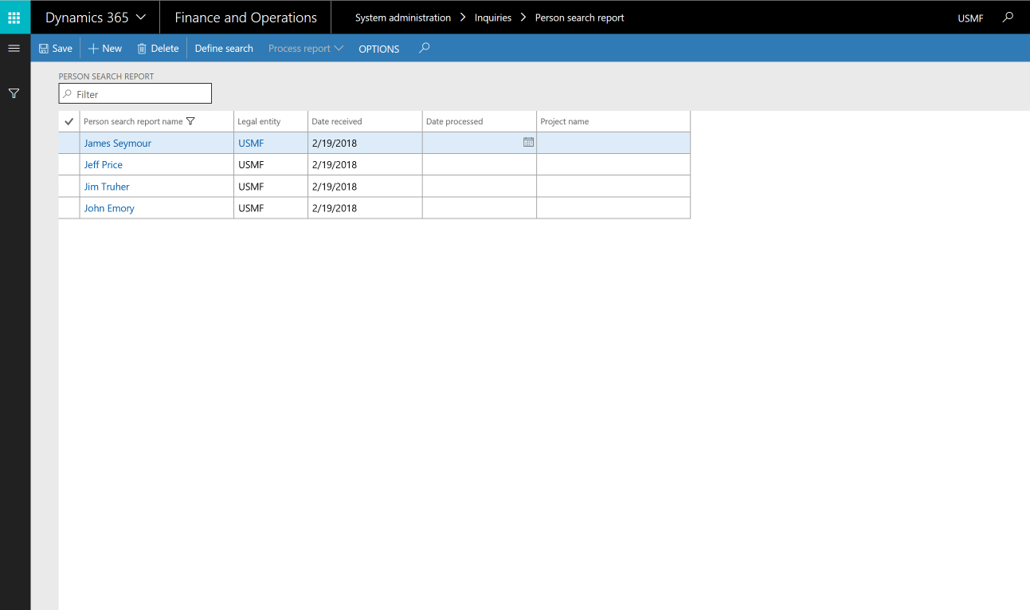
The search gives you three options: you can search by ID, by name, or by address. Add the type of search that you want.

Run the search to show the results.
Verify that the results are valid. Clear any selections that return information that you don't want to include in the report.

Select Process report, and then select the Person search template.

Select OK. A data package is generated.
When the package is generated, export it to your selected data format.
Note
Documents that are attached to records aren't included in the data export. You must manually download and share attachments with the individual who requested personal data.
Disclaimer
(c) 2019 Microsoft Corporation. All rights reserved. This document is provided "as-is." Microsoft grants you no legal rights to any intellectual property in any Microsoft product. You may copy and use this document for your internal, reference purposes. The information and views expressed in this document, including URL and other Internet website references, might change without notice. You bear the risk of using it.