Note
Access to this page requires authorization. You can try signing in or changing directories.
Access to this page requires authorization. You can try changing directories.
Note
Community interest groups have now moved from Yammer to Microsoft Viva Engage. To join a Viva Engage community and take part in the latest discussions, fill out the Request access to Finance and Operations Viva Engage Community form and choose the community you want to join.
As part of the process of designing Electronic reporting (ER) configurations to generate electronic documents, you define the method that gets data out of the application and puts it in the generated output. The ER performance trace feature helps you significantly reduce the time and cost involved in collecting the details of ER format execution and using them to troubleshoot performance problems. This tutorial provides guidelines about how to take performance traces for executed ER formats, and how to use the information from these traces to help improve performance.
Prerequisites
To complete the examples in this tutorial, you need the following access:
Access to one of the following roles:
- Electronic reporting developer
- Electronic reporting functional consultant
- System administrator
Access to the instance of Regulatory Configuration Services (RCS) that's provisioned for the same tenant as the application, for one of the following roles:
- Electronic reporting developer
- Electronic reporting functional consultant
- System administrator
Also, download and store the following files locally.
| File | Content |
|---|---|
| Performance trace model.version.1 | Sample ER data model configuration |
| Performance trace metadata.version.1 | Sample ER metadata configuration |
| Performance trace mapping.version.1.1 | Sample ER model mapping configuration |
| Performance trace format.version.1.1 | Sample ER format configuration |
Configure ER parameters
Each ER performance trace that the application generates is stored as an attachment of the execution log record. The Document management (DM) framework manages these attachments. You must configure ER parameters in advance to specify the DM document type that should be used to attach performance traces. In the Electronic reporting workspace, select Electronic reporting parameters. Then, on the Electronic reporting parameters page, on the Attachments tab, in the Others field, select the DM document type to use for performance traces.
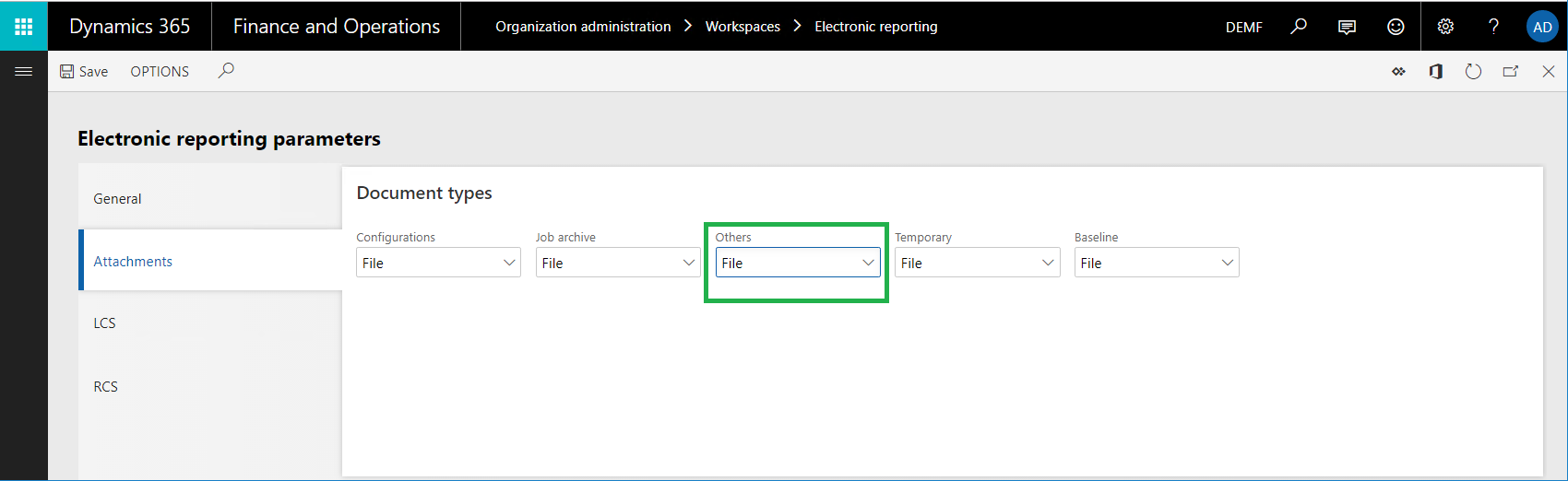
To be available in the Others lookup field, a DM document type must be configured in the following manner on the Document types page (Organization administration > Document management > Document types):
- Class: Attach file
- Group: File

Note
The selected document type must be available in every company of the current instance, because DM attachments are company-specific.
Configure RCS parameters
You import ER performance traces into RCS for analysis by using the ER format designer and the ER mapping designer. Because ER performance traces are stored as attachments of the execution log record that relates to the ER format, you must configure RCS parameters in advance to specify the DM document type that should be used to attach performance traces. In the instance of RCS that you provisioned for your company, in the Electronic reporting workspace, select Electronic reporting parameters. Then, on the Electronic reporting parameters page, on the Attachments tab, in the Others field, select the DM document type to use for performance traces.
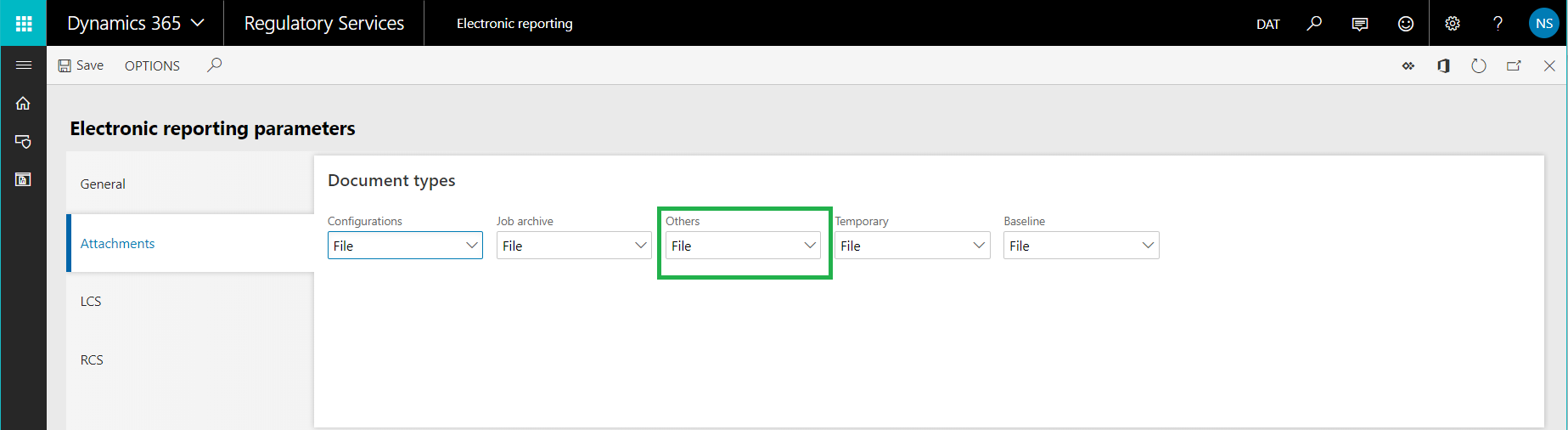
To be available in the Others lookup field, a DM document type must be configured in the following manner on the Document types page (Organization administration > Document management > Document types):
- Class: Attach file
- Group: File
Design an ER solution
Assume that you start designing a new ER solution to generate a new report that presents vendor transactions. Currently, you can find the transactions for a selected vendor on the Vendor transactions page (go to Account payable > Vendors > All vendors, select a vendor, and then, on the Action Pane, on the Vendor tab, in the Transactions group, select Transactions). However, you want to have all vendor transactions at the same time in one electronic document in XML format. This solution consists of several ER configurations that contain the required data model, metadata, model mapping, and format components.
Sign in to the instance of RCS that is provisioned for your company.
In this tutorial, you create and modify configurations for the Litware, Inc. sample company. Therefore, make sure that you add this configuration provider to RCS and select it as active. For instructions, see the Create configuration providers and mark them as active procedure.
In the Electronic reporting workspace, select the Reporting configurations tile.
On the Configurations page, import the ER configurations that you downloaded as a prerequisite into RCS, in the following order: data model, metadata, model mapping, format. For each configuration, follow these steps:
- On the Action Pane, select Exchange > Load from XML file.
- Select Browse to select the appropriate file for the required ER configuration in XML format.
- Select OK.

Run the ER solution to trace execution
Assume that you finish designing the first version of the ER solution. You now want to test it in your instance and analyze execution performance.
Import an ER configuration from RCS into finance and operations
Sign in to your application instance.
For this tutorial, import configurations from your RCS instance (where you design your ER components) into your instance (where you test and finally use them). Therefore, make sure that you prepare all the required artifacts. For instructions, see the Import Electronic reporting (ER) configurations from Regulatory Configuration Services (RCS) procedure.
Follow these steps to import the configurations from RCS into the application:
- In the Electronic reporting workspace, on the tile for the Litware, Inc. configuration provider, select Repositories.
- On the Configuration repository page, select the repository of the RCS type, and then select Open.
- On the Configurations FastTab, select the Performance trace format configuration.
- On the Versions FastTab, select version 1.1 of the selected configuration, and then select Import.

The corresponding versions of the data model and model mapping configurations are automatically imported as prerequisites for the imported ER format configuration.
Turn on the ER performance trace
Go to Organization administration > Electronic reporting > Configurations.
On Configurations, on the Action Pane, on the Configurations tab, in the Advanced settings group, select User parameters.
In User parameters, in the Execution tracing section, follow these steps:
In the Execution trace format field, specify the format of the generated performance trace that stores execution details for ER format and mapping elements:
Debug trace format – Select this value if you plan to interactively run an ER format that has a short execution time. The collection of details about ER format execution starts. When you select this value, the performance trace collects information about the time spent on the following actions:
- Running each data source in the model mapping that the process calls to get data
- Processing each format item to enter data in the output that is generated
If you select the Debug trace format value, you can analyze the content of the trace in the ER Operation designer. There, you can view the ER format or mapping elements that are mentioned in the trace.
Aggregated trace format – Select this value if you plan to run an ER format that has a long execution time in batch mode. The collection of the aggregated details about ER format execution starts. When you select this value, the performance trace collects information about the time spent on the following actions:
- Running each data source in the model mapping that the process calls to get data
- Running each data source in the format mapping that the process calls to get data
- Processing each format item to enter data in the output that is generated
The Aggregated trace format value is available in Microsoft Dynamics 365 Finance version 10.0.20 and later.
In the ER format designer and ER model mapping designer, you can view the total execution time for a single component. Additionally, the trace contains details about the execution, such as the number of executions, and the minimum and maximum time of a single execution.
Note
This trace is collected based on the traced components path. Therefore, the statistics might be incorrect when a single parent component contains several unnamed child components, or when several child components have the same name.
Set the following options to Yes to collect specific details of the execution of the ER model mapping and ER format components:
Collect query statistics – When you turn on this option, the performance trace collects the following information:
- The number of database calls that data sources make
- The number of duplicate calls to the database
- Details of the SQL statements that were used to make database calls
Trace access of caching – When you turn on this option, the performance trace collects information about the ER model mapping's cache usage.
Trace data access – When you turn on this option, the performance trace collects information about the number of calls to the database for executed data sources of the record list type.
Trace list enumeration – When you turn on this option, the performance trace collects information about the number of records that are requested from data sources of the record list type.
Note
The parameters in the User parameters dialog box are specific to the user and the current company.

Run the ER format
- Select the DEMF company.
- Go to Organization administration > Electronic reporting > Configurations.
- On Configurations, in the configuration tree, select the Performance trace format item.
- On the Action Pane, select Run.
The generated file presents information about 265 transactions for six vendors.
Review the execution trace
Export the generated trace from the application
Performance traces are decoupled from the source ER format and can be serialized to an external zip file.
Go to Organization administration > Electronic reporting > Configuration debug logs.
On Electronic reporting run logs, in the left pane, in the Configuration name field, select Performance trace format to find the log records that the execution of the Performance trace format configuration generates.
Select the Attachments button (the paper clip symbol) in the upper-right corner of the page, or press Ctrl+Shift+A.

On Attachments for Electronic reporting run logs, on the Action Pane, select Open to get the performance trace as a zip file and store it locally.

Note
The generated trace has a reference to the source ER report via a unique report identifier in GUID format only. The version numbering of the format isn't considered.
The association between the performance trace that the application generates for the executed ER format and the ER model mapping is based on the root descriptor that the application uses and the common data model. The version numbering of the format and model mapping isn't considered. The setting of the Default for model mapping flag for the model mapping also isn't considered.
Import the generated trace into RCS
In RCS, in the Electronic reporting workspace, select the Reporting configurations tile.
On the Configurations page, in the configuration tree, expand the Performance trace model item, and select the Performance trace format item.
On the Action Pane, select Designer.
On the Format designer page, on the Action Pane, select Performance trace.
In the Performance trace result settings dialog box, select Import performance trace.
Select Browse to select the zip file that you exported earlier.
Select OK.

Use the performance trace for analysis in RCS – Format execution
In RCS, on the Format designer page, select Expand/collapse to expand the content of all format items.
Notice that the trace shows extra information for some items of the current format:
- The actual time that was spent entering data in the generated output by using the format item
- The same time expressed as a percentage of the total time that was spent generating the whole output

Close Format designer page.
Use the performance trace for analysis in RCS – Model mapping
- In RCS, on the Configurations page, in the configuration tree, select the Performance trace mapping item.
- On the Action Pane, select Designer.
- Select Designer.
- On the Model mapping designer page, on the Action Pane, select Performance trace.
- Select the trace that you imported earlier.
- Select OK.
You see new information for some data source items of the current model mapping:
- The actual time that the data source spends getting data
- The same time expressed as a percentage of the total time that was spent running the whole model mapping
ER informs you that the current model mapping duplicates database requests while the VendTable/<Relations/VendTrans.VendTable_AccountNum data source runs. This duplication occurs because the list of vendor transactions is called two times for each iterated vendor record:
- One call enters details of each transaction in the data model, based on configured bindings.
- One call enters the calculated number of transactions per vendor in the data model.

The value [Q:530] indicates that the VendTrans table was called 530 times to return a record from that table to the VendTable/<Relations/VendTrans.VendTable_AccountNum data source. The value [530] indicates that the VendTable/<Relations/VendTrans.VendTable_AccountNum data source was called 530 times to return a record from that data source and enter the details from it in the data model.
Use caching for the VendTable/<Relations/VendTrans.VendTable_AccountNum data source to reduce the number of calls that are made to get the details for 265 transactions and help improve the performance of the model mapping.
It can also be useful to reduce the number of calls that are made to the LedgerTransTypeList data source. This data source associates each value of the LedgerTransType enumeration with its label. By using this data source, you can find an appropriate label and enter it in the data model for each vendor transaction. The current number of calls to this data source (9,027) is quite high for 265 transactions.

Improve the model mapping based on information from the execution trace
Modify the logic of the model mapping
To use caching and help prevent duplicate calls to the database, follow these steps:
- In RCS, on the Model mapping designer page, in the Data sources pane, select the VendTable item.
- Select Cache.
- Expand the VendTable item, expand the list of one-to-many relations for the VendTable data source (the <Relations item), and select the VendTrans.VendTable_AccountNum item.
- Select Cache.

To bring the LedgerTransTypeList data source into the scope of the VendTable data source, follow these steps:
- In the Data source types pane, expand the Functions item, and select the Calculated field item.
- In the Data sources pane, select the VendTable item.
- Select Add.
- In the Name field, enter $TransType.
- Select Edit formula.
- In the Formula field, enter LedgerTransTypeList.
- Select Save.
- Close the Formula editor page.
- Select OK.
To cache the $TransType field, follow these steps:
- Select the LedgerTransTypeList item.
- Select Cache.
- Select the VendTable.$TransType item.
- Select Cache.

To change the $TransTypeRecord field so that it starts to use the cached $TransType field, follow these steps:
In the Data sources pane, expand the VendTable item, expand the <Relations item, expand the VendTrans.VendTable_AccountNum item, and select the VendTable. VendTrans.VendTable_AccountNum.$TransTypeRecord item.
Select Edit.
Select Edit formula.
In the Formula field, find the following expression:
FIRSTORNULL (WHERE (LedgerTransTypeList, LedgerTransTypeList.Enum = @.TransType))
In the Formula field, enter the following expression:
FIRSTORNULL (WHERE (VendTable.'$TransType', VendTable.'$TransType'.Enum = @.TransType)).
Select Save.
Close the Formula editor page.
Select OK.
Select Save.
Close the Model mapping designer page.
Close the Model mappings page.
Complete the modified version of the ER model mapping
- In RCS, on the Configurations page, on the Versions FastTab, select version 1.2 of the Performance trace mapping configuration.
- Select Change status.
- Select Complete.
Import the modified ER model mapping configuration from RCS into the application
To import version 1.2 of the Performance trace mapping configuration, see Import an ER configuration from RCS into finance and operations.
Run the modified ER solution to trace execution
Run the ER format
To generate a new performance trace, see Run the ER format.
Work with the execution trace
Export the generated trace from the application
To save a new performance trace locally, see Export the generated trace from the application.
Import the generated trace into RCS
To import the new performance trace into RCS, see Import the generated trace into RCS.
Use the performance trace for analysis in RCS – Model mapping
To analyze the latest performance trace, repeat the steps in the Use the performance trace for analysis in RCS – Model mapping section earlier in this article.
The adjustments you made to the model mapping eliminate duplicate queries to the database. The number of calls to database tables and data sources for this model mapping is also reduced. Therefore, the performance of the whole ER solution improves.

In the trace information, the value [12] for the VendTable data source indicates that this data source was called 12 times. The value [Q:6] indicates that six calls were translated to database calls to the VendTable table. The value [C:6] indicates that the records fetched from the database were cached, and six other calls were processed by using the cache.
The number of calls to the LedgerTransTypeList data source is reduced from 9,027 to 240.

Review the execution trace in the application
In addition to RCS, some versions might offer capabilities for an ER framework designer experience. These versions have an Enable design mode option that you can turn on. You can find this option on the General tab of the Electronic reporting parameters page, which you can open from the Electronic reporting workspace.

If you use one of these versions, you can analyze the details of generated performance traces directly in the application. You don't have to export them from the application and import them into RCS.
Review the execution trace by using external tools
Configure user parameters
- Go to Organization administration > Electronic reporting > Configurations.
- On Configurations, on the Action Pane, on the Configurations tab, in the Advanced settings group, select User parameters.
- In the User parameters dialog box, in the Execution tracing section, in the Execution trace format field, select PerfView XML.
Run the ER format
To generate a new performance trace, see Run the ER format.
The web browser offers a zip file for download. This file contains the performance trace in PerfView format. You can use the PerfView performance analysis tool to analyze the details of ER format execution.

Use external tools to review an execution trace that includes database queries
Improvements to the ER framework mean that the performance trace generated in PerfView format now offers more details about ER format execution. In Microsoft Dynamics 365 Finance version 10.0.4 (July 2019), this trace can also include details of executed SQL queries to the application database.
Configure user parameters
Go to Organization administration > Electronic reporting > Configurations.
On Configurations, on the Action Pane, on the Configurations tab, in the Advanced settings group, select User parameters.
In the User parameters dialog box, in the Execution tracing section, set the following parameters:
- In the Execution trace format field, select PerfView XML.
- Set the Collect query statistics option to Yes.
- Set the Trace query option to Yes.

Run the ER format
To generate a new performance trace, see Run the ER format.
When you finish, the web browser offers a ZIP file for download. This file contains the performance trace in PerfView format. You can use the PerfView performance analysis tool to analyze the details of ER format execution. This trace now includes the details of SQL database access during the execution of the ER format.
