Note
Access to this page requires authorization. You can try signing in or changing directories.
Access to this page requires authorization. You can try changing directories.
To ensure accurate financial tracking in Project Operations, link Field Service work orders to an eligible project. This link allows material usage, labor entries, and actual costs to flow into the correct project contract line and billing structure. You can link work orders manually or through agreements. Project linkage must occur before the Work Order System Status is Posted.
Prerequisites
- Project requirements are met.
- You have a Field Service dispatcher or administrator role.
Directly link a project to a work order
Open an existing work order or create a work order in Field Service.
On the General tab, scroll to the Related Project Details section and select the project.

Select Save & Close.
Link a project to an agreement
Agreements generate recurring work orders. When you link an agreement to a project, you ensure consistent financial alignment for recurring or scheduled services. Assign the project before setting the agreement to Active.
Open an existing agreement or create an agreement in Field Service. The agreement must be in a Draft or Estimate status.
Select the project.
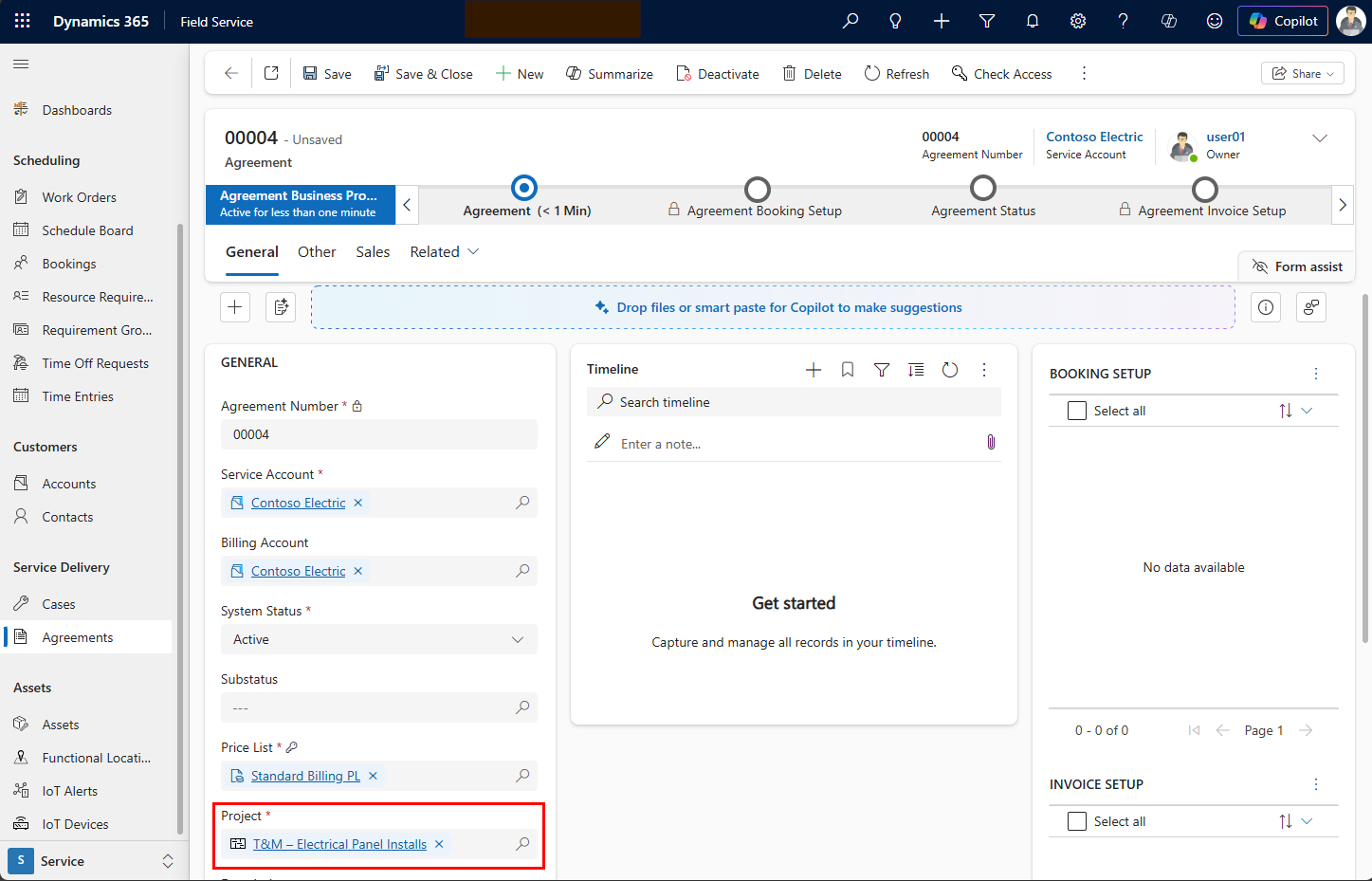
Change the System Status to Active to activate the agreement.
Select Save & Close. Any work orders created from the agreement automatically link to the assigned project.
Change or remove a project from a work order or agreement
You can change or remove a project as long as the work order isn't posted. You might want to change or remove a project if you selected the wrong project.
Change the project on a work order
When you change the project on a work order, the following updates happen:
- All existing and future project-related estimates and actuals for the work order’s product and service lines reference the new project.
- New usage recorded after the change generates estimates and actuals under the new project and contract line.
To change the project, open the work order in Field Service and change the Project field on the General tab. Confirm and save.
Remove the project from a work order
When you remove the project from a work order, the following changes happen:
- The system deletes any existing project estimates for the work order.
- The system reverses any project actuals that you already created.
- The system returns the work order to an unlinked state until you select a new project.
To remove the project, open the work order in Field Service and remove the project from the Project field on the General tab. Confirm and save. Financial data is no longer linked to the project.
Change a project on an agreement with work orders
When you update the project on an agreement that already generated work orders, only new work orders inherit the newly selected project lookup. You must manually correct any existing work orders that you created under the previous project.
Deactivation behavior with Project Operations integration
When you integrate Field Service with Project Operations, deactivating a work order doesn't deactivate or reverse its child records. Time entries, material usage, and related actuals remain in Project Operations. To remove them, you must deactivate or delete those records separately.
View work orders related to projects
To view work orders that are linked to projects, on the Work Orders page, select the Work Orders Linked to Project view.
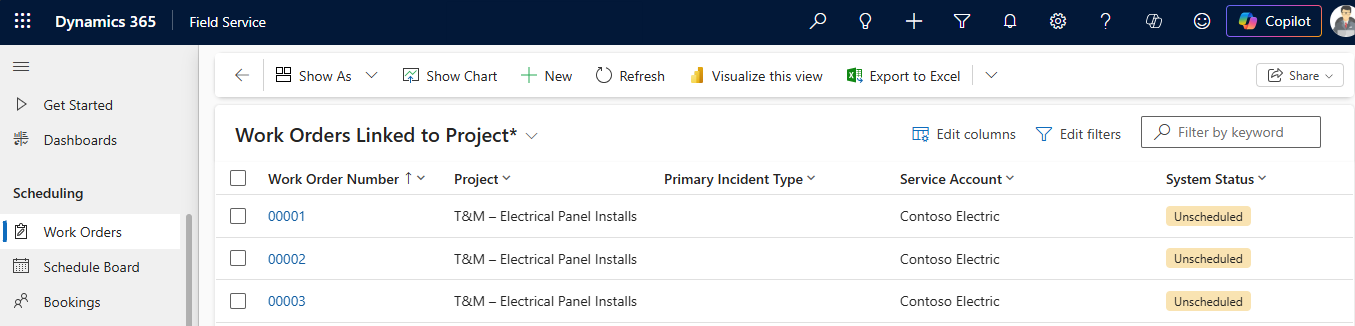
To view work orders that aren't linked to projects, on the Work Orders page, select the Work Orders Without Project view.