Note
Access to this page requires authorization. You can try signing in or changing directories.
Access to this page requires authorization. You can try changing directories.
Write a knowledge article to share information with technicians. Add images and videos to explain things better and make the articles engaging. After creating a knowledge article, you can have the article reviewed or schedule it for publication. An article isn't available to dispatchers and technicians until the article is published.
A knowledge article can include product documentation, solutions to common issues, answers to frequently asked questions, and more.
Create a knowledge article
In Field Service, go to Settings > Knowledge management > Knowledge articles and select New or New From Template.

On the Content tab, in the Article Content section, fill in the following details:
- Title: Type a descriptive title that communicates the subject and purpose of the article in a concise manner.
- Keywords: Type or select keywords for the article. These keywords are used to search the knowledge base for articles. Separate keywords with commas.
- Description: Type or select a short description of the article. The description appears in the search results and is used for search engine optimization.
In the Content section, add the content for your knowledge article. Add text, pictures, and videos to the knowledge article. Learn more about the Designer text editor.
Select Save & Close.
Review a knowledge article
To ensure that the content you create is accurate, have someone review it. You can mark an article for review or directly assign it to a specific person or queue.
Open the article.
Change the Status Reason to Needs review. Optionally, Assign the article to the reviewer.
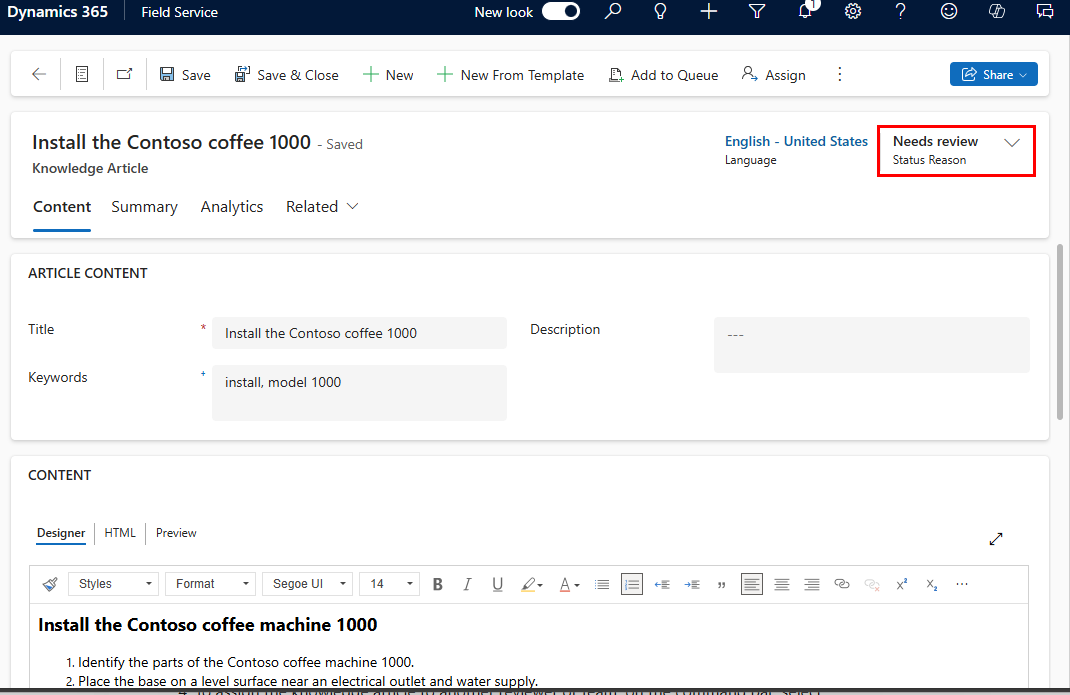
Reviewers can change the Status Reason to In review when reviewing the article.
When the reviewer is satisfied with the article, on the command bar, select the More commands (⋮) > Approve.
Confirm and then select Save & Close.
Publish a knowledge article
After you complete the content in the article, publish the article to make it available to your technicians. You can publish the article immediately or schedule it for a later time.
Open the article.
On the command bar, select More commands (⋮) > Publish.
Enter the following information:
- Publish: Select whether you want to publish the knowledge article now or in the future. To schedule the article for future publishing, in the Publish On field, select a date and time.
- Published Status: Select the status the article holds once published. By default, Published is selected.
- Expiration Date: Select a date and time for when you want the published article to expire, if any. Expired articles are no longer available in searches. If you set an expiration date, select the state and status the knowledge article should be set to after it expires.
- Publish Approved related translations with Article: Select Yes if you want to publish all related translated articles with the article.
Select Publish. The Status Reason changes to Published.