Note
Access to this page requires authorization. You can try signing in or changing directories.
Access to this page requires authorization. You can try changing directories.
This tutorial describes the process to recover deleted items from the vault to ensure resiliency.
Resiliency in Azure allows you to recover protected items (restore backup, failover, test failover, and more), for the replication of the datasources from various views such as Overview, protected items, and so on.
Important
Azure Business Continuity Center is now Resiliency in Azure, a unified platform for Zone Resiliency, High Availability, Backup & Disaster Recovery, and Ransomware Protection. offers integrated experiences to ensure ongoing resilience of your applications. To try out the Zonal feature in Resiliency, fill out this enrollment form.
Prerequisites
Before you start the recovery process, ensure that the following prerequisites are met:
- Review the supported regions.
- Review the supported actions.
- You need to have permission on the resources to view them in Resiliency and recover them.
Initiate recovery for Azure VM
To initiate the recovery for an Azure Virtual Machine (VM), follow these steps:
On Resiliency, go to Protection inventory > Protected items, and then select Recover.
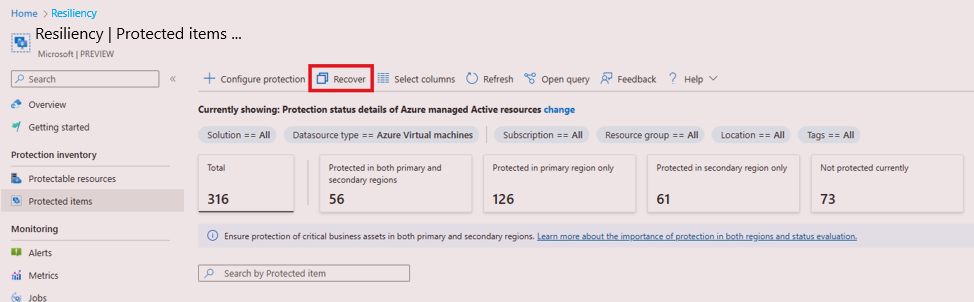
On the Recover blade, choose Resources managed by, select the Datasource type for which you want to configure protection, and select the Solution (limited to Azure Backup and Azure Site Recovery) through which you want to recover the item.

Based on the datasource type and the solution you select, the available recovery actions would change. For example, for Azure Virtual machine and Azure Backup, you can perform restore, file recovery, and restore to secondary region. For Azure Virtual machine and Azure Site Recovery, you can perform actions such as cleanup test failover, test failover, failover, commit, change recovery point, and so on.

Click Select to select the item on which you want to perform the recovery action.
Note
Only the items on which the selected recovery action can be performed will be available to select.

Highlight the item from the list, and click Select.
Select Configure to go to the solution-specific recover page.


