Note
Access to this page requires authorization. You can try signing in or changing directories.
Access to this page requires authorization. You can try changing directories.
Important
This article provides information on using the Azure Machine Learning SDK v1. SDK v1 is deprecated as of March 31, 2025. Support for it will end on June 30, 2026. You can install and use SDK v1 until that date. Your existing workflows using SDK v1 will continue to operate after the end-of-support date. However, they could be exposed to security risks or breaking changes in the event of architectural changes in the product.
We recommend that you transition to the SDK v2 before June 30, 2026. For more information on SDK v2, see What is Azure Machine Learning CLI and Python SDK v2? and the SDK v2 reference.
Tip
This article covers v1 datastores and datasets. For the recommended v2 approach to data access, see Create and manage data assets.
Connect Azure Machine Learning studio to your data in Azure storage services by using datastores and datasets. Datastores securely manage connection information, and datasets package your data into consumable objects for ML workflow tasks like training.
Prerequisites
An Azure subscription. If you don't have an Azure subscription, create a free account before you begin. Try the free or paid version of Azure Machine Learning.
Access to Azure Machine Learning studio.
An Azure Machine Learning workspace. Create workspace resources.
- When you create a workspace, the portal automatically registers an Azure blob container and an Azure file share to the workspace as datastores. It names them
workspaceblobstoreandworkspacefilestore, respectively. The portal setsworkspaceblobstoreas the default datastore. For sufficient blob storage resources, useworkspaceblobstore. For more blob storage resources, you need an Azure storage account with a supported storage type.
- When you create a workspace, the portal automatically registers an Azure blob container and an Azure file share to the workspace as datastores. It names them
Understand datastores and datasets
The following table defines datastores and datasets and summarizes the benefits of each.
| Object | Description | Benefits |
|---|---|---|
| Datastores | Securely connect to your storage service on Azure and store your connection information, such as subscription ID and token authorization, in the Key Vault associated with the workspace. | Because your information is securely stored, you don't put authentication credentials or original data sources at risk. You no longer need to hard code these values in your scripts. |
| Datasets | Dataset creation also creates a reference to the data source location, along with a copy of its metadata. By using datasets, you can access data during model training, share data, collaborate with other users, and use open-source libraries like pandas for data exploration. | Since datasets are lazily evaluated and the data remains in its existing location, you keep a single copy of data in your storage. Additionally, you incur no extra storage cost, you avoid unintentional changes to your original data sources, and your ML workflow performance speeds improve. |
For more information about where datastores and datasets fit in the overall Azure Machine Learning data access workflow, see Securely access data.
Create datastores
You can create datastores from supported Azure storage solutions. For unsupported storage solutions, and to save data egress costs during ML experiments, you must move your data to a supported Azure storage solution. For more information about datastores, see Azure Machine Learning datastores.
You can create datastores with credential-based access or identity-based access.
Create a new datastore by using the Azure Machine Learning studio.
Important
If your data storage account is located in a virtual network, you need to complete extra configuration steps to ensure that the studio can access your data. To learn more about the appropriate configuration steps, see Network isolation & privacy.
- Sign in to Azure Machine Learning studio.
- Select Data on the left pane under Assets.
- At the top, select Datastores.
- Select +Create.
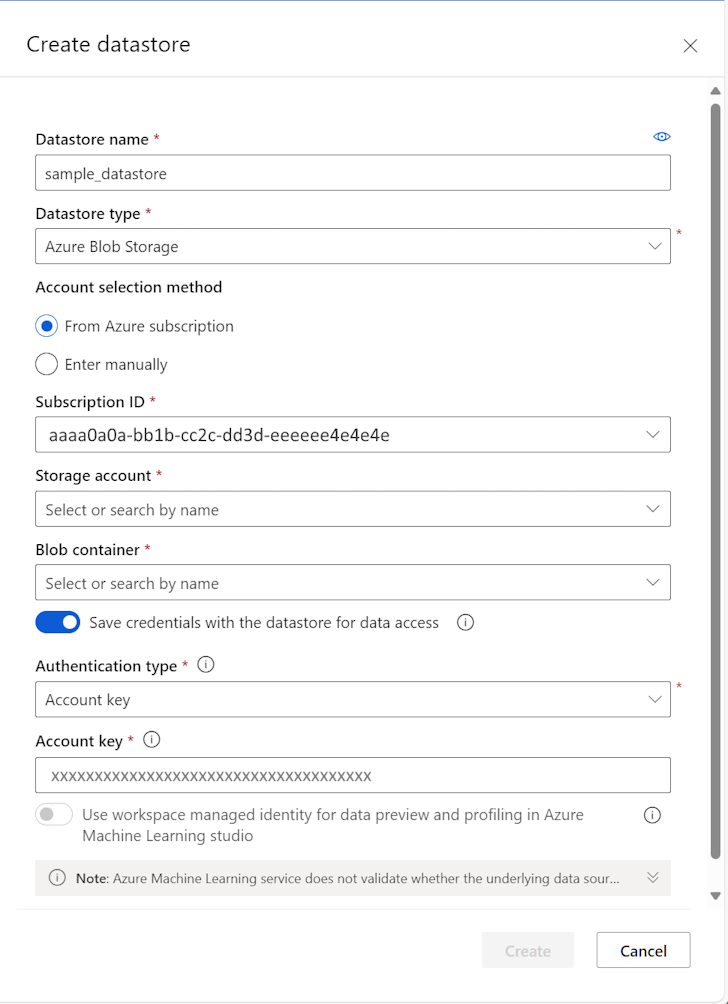
- Complete the form to create and register a new datastore. The form intelligently updates itself based on your selections for Azure storage type and authentication type. For more information about where to find the authentication credentials needed to populate this form, see Find authentication credentials.
The following screenshot shows the Azure blob datastore creation panel:

Create data assets
After you create a datastore, create a dataset to interact with your data. Datasets package your data into a lazily evaluated consumable object for machine learning tasks, for example, training. For more information about datasets, see Create Azure Machine Learning datasets.
Datasets have two types: FileDataset and TabularDataset. Use a TabularDataset when your data is structured with columns and rows, such as .csv, .tsv, .parquet, or .json files, or SQL query results. Use a FileDataset when you need to reference complete files, such as images, text files, or any format that doesn't fit a tabular structure.
The following steps describe how to create a dataset in Azure Machine Learning studio.
Note
Azure Machine Learning studio automatically registers datasets you create to the workspace.
Under Assets in the left navigation, select Data. On the Data assets tab, select Create, as shown in the following screenshot:

Enter a name and optional description for the data asset. Then, under Type, select a Dataset type, either File or Tabular, as shown in the following screenshot:
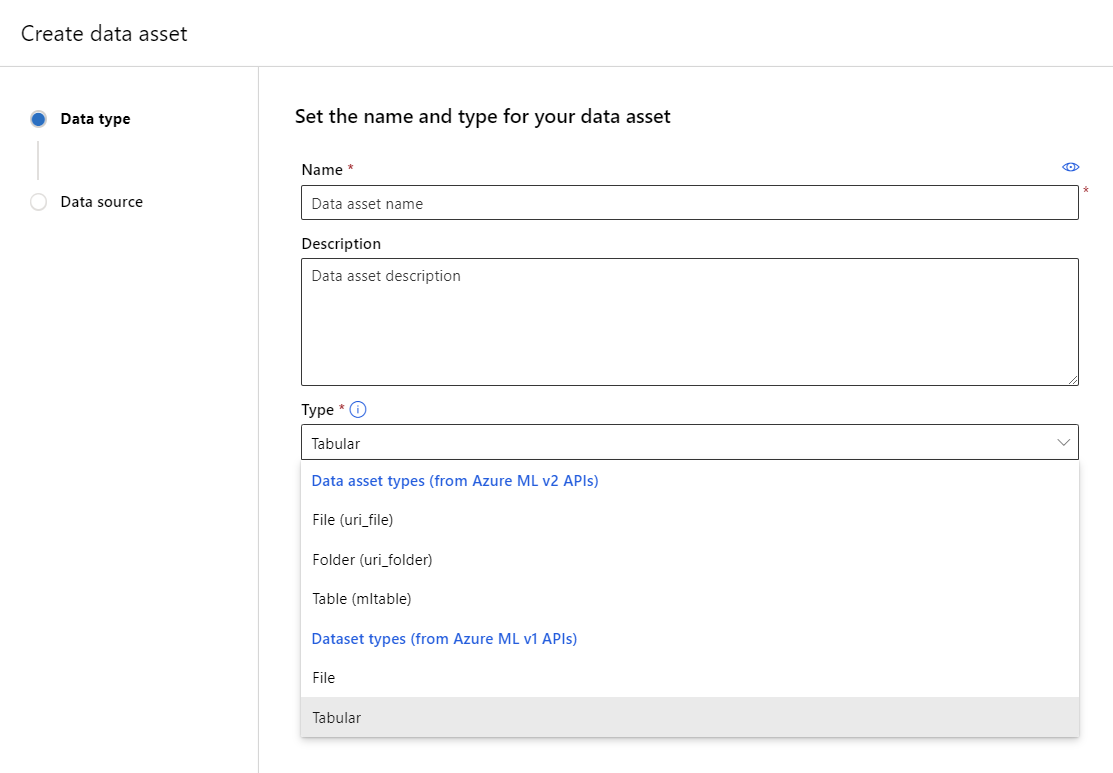
The Data source pane opens next, as shown in the following screenshot:


You have different options for your data source. For data already stored in Azure, choose From Azure storage. To upload data from your local drive, choose From local files. For data stored at a public web location, choose From web files. You can also create a data asset from a SQL database, or from Azure Open Datasets.
At the file selection step, select the location where Azure should store your data, and the data files you want to use.
- Enable skip validation if your data is in a virtual network. For more information, see Use Azure Machine Learning studio in a virtual network.
Follow the steps to set the data parsing settings and schema for your data asset. The settings prepopulate based on file type, and you can further configure your settings before the creation of the data asset.
When you reach the Review step, select Create on the last page.
Preview and profile a data asset
After you create your dataset, verify that you can view the preview and profile in Azure Machine Learning studio:
Sign in to the Azure Machine Learning studio.
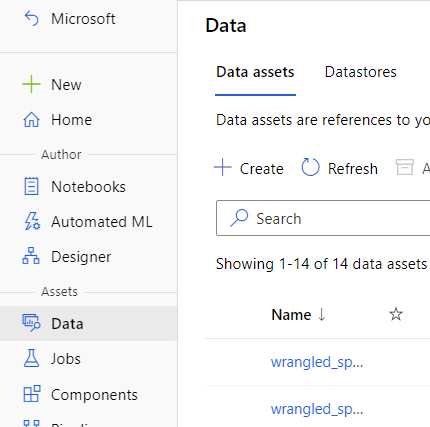
Under Assets in the left navigation, select Data as shown in the following screenshot:
Select the name of the dataset you want to view.
Select the Explore tab.
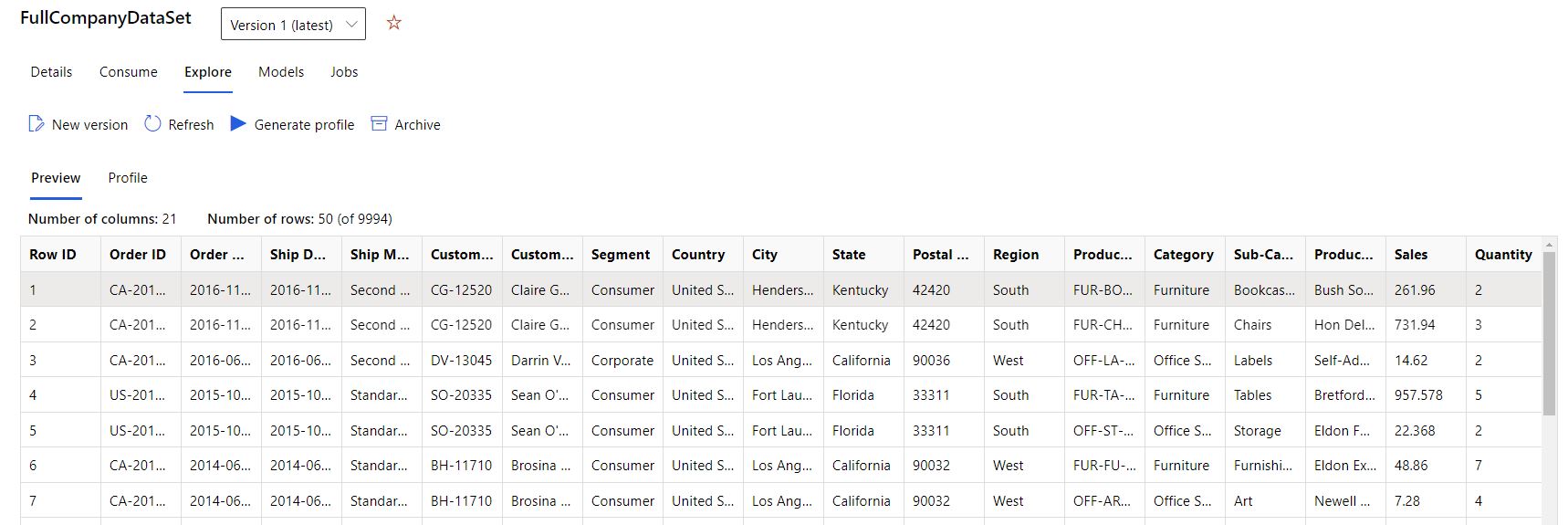
Select the Preview tab, as shown in the following screenshot:
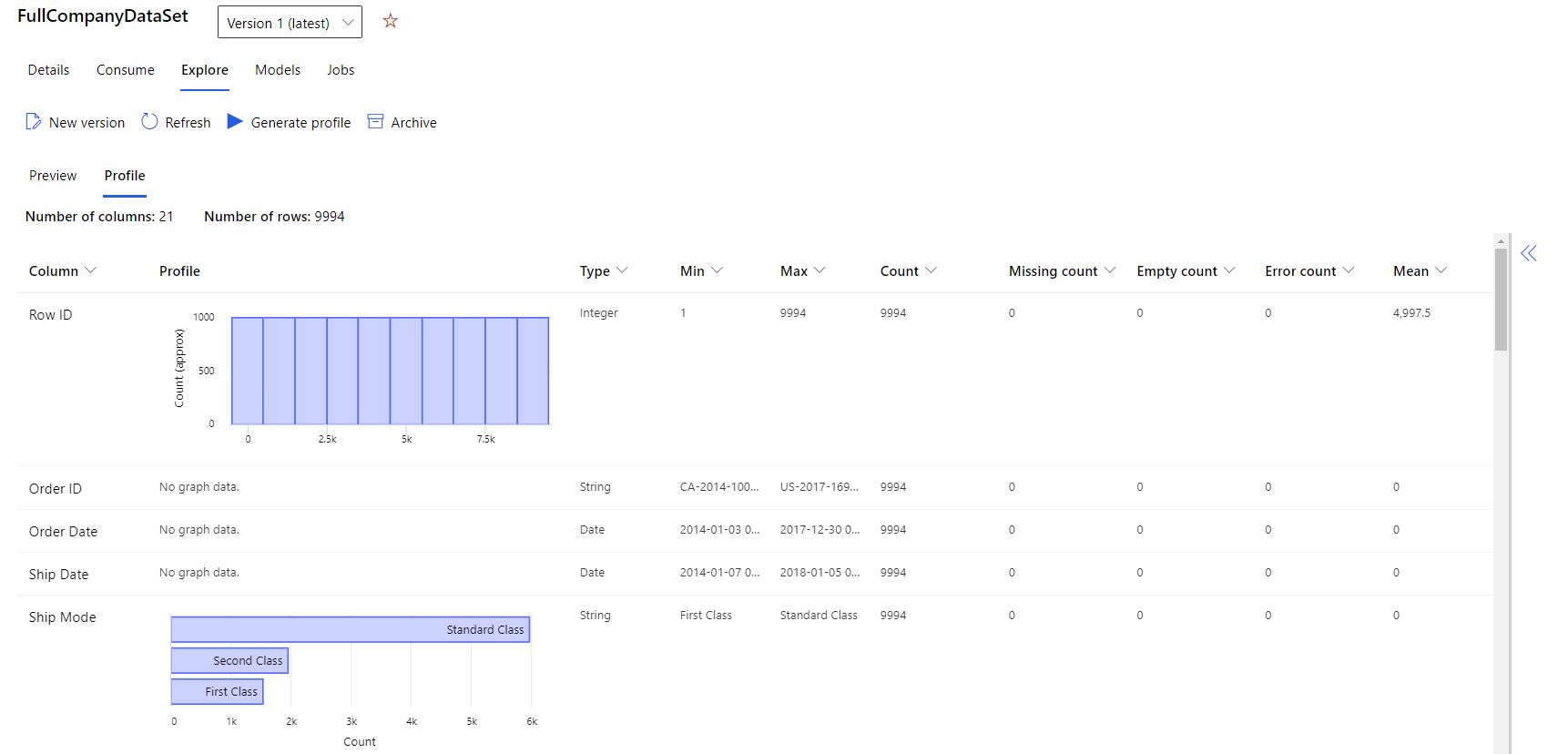
Select the Profile tab, as shown in the following screenshot:
Data profile statistics reference
The Azure Machine Learning dataset data profile includes the following statistics. Use these metrics to verify whether your dataset is ML-ready.
Note
Blank entries appear for features with irrelevant types.
| Statistic | Description |
|---|---|
| Feature | The summarized column name. |
| Profile | In-line visualization based on the inferred type. Strings, booleans, and dates have value counts. Decimals (numerics) have approximated histograms. These visualizations offer a quick understanding of the data distribution. |
| Type distribution | In-line value count of types within a column. Nulls are their own type, so this visualization can detect odd or missing values. |
| Type | Inferred column type. Possible values include: strings, booleans, dates, and decimals. |
| Min | Minimum value of the column. Blank entries appear for features whose type doesn't have an inherent ordering, such as booleans. |
| Max | Maximum value of the column. |
| Count | Total number of missing and nonmissing entries in the column. |
| Not missing count | Number of entries in the column that aren't missing. Empty strings and errors are treated as values, so they don't contribute to the "not missing count." |
| Quantiles | Approximated values at each quantile, to provide a sense of the data distribution. |
| Mean | Arithmetic mean or average of the column. |
| Standard deviation | Measure of the amount of dispersion or variation for the data of this column. |
| Variance | Measure of how far the data of this column spreads out from its average value. |
| Skewness | Measures the difference of this column's data from a normal distribution. |
| Kurtosis | Measures the degree of "tailness" of this column's data, compared to a normal distribution. |
Manage storage access and permissions
To securely connect to your Azure storage service, you must have permission to access the corresponding data storage. This access depends on the authentication credentials you use to register the datastore.
Virtual network
If your data storage account is in a virtual network, you need to complete extra configuration steps to ensure that Azure Machine Learning has access to your data. To learn more, see Use Azure Machine Learning studio in a virtual network. Ensure you apply the appropriate configuration steps when you create and register your datastore.
Access validation
Warning
Cross-tenant access to storage accounts isn't supported. If your scenario needs cross-tenant access, reach out to the (Azure Machine Learning Data Support team) for assistance with a custom code solution.
As part of the initial datastore creation and registration process, Azure Machine Learning automatically validates that the underlying storage service exists and that the user-provided principal (username, service principal, or SAS token) has access to the specified storage.
After datastore creation, this validation is only performed for methods that require access to the underlying storage container. The validation isn't performed each time you retrieve datastore objects. For example, validation happens when you download files from your datastore. However, if you want to change your default datastore, validation doesn't occur.
To authenticate your access to the underlying storage service, provide either your account key, shared access signatures (SAS) tokens, or service principal, according to the datastore type you want to create. The storage type matrix lists the supported authentication types that correspond to each datastore type.
Find authentication credentials
You can find account key, SAS token, and service principal information in the Azure portal.
To obtain an account key for authentication, select Storage Accounts in the left pane, and choose the storage account that you want to register:
- The Overview page provides information such as the account name, container, and file share name.
- Expand the Security + networking node in the left nav.
- Select Access keys.
- The available key values serve as Account key values.
To obtain an SAS token for authentication, select Storage Accounts in the left pane, and choose the storage account that you want:
- To obtain an Access key value, expand the Security + networking node in the left nav.
- Select Shared access signature.
- Complete the process to generate the SAS value.
To use a service principal for authentication, go to your App registrations and select which app you want to use:
- Its corresponding Overview page contains required information like tenant ID and client ID.
Important
- To change your access keys for an Azure Storage account (account key or SAS token), be sure to sync the new credentials with both your workspace and the datastores connected to it. For more information, see sync your updated credentials.
- If you unregister and then re-register a datastore with the same name, and that re-registration fails, the Azure Key Vault for your workspace might not have soft-delete enabled. By default, soft-delete is enabled for the key vault instance created by your workspace. However, it might not be enabled if you used an existing key vault or have a workspace created before October 2020. For more information about how to enable soft-delete, see Turn on Soft Delete for an existing key vault.
Permissions
For Azure blob container and Azure Data Lake Gen 2 storage, ensure that your authentication credentials have Storage Blob Data Reader access. Learn more about Storage Blob Data Reader. By default, an account SAS token has no permissions.
For data read access, your authentication credentials need at least list and read permissions for containers and objects.
For data write access, your authentication credentials also need write and add permissions.
Train a model with datasets
After you create and register a dataset, you can reference it in training experiments. Datasets support direct integration with Azure Machine Learning training pipelines and AutoML runs. For step-by-step guidance, see Train models with Azure Machine Learning datasets.
Troubleshoot common issues
The following table lists common problems and resolutions when you connect to Azure storage.
| Issue | Resolution |
|---|---|
| Permission denied when accessing storage | Verify that your identity or credential has the Storage Blob Data Reader role. For more information, see Storage Blob Data Reader. |
| SAS token expired or invalid | Generate a new SAS token with the correct permissions and expiration date. Sync the updated token with your workspace. For more information, see Sync updated credentials. |
| Data access blocked in a virtual network | Verify that Azure Machine Learning studio is configured for virtual network access. See Use Azure Machine Learning studio in a virtual network. |
| Datastore re-registration fails | The Azure Key Vault for your workspace might not have soft-delete enabled. See Turn on Soft Delete for an existing key vault. |
| Cross-tenant access fails | Cross-tenant access to storage accounts isn't supported. Contact the Azure Machine Learning Data Support team for assistance. |
Related content
- Create and manage data assets (v2) - the recommended approach for data access in Azure Machine Learning.
- Train a model with Azure Machine Learning datasets - use the datasets you registered in training experiments.
- Use automated machine learning with TabularDatasets - a step-by-step example of training with AutoML.