Note
Access to this page requires authorization. You can try signing in or changing directories.
Access to this page requires authorization. You can try changing directories.
Note
This document refers to the Microsoft Foundry (classic) agents.
🔍 View the new Fabric data agent documentation. Agents (classic) are now deprecated and will be retired on March 31, 2027. Use the new agents in the generally available Microsoft Foundry Agents Service. Follow the migration guide to update your workloads.
Integrate your Microsoft Foundry Agent with the Microsoft Fabric data agent to unlock powerful data analysis capabilities. The Fabric data agent transforms enterprise data into conversational Q&A systems, so users can interact with the data through chat and uncover data-driven and actionable insights.
You need to first build and publish a Fabric data agent, and then connect your Fabric data agent with the published endpoint. When a user sends a query, the agent first determines if it should use the Fabric data agent. If so, it uses the end user’s identity to generate queries over data they have access to. Lastly, the agent generates responses based on queries returned from Fabric data agents. By using Identity Passthrough (On-Behalf-Of) authorization, this integration simplifies access to enterprise data in Fabric while maintaining robust security, ensuring proper access control and enterprise-grade protection.
Usage support
Note
The Fabric data agent only supports user identity authentication. Service Principal Name (SPN) authentication isn't supported.
| Azure AI foundry support | Python SDK | C# SDK | JavaScript SDK | REST API | Basic agent setup | Standard agent setup |
|---|---|---|---|---|---|---|
| ✔️ | ✔️ | ✔️ | ✔️ | ✔️ |
Prerequisites
Create and publish a Fabric data agent endpoint.
Developers and end users have at least the
Azure AI UserRBAC role.Developers and end users have at least
READaccess to the Fabric data agent. Users also need the minimum permission on each underlying data source:Data source Minimum permission Power BI semantic model Build(includes Read). Read alone isn't sufficient because the agent generates model queries that require Build.Lakehouse Read on the lakehouse item (and table access, if enforced). Warehouse Read ( SELECTon relevant tables).KQL database Reader role on the database. For full details, see Underlying data source permissions.
Your Fabric data agent and Foundry agent are in the same tenant.
Your Foundry Project endpoint.
You can find your endpoint in the overview for your project in the Microsoft Foundry portal, under Libraries > Foundry.
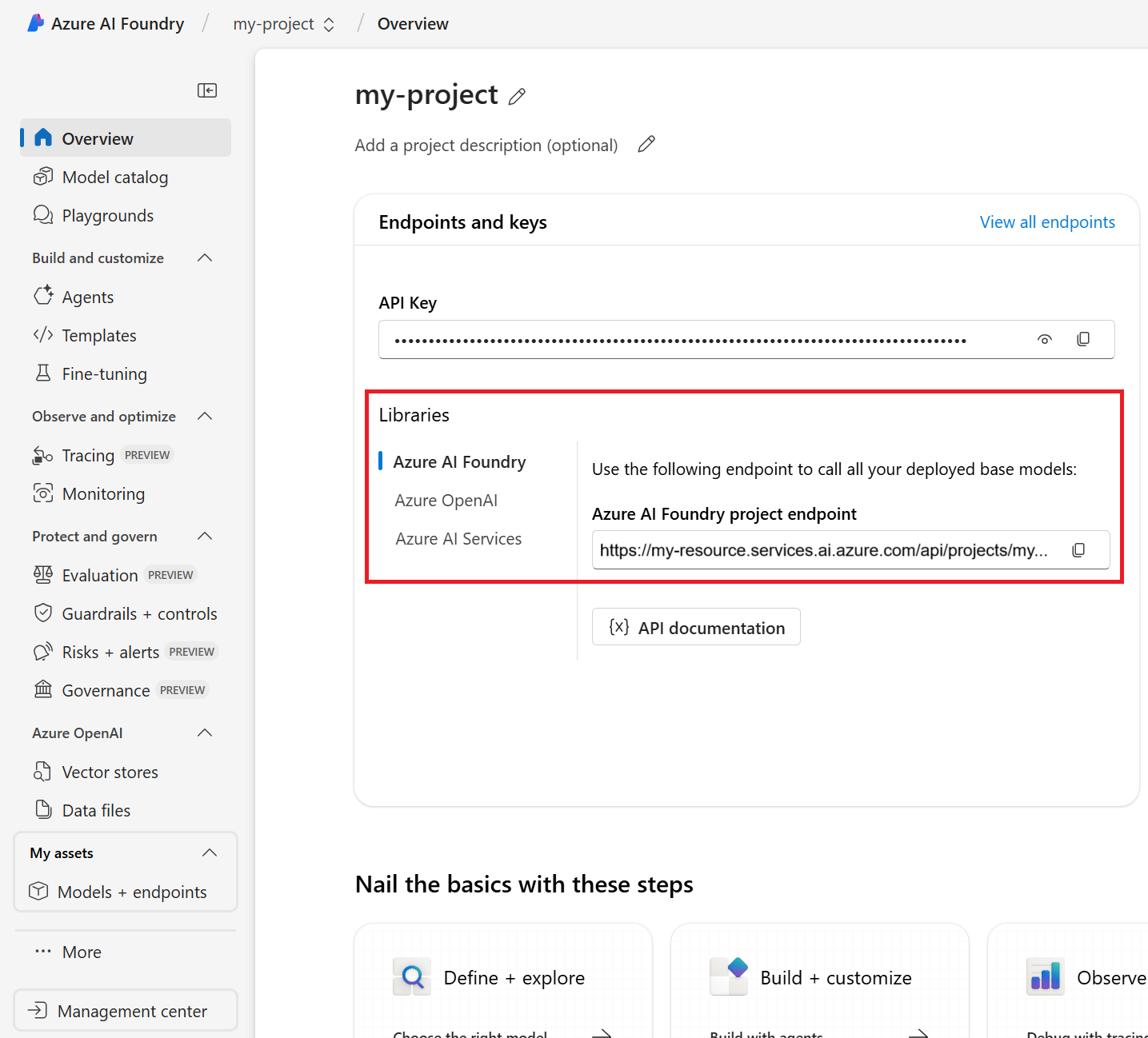
Save this endpoint to an environment variable named
PROJECT_ENDPOINT.The name of your Microsoft Fabric connection name. You can find it in the Foundry portal by selecting Management center from the left navigation menu. Then select Connected resources.

Save this endpoint to an environment variable named
FABRIC_CONNECTION_ID.The names of your model's deployment name. You can find it in Models + Endpoints in the left navigation menu.

Save the name of your model deployment name as an environment variable named
MODEL_DEPLOYMENT_NAME.


Setup
Note
- The model you select in Foundry Agent setup is only used for agent orchestration and response generation. It doesn't affect which model Fabric data agent uses for NL2SQL operation.
- To help your model invoke your Microsoft Fabric tool in the expected way, make sure you update agent instructions with descriptions of your Fabric data agent and what data it can access. An example is "for customer and product sales related data, please use the Fabric tool". Use a smaller AI model such as
gpt-4o-mini. You can also use thetool_choiceparameter in SDK or API to force Fabric tool to be invoked at each run.
Create a Foundry Agent by following the steps in the quickstart.
Create and publish a Fabric data agent.
Note
- Make sure you publish the data agent in Fabric.
Add the Microsoft Fabric tool to an agent programmatically by using the code examples listed at the top of this article, or by using the Foundry portal. To use the portal:
Go to the Agents screen for your agent in Foundry. Scroll down the Setup pane on the right to knowledge. Then select Add.

Select Microsoft Fabric and follow the prompts to add the tool. You can add only one per agent.
Select to add new connections. After you add a connection, you can directly select from the existing list.
To create a new connection, you need to find
workspace-idandartifact-idin your published Fabric data agent endpoint. Your Fabric data agent endpoint looks likehttps://<environment>.fabric.microsoft.com/groups/<workspace_id>/aiskills/<artifact-id>.Add both values to your connection. Make sure you check
is secretfor both of them.


Create a project client
Create a client object that holds the connection string for connecting to your AI project and other resources.
import os
from azure.ai.projects import AIProjectClient
from azure.identity import DefaultAzureCredential
from azure.ai.agents.models import FabricTool, ListSortOrder

# Retrieve the endpoint and credentials
project_endpoint = os.environ["PROJECT_ENDPOINT"]  # Ensure the PROJECT_ENDPOINT environment variable is set

# Initialize the AIProjectClient
project_client = AIProjectClient(
    endpoint=project_endpoint,
    credential=DefaultAzureCredential(),
)
Create an agent with the Microsoft Fabric tool enabled
To make the Microsoft Fabric tool available to your agent, use a connection to initialize the tool and attach it to the agent. You can find your connection in the connected resources section of your project in the Foundry portal.
# The Fabric connection id can be found in the Foundry project as a property of the Fabric tool
# Your connection id is in the format /subscriptions/<your-subscription-id>/resourceGroups/<your-resource-group>/providers/Microsoft.MachineLearningServices/workspaces/<your-project-name>/connections/<your-fabric-connection-name>

# Retrieve the Fabric connection ID from environment variables
conn_id = os.environ["FABRIC_CONNECTION_ID"]  # Ensure the FABRIC_CONNECTION_ID environment variable is set

# Initialize the FabricTool with the connection ID
fabric = FabricTool(connection_id=conn_id)

# Create an agent with the Fabric tool
# Create an Agent with the Fabric tool and process an Agent run
with project_client:
    agents_client = project_client.agents
    agent = agents_client.create_agent(
        model=os.environ["MODEL_DEPLOYMENT_NAME"],
        name="my-agent",
        instructions="You are a helpful agent",
        tools=fabric.definitions,
    )
    print(f"Created Agent, ID: {agent.id}")
Create a thread
# Create a thread for communication
thread = project_client.agents.threads.create()
print(f"Created thread, ID: {thread.id}")

# Create a message in the thread
message = project_client.agents.messages.create(
    thread_id=thread.id,
    role="user",  # Role of the message sender
    content="What insights can you provide from the Fabric resource?",  # Message content
)
print(f"Created message, ID: {message['id']}")
Create a run and check the output
# Create and process an Agent run in thread with tools
run = agents_client.runs.create_and_process(thread_id=thread.id, agent_id=agent.id)
print(f"Run finished with status: {run.status}")

if run.status == "failed":
    print(f"Run failed: {run.last_error}")

# Uncomment the following lines to delete the agent when done
#agents_client.delete_agent(agent.id)
#print("Deleted agent")

# Fetch and log all messages
messages = agents_client.messages.list(thread_id=thread.id, order=ListSortOrder.ASCENDING)
for msg in messages:
    if msg.text_messages:
        last_text = msg.text_messages[-1]
        print(f"{msg.role}: {last_text.text.value}")
Follow the REST API Quickstart to set the right values for the environment variables AGENT_TOKEN, AZURE_AI_FOUNDRY_PROJECT_ENDPOINT, and API_VERSION. For API_VERSION, make sure you use 2025-05-15-preview.
Important
The following samples apply if you use Foundry Project resource with Microsoft Fabric tool through REST API call.
Your connection ID should be in this format: /subscriptions/<sub-id>/resourceGroups/<your-rg-name>/providers/Microsoft.CognitiveServices/accounts/<your-ai-services-name>/projects/<your-project-name>/connections/<your-fabric-connection-name>.
Create an agent with the Microsoft Fabric tool enabled
curl --request POST \
  --url $AZURE_AI_FOUNDRY_PROJECT_ENDPOINT/assistants?api-version=$API_VERSION \
  -H "Authorization: Bearer $AGENT_TOKEN" \
  -H "Content-Type: application/json" \
  -d '{
        "instructions": "You are a helpful agent.",
        "name": "my-agent",
        "model": "gpt-4o",
        "tools": [
          {
            "type": "fabric_dataagent",
            "fabric_dataagent": {
                "connections": [
                    {
                        "connection_id": "/subscriptions/<sub-id>/resourceGroups/<your-rg-name>/providers/Microsoft.CognitiveServices/accounts/<your-ai-services-name>/projects/<your-project-name>/connections/<your-fabric-connection-name>"
                    }
                ]
            }
          }
        ]
      }'
Create a thread
Create a thread
curl --request POST \
  --url $AZURE_AI_FOUNDRY_PROJECT_ENDPOINT/threads?api-version=$API_VERSION \
  -H "Authorization: Bearer $AGENT_TOKEN" \
  -H "Content-Type: application/json" \
  -d ''
Add a user question to the thread
curl --request POST \
  --url $AZURE_AI_FOUNDRY_PROJECT_ENDPOINT/threads/thread_abc123/messages?api-version=$API_VERSION \
  -H "Authorization: Bearer $AGENT_TOKEN" \
  -H "Content-Type: application/json" \
  -d '{
      "role": "user",
      "content": "<question related to your data>"
    }'
Create a run and check the output
Run the thread
curl --request POST \
  --url $AZURE_AI_FOUNDRY_PROJECT_ENDPOINT/threads/thread_abc123/runs?api-version=$API_VERSION \
  -H "Authorization: Bearer $AGENT_TOKEN" \
  -H "Content-Type: application/json" \
  -d '{
    "assistant_id": "asst_abc123",
  }'
Retrieve the status of the run
curl --request GET \
  --url $AZURE_AI_FOUNDRY_PROJECT_ENDPOINT/threads/thread_abc123/runs/run_abc123?api-version=$API_VERSION \
  -H "Authorization: Bearer $AGENT_TOKEN"
Retrieve the agent response
curl --request GET \
  --url $AZURE_AI_FOUNDRY_PROJECT_ENDPOINT/threads/thread_abc123/messages?api-version=$API_VERSION \
  -H "Authorization: Bearer $AGENT_TOKEN"