Note
Access to this page requires authorization. You can try signing in or changing directories.
Access to this page requires authorization. You can try changing directories.
Azure DevOps Services | Azure DevOps Server | Azure DevOps Server 2022
When multiple testers execute test cases, some testers might complete their assigned tests while others still have remaining tests to execute. You can view the distribution of test point outcomes across testers to determine how to load-balance tests. The generated report is similar to the following image.

Note
The sample queries in this article require v3.0-preview or later of the Analytics OData feed. Share your feedback.
| Category | Requirements |
|---|---|
| Access levels | - Project member. - At least Basic access. |
| Permissions | By default, project members have permission to query Analytics and create views. For more information about other prerequisites regarding service and feature enablement and general data tracking activities, see Permissions and prerequisites to access Analytics. |
Note
This article assumes you read Overview of sample reports using OData queries and have a basic understanding of Power BI.
For the report to generate useful data, the team must carry out the following activities to manage test plans:
Define test plans, test suites, and test cases. Specify their state. For a test suite to run, it must be in the In Progress state. For a test case to run, it must be in the Ready state. For details, see Create test plans and test suites and Create manual test cases.
Assign test cases to specific testers.
Run manual tests and verify the results. Mark the results of each validation step in the test case as passed or failed. For details, see Run manual tests.
Note
Testers must mark a test step with a status if it's a validation test step. The overall result for a test reflects the status of all the test steps that were marked. Therefore, the test has a status of failed if any test step is marked as failed or not marked.
Sample queries
Use the following queries for the TestPoints entity set to create different but similar test plan progress reports.
Note
To find available properties for filtering or reporting, see the Metadata reference for Test Plans Analytics. You can filter queries or return properties by using any Property value defined under an EntityType, or any NavigationPropertyBinding Path value listed for an EntitySet. Each EntitySet maps to an EntityType, which documents the data type for each property.
Copy and paste the following Power BI query directly into the Get Data > Blank Query window. For more information, see Overview of sample reports using OData queries.
let
    Source = OData.Feed ("https://analytics.dev.azure.com/{organization}/{project}/_odata/v3.0-preview/TestPoints?"
        &"$apply=filter((TestSuite/TestPlanTitle eq '{testPlanTitle}'))"
        &"/groupby((Tester/UserName, LastResultOutcome),"
             &"aggregate($count as Count)"
        &")", null, [Implementation="2.0"])
in
    Source
Substitution strings and query breakdown
Replace the following strings with your values. Don't include the braces {} in your substitution. For example, if your organization name is "Fabrikam", replace {organization} with Fabrikam, not {Fabrikam}.
{organization}- Your organization name.{project}- Your team project name. To create a cross-project query, omit/{project}.{testPlanTitle}- Title of the test plan whose data you want to return.
Query breakdown
The following table describes each part of the query.
Query part
Description
filter((TestSuite/TestPlanTitle eq '{testPlanTitle}'))
Returns data for only the selected test plan. To include multiple plans, add a clause like filter((TestSuite/TestPlanTitle eq '{testPlanTitle1}' or TestSuite/TestPlanTitle eq '{testPlanTitle2}')). You can also apply other filters related to test suites and test configurations.
/groupby((Tester/UserName, LastResultOutcome),
Groups the points by tester user names and their outcome.
/aggregate($count as Count)
Aggregates data across the filtered test points with count as Count.
(Optional) Rename query
You can rename the default query label, Query1, to something more meaningful. Enter a new name from the Query Settings pane.

Expand the Tester column
Expand
Tester.Select the expand button.

Select the fields to flatten.

The table now contains the entity field of
Tester.UserName.
(Optional) Right-click a column header and select Rename.

Change the data type of select columns
From the Power Query Editor, select the columns that contain numbers, such as Blocked, Failed, and NotApplicable. Select Data Type from the Transform menu, and then choose Whole Number. For more information about changing the data type, see Transform Analytics data to generate Power BI reports, Transform a column data type.
Close the query and apply your changes
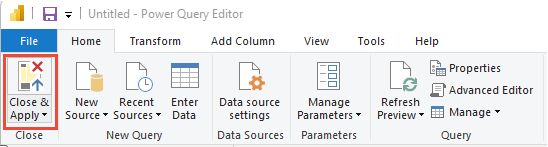
When you finish all your data transformations, select Close & Apply from the Home menu. This action saves the query and returns you to the Report tab in Power BI.
Create the Matrix report
- In Power BI, under Visualizations, select Matrix.
- Add
Tester.UserNameto Rows. - Add
LastResultOutcometo Columns. - Add
Countto Values, right-click the field, and select Sum.
Your report should look similar to the following image.