Note
Access to this page requires authorization. You can try signing in or changing directories.
Access to this page requires authorization. You can try changing directories.
Azure DevOps Services | Azure DevOps Server | Azure DevOps Server 2022
Use the queries in this article to create lead time and cycle charts. Lead time and cycle time show how long it takes for work to move through a team's development pipeline. Lead time measures the total time from the creation of work items to their completion. Cycle time measures the time it takes for a team to complete work items once they start actively working on them.
The following image shows an example for average lead time broken down by priority assignments made to the user stories.

For more information about lead and cycle time, see Lead Time and Cycle Time widgets and Cumulative flow, lead time, and cycle time guidance.
Note
This article assumes you read Overview of sample reports using OData queries and have a basic understanding of Power BI.
| Category | Requirements |
|---|---|
| Access levels | - Project member. - At least Basic access. |
| Permissions | By default, project members have permission to query Analytics and create views. For more information about other prerequisites regarding service and feature enablement and general data tracking activities, see Permissions and prerequisites to access Analytics. |
Sample queries
The queries in this section return lead and cycle time data for completed user stories. You can query by area path or team names. All of these queries specify the WorkItems entity set as they return data calculated for each work item by the Analytics service.
Note
To find available properties for filtering or reporting, see the Metadata reference for Azure Boards. You can filter queries or return properties by using any Property value defined under an EntityType, or any NavigationPropertyBinding Path value listed for an EntitySet. Each EntitySet maps to an EntityType, which documents the data type for each property.
Return lead time and cycle time for user stories and area path
Copy and paste the following Power BI query directly into the Get Data > Blank Query window. For more information, see Overview of sample reports using OData queries.
let
   Source = OData.Feed ("https://analytics.dev.azure.com/{organization}/{project}/_odata/v3.0-preview/WorkItems?"
        &"$filter=WorkItemType eq 'User Story' "
            &"and StateCategory eq 'Completed' "
            &"and CompletedDate ge {startdate} "
            &"and startswith(Area/AreaPath,'{areapath}') "
        &"&$select=WorkItemId,Title,WorkItemType,State,Priority,AreaSK "
            &",CycleTimeDays,LeadTimeDays,CompletedDateSK "
        &"&$expand=AssignedTo($select=UserName),Iteration($select=IterationPath),Area($select=AreaPath) "
    ,null, [Implementation="2.0",OmitValues = ODataOmitValues.Nulls,ODataVersion = 4])
in
    Source
Substitution strings and query breakdown
Replace the following strings with your values. Don't include the braces {} in your substitution. For example, if your organization name is "Fabrikam", replace {organization} with Fabrikam, not {Fabrikam}.
{organization}- Your organization name.{project}- Your team project name. To create a cross-project query, omit/{project}.{areapath}- Your Area Path. Example format:Project\Level1\Level2.{startdate}- Start your report for items completed on or after a given date with the format:YYYY-MM-DDZ. For example,2022-04-01Zrepresents 2022-April-01. Don't enclose in quotes.
Query breakdown
The following table describes each part of the query.
Query part
Description
$filter=WorkItemType eq 'User Story'
Returns data for User Stories.
and StateCategory eq 'Completed'
Returns only completed items. The system calculates values for Lead Time Days and Cycle Time Days only for work items that are completed.
Note
If you look at the raw data of records, you might see entries where CycleTimeDays=0. This value occurs when the User Story or work item enters an In Progress workflow category state and Completed on the same day. For more information on workflow state categories, see How workflow states and state categories are used in Backlogs and Boards.
and CompletedDate ge {startdate}
Returns items that are completed after the specified date. Example: 2022-04-01Z represents 2022-April-01.
and startswith(Area/AreaPath,'{areapath}')
Returns work items under a specific Area Path that you specify in '{areapath}'. To filter by team name, use the filter statement Teams/any(x:x/TeamName eq '{teamname}').
&$select=WorkItemId, Title, WorkItemType, State, Priority
Select properties to return.
, CycleTimeDays, LeadTimeDays, CompletedDateSK
Return the properties that support Lead Time Days, Cycle Time Days, and CompletedDateSK. CompletedDateSK returns a date value as an integer.
&$expand=AssignedTo($select=UserName), Iteration($select=IterationPath), Area($select=AreaPath)
Expand the properties for AssignedTo, Iteration, and Area entities and select entity fields for them.
Return lead time and cycle time for user stories and teams
This query is the same as the one provided in the previous section, except it filters by several team names rather than area paths.
Copy and paste the following Power BI query directly into the Get Data > Blank Query window. For more information, see Overview of sample reports using OData queries.
let
   Source = OData.Feed ("https://analytics.dev.azure.com/{organization}/{project}/_odata/v3.0-preview/WorkItems?"
        &"$filter=WorkItemType eq 'User Story' "
            &"and StateCategory eq 'Completed' "
            &"and CompletedDate ge {startdate} "
            &"and (Teams/any(x:x/TeamName eq '{teamname}') or Teams/any(x:x/TeamName eq '{teamname}') or Teams/any(x:x/TeamName eq '{teamname}')) "
        &"&$select=WorkItemId,Title,WorkItemType,State,Priority,AreaSK "
            &",CycleTimeDays,LeadTimeDays,CompletedDateSK "
        &"&$expand=AssignedTo($select=UserName),Iteration($select=IterationPath),Area($select=AreaPath) "
    ,null, [Implementation="2.0",OmitValues = ODataOmitValues.Nulls,ODataVersion = 4])
in
    Source
(Optional) Rename query
You can rename the default query label, Query1, to something more meaningful. Enter a new name from the Query Settings pane.

Transform data in Power Query Editor
From the Power Query Editor, select the query with the data you want to transform. For a Lead/Cycle time chart, make the following transformations:
- Expand columns such as
Area,Iteration, andAssignedTo. - Change the data type for the
LeadTimeDaysandCycleTimeDayscolumns to a whole number. - Change the data type for the
CompletedDateSKcolumn from an integer to a date value.
To learn how, see the following sections in Transform Analytics data to generate Power BI reports:
- Expand columns.
- Transform the LeadTimeDays and CycleTimeDays columns to whole Numbers.
- Transform a column data type.
Close the query and apply your changes
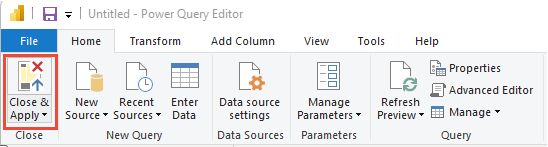
When you finish all your data transformations, select Close & Apply from the Home menu. This action saves the query and returns you to the Report tab in Power BI.
Create the trend chart
In the following example, you rename the query to LeadCycleTime but don't rename any columns.
In Power BI, under Visualizations, select the Line chart report.

Add
CompletedDateSKto the X-axis.Add
LeadTimeDaysto the Y-axis, right-click, and select Average.Add
Priorityto Legend.
The example report displays. As you hover over any area in the report, you see more data.