Note
Access to this page requires authorization. You can try signing in or changing directories.
Access to this page requires authorization. You can try changing directories.
Applies to:  SQL Server on Azure VM
SQL Server offers multiple encryption features, such as transparent data encryption (TDE), column level encryption (CLE), and backup encryption. These encryption methods require you to manage and store the cryptographic keys you use for encryption. The Azure Key Vault service improves the security and management of these keys by storing them in a secure and highly available location. The SQL Server Connector enables SQL Server to use these keys from Azure Key Vault and Azure Key Vault Managed Hardware Security Module (HSM).
If you're running SQL Server on-premises, follow the steps in access Azure Key Vault from your on-premises SQL Server instance. The same steps apply for SQL Server on Azure VMs, but you can save time by using the Azure Key Vault Integration feature.
Note
For SQL Server 2017 and earlier versions Azure Key Vault integration is only available for the Enterprise, Developer, and Evaluation Editions of SQL Server. SQL Server 2019 introduced support for the Standard edition.
All TDE Extensible Key Management (EKM) with Azure Key Vault setup operations must be performed by the administrator of the SQL Server computer, and Transact-SQL (T-SQL) commands done by the sysadmin. For more information on setting up TDE EKM with Azure Key Vault, see Set up SQL Server TDE Extensible Key Management by using Azure Key Vault.
When you enable this feature, it automatically installs the SQL Server Connector, configures the EKM provider to access Azure Key Vault, and creates the credential to access your vault. If you look at the steps in the previously mentioned on-premises documentation, you see that this feature automates steps 3, 4, and 5 (up to 5.4 to create the credential). Make sure that you create the service principal (step 1) and create the key vault (step 2) with the proper permissions given to the service principal. Refer to the Azure role-based access control and Vault access policy sections on which permissions to use.
From there, the entire setup of your SQL Server VM is automated. When this feature completes the setup, you can execute Transact-SQL (T-SQL) statements to begin encrypting your databases or backups as you normally would.
Note
You can also configure Key Vault integration by using a template. For more information, see Azure quickstart template for Azure Key Vault integration.
SQL Server Connector version 1.0.5.0 is installed on the SQL Server VM through the SQL infrastructure as a service (IaaS) extension. Upgrading the SQL IaaS Agent extension doesn't update the provider version. Consider manually upgrading the SQL Server Connector version if you have an older version installed (for example, when using an Azure Key Vault Managed HSM, which needs at least version 15.0.2000.440). You can check the SQL Server Connector version with the following T-SQL query:
SELECT name, version from sys.cryptographic_providers
Enable and configure Key Vault integration
You can enable Key Vault integration during provisioning or configure it for existing VMs.
New VMs
If you're provisioning a new SQL virtual machine by using Resource Manager, the Azure portal provides a way to enable Azure Key Vault integration.
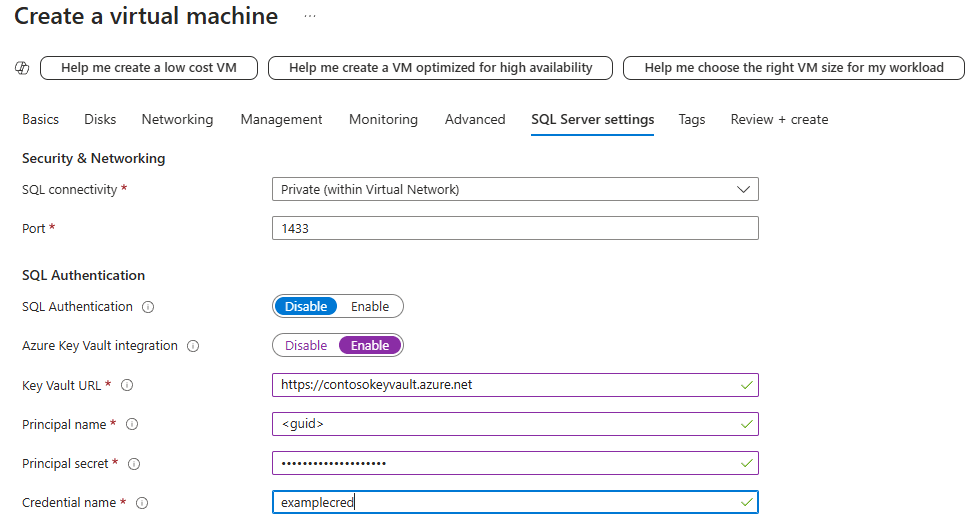
For a detailed walkthrough of provisioning, see Provision SQL Server on Azure VM (Azure portal). You can view the parameters list and its description in Azure Key Vault integration.
Existing VMs
For existing SQL virtual machines, open your SQL virtual machines resource. Under Security, select Security Configuration. Select Enable to enable Azure Key Vault integration.
The following screenshot shows how to enable Azure Key Vault in the portal for an existing SQL Server on Azure VM:

When you finish, select Apply at the bottom of the Security page to save your changes.
Note
The credential name later maps to a login. This mapping grants the login access to the key vault. The manual step of creating a credential is discussed in step 5.4 of Set up SQL Server TDE Extensible Key Management by using Azure Key Vault, but you need to use ALTER LOGIN and add the credential to the login you created.
ALTER LOGIN [login_name] ADD CREDENTIAL [credential_name];
Continue with step 5.5 from Set up SQL Server TDE Extensible Key Management by using Azure Key Vault to complete the EKM setup.