Bemærk
Adgang til denne side kræver godkendelse. Du kan prøve at logge på eller ændre mapper.
Adgang til denne side kræver godkendelse. Du kan prøve at ændre mapper.
Azure DevOps Services | Azure DevOps Server | Azure DevOps Server 2022
Customize Azure Boards to match your team's processes and portfolio needs. This article describes recommended tasks and considerations for administrators who configure area and iteration structure, work item types (WITs), workflows, and board behavior.
Use this article to decide how your project should be organized before you customize boards, backlogs, and team settings.
If you already know the configuration tasks you want, start with these articles:
Note
Most guidance here applies to both Azure DevOps Services and Azure DevOps Server. Some capabilities, such as Analytics and delivery planning experiences, vary by version or installation. Delivery Plans are built in to Azure DevOps Server 2022 and later and were previously available as a Marketplace extension.
Tip
You can use AI to help with Azure DevOps tasks. See Enable AI assistance with Azure DevOps MCP Server to get started.
Key considerations
Use these questions to shape the configuration you choose.
| Area | Questions to answer |
|---|---|
| Project vs. team structure | How many teams, area path hierarchy, and rollup views do you need? |
| Iterations | What sprint cadence, release grouping, and forecast horizon work best? |
| Work item scheme | Which WITs should teams use (Features, Stories/Issues/PBIs, Tasks, Epics)? |
| Reporting needs | Which fields, rollups, and analytics views must be available? |
| Customizations | How do custom fields, workflows, and WITs affect boards, backlogs, and reports? |
| Permissions and governance | Who can change processes, area/iteration trees, and team settings? |
Document your choices so teams apply them consistently across the project.
Choose work item types and portfolio backlogs
Choose a process (Agile, Basic, Scrum, or CMMI) when you create a project. Each process defines a default set of WITs and portfolio/backlog levels. You can add custom WITs and portfolio backlogs to support your organization.
This diagram shows the Agile process backlog hierarchy:

- Use user stories and tasks to track work.
- Use bugs to track code defects.
- Use epics and features to group work under larger scenarios.
Each team can configure whether to manage bugs at the same level as user story or task work items. Use the Working with bugs setting. For more information about using these work item types, see Agile process.
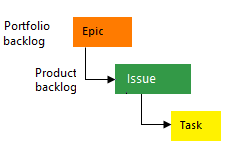


Use custom WITs and portfolio backlogs when you need extra planning layers, such as Objectives and Key Results, or when teams need a rollup level above features.

Compare tracking approaches
Choose the tracking model that best matches how your teams plan and report work.
| Approach | Use when | Tradeoff |
|---|---|---|
| Tasks only | You need simple task tracking with little hierarchy | Limited prioritization and no portfolio planning |
| Requirements with child tasks | Scrum teams estimate work and track it in sprints | More hierarchy to manage |
| Requirements only | Kanban or Scrumban teams don't track time | Less task-level detail |
| Requirements grouped under portfolio WITs | Multiple teams need rollups and cross-team calendar views | Requires more upfront process design |
Explain the model you choose to teams and update process documentation so everyone uses the same pattern.
Set up areas, iterations, and teams
Use area paths to partition work by product, feature, or business area. Use iteration paths for sprints, releases, or milestones.
| Recommendation | Reason |
|---|---|
| Create area path hierarchies that reflect how managers want rollups reported | Enables accurate rollup reporting across organizational levels |
| Give each team a default area and iteration subscription | Work items automatically inherit the correct context |
| Use consistent iteration cadences across teams that deliver together | Simplifies cross-team planning and dependency tracking |

Related content:
Show bugs on boards and backlogs
Each team decides whether bugs appear on the product backlog as requirements or are tracked as tasks tied to requirements. Teams that use Scrum often show bugs on the backlog. Teams that use Agile or CMMI can choose whether bugs appear on backlogs. The Basic process doesn't use the Bug work item type; it uses Issue instead. To change how bugs display for a team, update the team settings:
Keep a consistent team policy so queries, boards, and rollups behave predictably.
Rollup and portfolio views
Add rollup columns to backlogs to show progress bars, counts, or sums for child items. Use Delivery Plans to review cross-team schedules and dependencies. If you use a roadmap-style view such as the Feature Timeline extension, call it out separately in project guidance.

For cross-team planning, use Delivery Plans and any roadmap-style extension your organization has standardized on.
Boards, columns, and workflows
Work item workflow states determine default board columns.
| Action | Scope | Consideration |
|---|---|---|
| Add custom workflow states to WITs | Affects all teams | Changes appear on all team boards using that WIT |
| Add columns to team boards | Affects only that team | Useful for team-specific workflow steps |
| Map state-to-column mappings | Affects reporting | Map carefully to preserve cumulative flow diagram accuracy |
Related content:
Custom fields and reporting
Custom fields let you capture project-specific data. They can power rollups and reports but apply across the process.
| Recommendation | Reason |
|---|---|
| Limit custom fields to ones that support reporting or automation | Reduces clutter and maintenance overhead |
| Use numeric custom fields for rollup sums | Enables progress tracking and capacity planning |
| Use picklists for consistent reporting | Prevents data inconsistencies from free-text entries |
| Remember that process-level fields are shared | Changes affect all projects in the collection or organization |
Note
You can define up to 1,024 fields per process.
Custom WITs and process changes
Adding or modifying work item types (WITs) and workflows affects many tools.
| Change | Where it appears | Action required |
|---|---|---|
| New requirement-level WITs | Product backlogs, possibly sprint backlogs | Configure backlog levels |
| New task-level WITs | Taskboards | Update taskboard settings |
| Custom WITs | Team boards | Update boards and column mappings |
Important
Process-level changes affect all teams. Limit disruptive changes and communicate them in advance.
Permissions and who can change what
Control who can change processes, area and iteration trees, and team configuration.
| Change type | Who can make changes |
|---|---|
| Process-level | Project Collection Administrators or users with process permissions |
| Project-level (areas and iterations) | Project Administrators or users with node permissions |
| Team-level | Team Administrators or Project Administrators |
Related content:
Time tracking and sprint planning
Use the work tracking fields that match your process and team planning model:
| Field | Common use |
|---|---|
| Remaining Work | Track the effort left to finish a task or sprint item. |
| Original Estimate | Capture the initial estimate when your team wants a baseline. |
| Completed Work | Record the effort already spent on a task. |
If you track time for billing or reporting, evaluate Marketplace extensions for richer time-tracking support.
Related content:
Practical checklist for admins
Use the following checklist when you set up or review your Azure Boards configuration.
| Phase | Task |
|---|---|
| Plan | Decide process and work item type strategy (inherit or customize) |
| Plan | Design area and iteration hierarchies |
| Configure | Configure teams and set default area and iteration subscriptions |
| Configure | Create necessary shared query folders and permissions |
| Configure | Add rollup columns and dashboard widgets that executives need |
| Validate | Pilot changes with one team before applying wide-scope updates |
| Communicate | Document changes and update your project wiki |